Unveiling the Mystery: Why Your Android Phone’s Battery Icon Blinks When You Connect a USB-C Cable

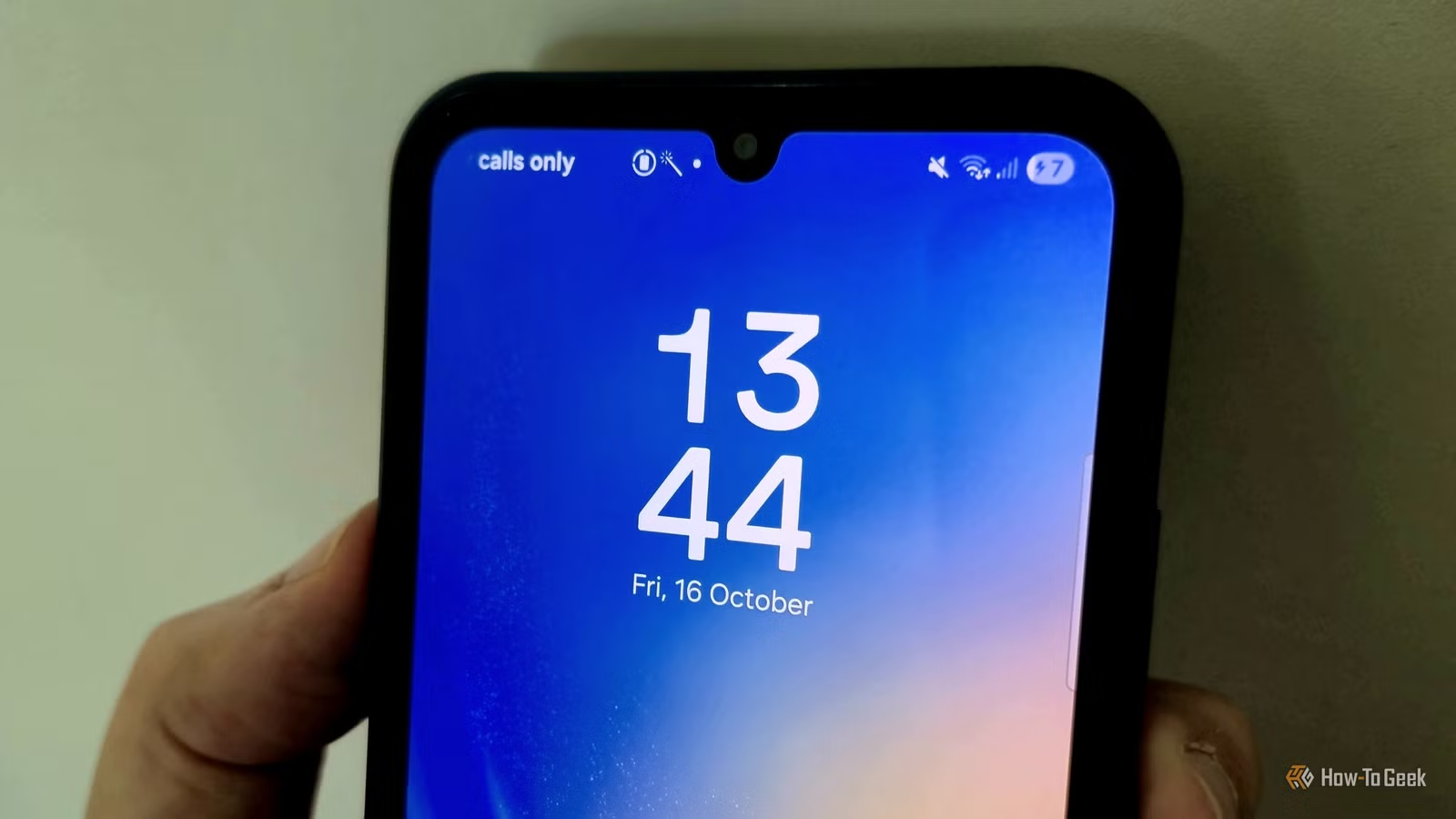
Connecting your smartphone to a charger only to see an unusual indicator on your status bar can be quite frustrating. Typically, you charge your phone when the battery is low or when you need it fully powered for the next day. In these moments, discovering an issue is the last thing you want.
Moreover, the blinking battery symbol that some Android users have encountered is perplexing. While it’s apparent that there’s an issue, the specific reason behind the flashing icon is not commonly understood, making it difficult to find a clear explanation on your device.
A flashing battery icon indicates a charging issue
Many factors could contribute to this problem
Android devices are equipped with numerous icons in the status bar, and most users are familiar with their meanings. However, once in a while, an unfamiliar icon pops up, leaving you puzzled if you’ve never seen it before.
The battery icon on Android devices is generally straightforward, showing the battery’s charge level and sometimes the remaining percentage. Yet, some users have reported an unusual occurrence where the battery icon starts to flash on their screens.
This isn’t common knowledge, but the reason for the flashing is quite clear: it signifies that your Android device is not charging correctly. The issue could stem from something minor or may require replacing a significant component.
Check for simple solutions before you panic
The problem might be easy to fix
Before becoming alarmed, know that you can usually remedy this issue without too much hassle. Start by swapping out your charging cable and adapter. A faulty charger might be the reason your device isn’t charging, so trying a different one could resolve the problem. Additionally, check that your charging port is free of debris. You can gently clean it using a soft brush, toothpick, or compressed air.
If your port requires more thorough cleaning, use high-purity isopropyl alcohol (90% or more). First, power off your device. Clear out any debris with a toothpick, then take a tiny amount of isopropyl alcohol on a cotton swab and gently clean the port. Allow your device to dry for at least 15 minutes before turning it back on, just to be cautious.
Another quick fix is to restart your Android device. Simply hold down the power and volume buttons for 15 to 20 seconds until your phone vibrates and the logo appears. While this reboot won’t necessarily resolve the issue, it’s a simple step to take before delving into more complex repairs.
Your Android could have a hardware issue
More intricate solutions may be necessary
If simple fixes don’t work and your phone continues to show the flashing battery icon, there may be a hardware problem at play. The best course of action in this case is to consult with a qualified technician, whether that be an independent repair shop or the manufacturer.
The most common issue in such scenarios is a damaged charging port. Frequent plugging and unplugging can wear out the port over time, leading to problems. Depending on your phone model, fixing this could range from a simple task to a more challenging one. If you’re tech-savvy and have the right tools, you might be able to handle the repair yourself, but ensure you diagnose the problem correctly as the charging port.
Ultimately, if you’re uncertain, it’s wise to leave your Android device with a reputable repair professional. It might be inconvenient, but sometimes spending a little on expert help is better than risking further damage that could lead to more costly repairs.
A malfunctioning phone charger is a significant concern
In summary, if your Android’s battery indicator is flashing, it clearly signals that your phone is not charging as it should. Unfortunately, the icon doesn’t provide detailed information. The reason for the inadequate charging could be trivial, like dirt accumulation, or something more severe. Regardless, an inability to charge your device is a serious concern that should be addressed promptly.