I No Longer Manually Clean Windows 11 Storage Thanks to This Built-In Feature

Recently, I realized I had been overlooking Storage Sense, a feature in Windows that can help manage storage effectively. Although I often use Disk Cleanup and manually check my computer, I didn’t recognize the specific benefits of Storage Sense. This tool automates routine tasks that I usually handle myself, like cleaning out the Recycle Bin and the cluttered Downloads folder.
With files accumulating quickly, running out of space can degrade system performance. Therefore, let’s explore the benefits of Storage Sense and how to customize it to suit your preferences.
The Cleanup Tool I Wish I Had Discovered Earlier
Storage Sense is a built-in Windows feature that is not activated by default. Available since Windows 10 version 1703, its primary goal is to prevent your system drive from running out of space. It operates on a schedule and offers some customization options.
Here’s a brief overview of its capabilities:
- Clear temporary system and app files
- Empty the Recycle Bin
- Delete files from the Downloads folder
- Set eligible OneDrive files to online-only
You can also establish custom retention settings for each of these categories.
Configuring Storage Sense
Set Your Rules and Let Windows Handle the Rest
What I appreciate about Storage Sense is its simplicity; once configured, it regularly manages cleanup tasks for you. Although it doesn’t do everything, it automates many activities that users would typically do manually.
To get started:
- Open Windows Settings from the Start menu.
- Select the System section.
- Click on Storage and find Storage Sense under the Storage Management section.
- Click it to access the available options.
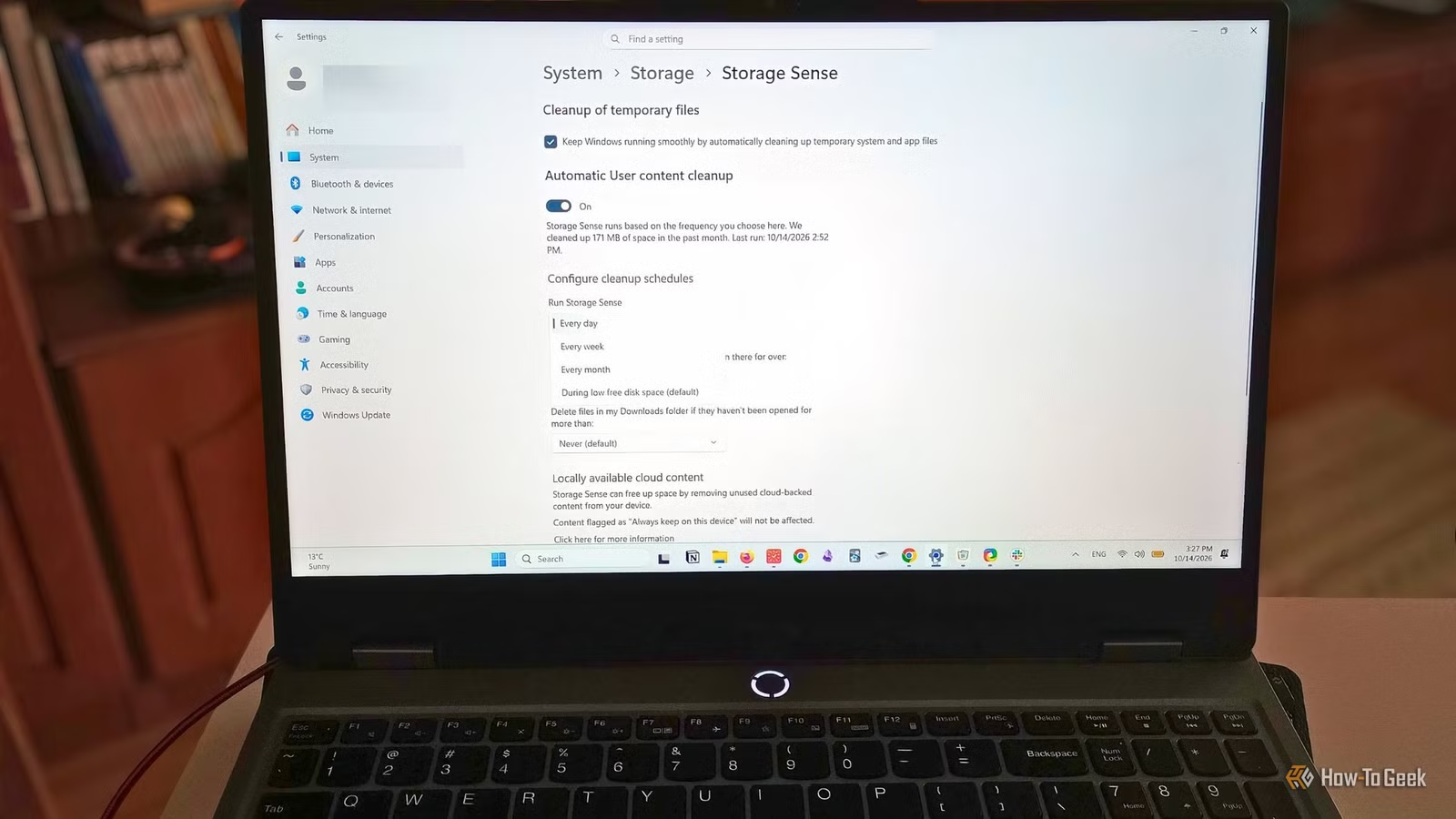
- Enable Storage Sense in the Automatic User Content Cleanup section.
From this point, you can further customize how you want Windows to manage your files.
The option “Run Storage Sense” in the scheduling submenu allows you to decide when the cleanup should occur—either during emergencies, when space is low, or routinely, like every day, week, or month. Below this, you can specify how you want Storage Sense to act during these runs.
For example, if you schedule it to run weekly, but want Recycle Bin items deleted only after 30 days, that’s possible. The tool will only delete files older than the designated time frame on the scheduled date.
Tailor Cleanup Schedules to Your Usage
The combination of settings you choose should reflect how much control you want to give Windows over file deletion.
A safe approach is to run it “During Low Disk Space,” allowing it to clean up temporary files while setting everything else to “Never.” This ensures important files in the Downloads folder remain untouched.

Or, for more frequent cleanup, my current setting lets it run weekly, delete Recycle Bin items every 7 days, and handle Downloads every 30 days, giving me time to review any important files.
You can also configure Storage Sense to turn OneDrive files into online-only status if they haven’t been accessed within a set time frame. To keep certain files on your device, right-click them and choose “Always keep on this device.” As long as your files have synced properly, you don’t have to worry about losing access to them.
Limitations of Storage Sense
It’s Not a Comprehensive Cleanup Solution
Don’t expect Storage Sense to operate as a full cleanup utility for everything on your PC. It’s designed specifically for managing storage on your system drive, usually the C: drive. Its main focus is on maintaining enough space for Windows to function correctly.
It won’t scan other drives, delete app-specific caches, or uninstall unused applications. For a more comprehensive cleanup, consider using it alongside other built-in tools like Disk Cleanup, which works across all drives. The Storage section in Windows Settings also provides a detailed overview of file types and available options for managing space.
By effectively combining Windows storage settings with good habits, you can keep your computer organized and avoid low storage issues with minimal effort.
Always Monitor Your Storage
Don’t Wait Until Your Hard Drive Is Full
Using a drive that is completely full can lead to various issues, especially when Windows needs space for updates or temporary files.
If space runs out, Windows updates may either fail or take longer, leaving your system vulnerable to unaddressed security threats.
A nearly full drive can also slow down performance, resulting in less responsive applications. This is due to Windows requiring disk space for temporary operations and virtual memory; a lack of space can cause tasks to fail.
While there is no official guideline on how much free space to maintain, many recommend keeping at least 10% of your system drive available.
Regular Maintenance Is Key
Storage Sense works optimally when integrated into a broader cleanup strategy. Utilize it alongside Disk Cleanup and other storage features within Windows Settings.
Generally, third-party software is unnecessary for storage upkeep, though tools that allow you to visualize how space is used can be helpful. In summary, Storage Sense is a handy option for automating tasks that tech-savvy users tend to do manually.