Unlocking the Hidden Gems: 5 Samsung-Exclusive Features You’re Overlooking on Your Phone

Samsung’s Galaxy phones are well-known for their extensive range of features, surpassing many other Android manufacturers. However, several of these functionalities often remain unnoticed, leaving many users unaware of their potential benefits. Here’s a look at five One UI features that Galaxy phone owners might be missing out on, but should definitely consider exploring.
Samsung Modes and Routines
Customize automation for your device
This feature, while not entirely obscure, often doesn’t receive the attention it deserves. Modes and Routines enable users to automate various tasks on their devices, potentially saving significant time. For example, you can customize your phone to provide alerts only from certain contacts, or trigger specific apps based on your location or the time of day. This could mean launching music as you leave home or receiving work notifications solely during office hours, enhancing your phone’s functionality in daily life. To explore this feature, navigate to Settings and select Modes and Routines > Routines.
Dual Messenger
Use two separate accounts for messaging apps
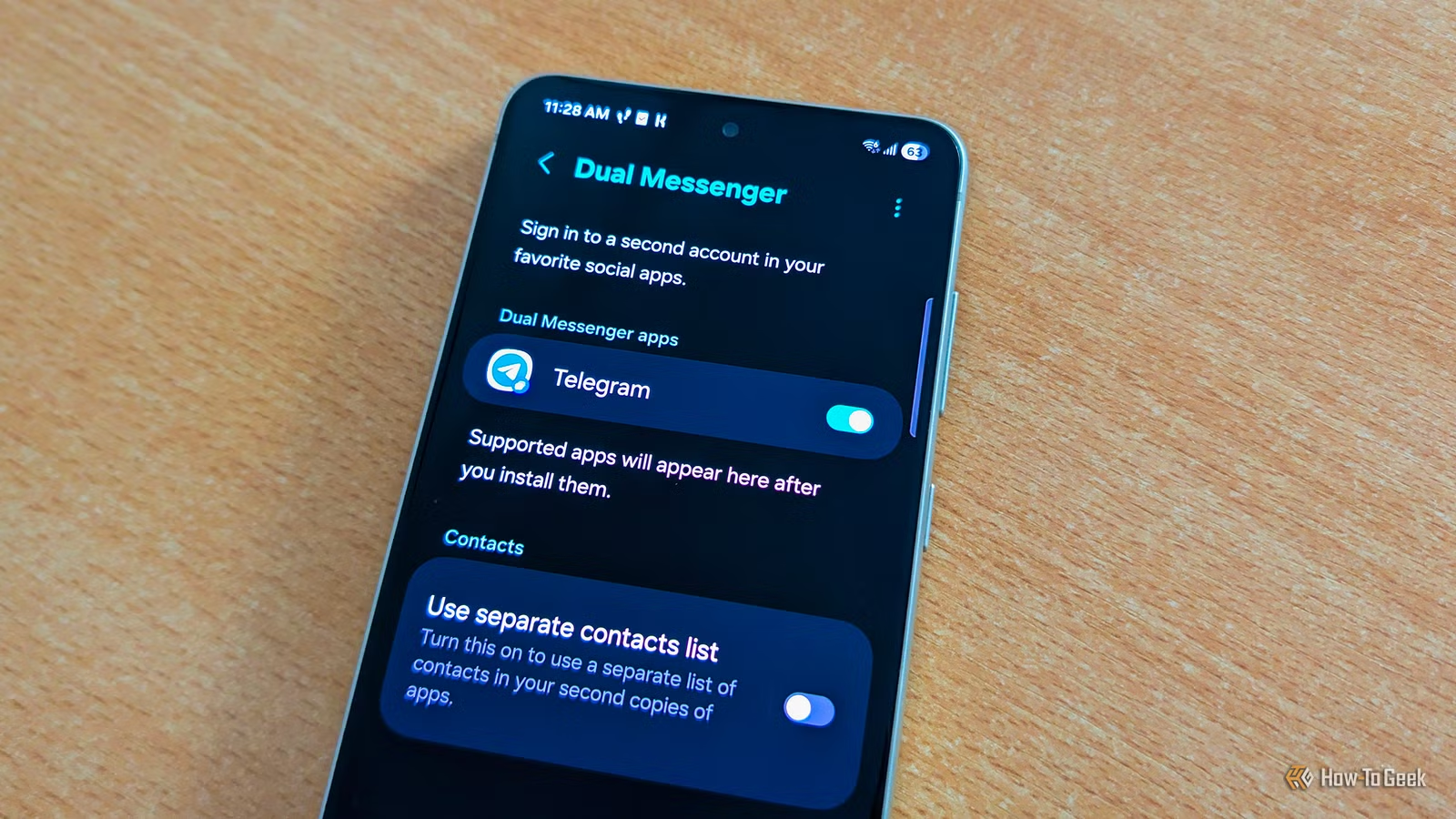
If you’ve ever wished to use two accounts on the same messaging app, Dual Messenger allows you to do just that. This feature enables you to install a second instance of supported chat applications, allowing both copies to operate simultaneously with different contact lists. To set it up, go to Settings, then Advanced Features, and select Dual Messenger. After toggling on the app you’d like to duplicate and completing the installation process, the second version will appear in your app drawer with a distinct blue badge for easy identification.
Separate App Sounds
Stream audio from different apps simultaneously
Separate App Sounds is a unique feature that allows you to listen to two audio sources at once, each through different outputs. For instance, you can enjoy music on your wireless earbuds while letting someone else watch videos on your phone’s speakers. This capability can be incredibly useful in specific scenarios. To activate this feature, head to Settings, choose Sounds and Vibration, and then tap on Separate App Sounds. After turning it on and selecting the desired app and audio output, you’ll be ready to enjoy dual audio experiences.
Secure Folder
Your own private space within your phone
Many Galaxy users overlook the Secure Folder feature, which offers a secure, sandboxed area for apps and sensitive information. This functionality not only allows you to keep your private data safe but also enables you to install applications that operate independently from your main device. Once locked, apps inside won’t run in the background, preserving battery life. You can use Secure Folder as a dedicated workspace, keeping distractions at bay during work hours, or creating a separate set of apps for weekends. To enable it, go to Settings, then Security and Privacy > More Security Settings > Secure Folder. After activation, you can sign in with a different Google or Samsung account specifically for this space.
Audio Eraser
An AI tool that enhances audio quality
The Audio Eraser feature utilizes artificial intelligence to improve the clarity of videos and voice recordings on your phone. It allows you to adjust voice levels and reduce background noise, which can be particularly useful for enhancing spoken audio in noisy recordings. To use Audio Eraser, open a video in the Gallery and tap the AI button to refine the audio. For recordings made with the Voice Recorder app, access the recording and utilize the Audio Eraser option. You can also enable the feature while watching videos on platforms like YouTube by accessing the Quick Settings panel and adjusting the settings as needed.
Discovering Samsung Galaxy features can transform your user experience
With an abundance of features available on Samsung Galaxy phones, many users remain unaware of their capabilities for years. Exploring the settings can uncover functionalities that significantly enhance your experience. For instance, learning about widget stacking was a game-changer for me after I purchased my Galaxy S21 FE, making it a feature I miss on my current phone. Take the time to browse through your device; you might just uncover a hidden gem that becomes essential to your daily usage.