Resolving Google Messages Interruptions in Android Auto: The One Solution That Worked for Me

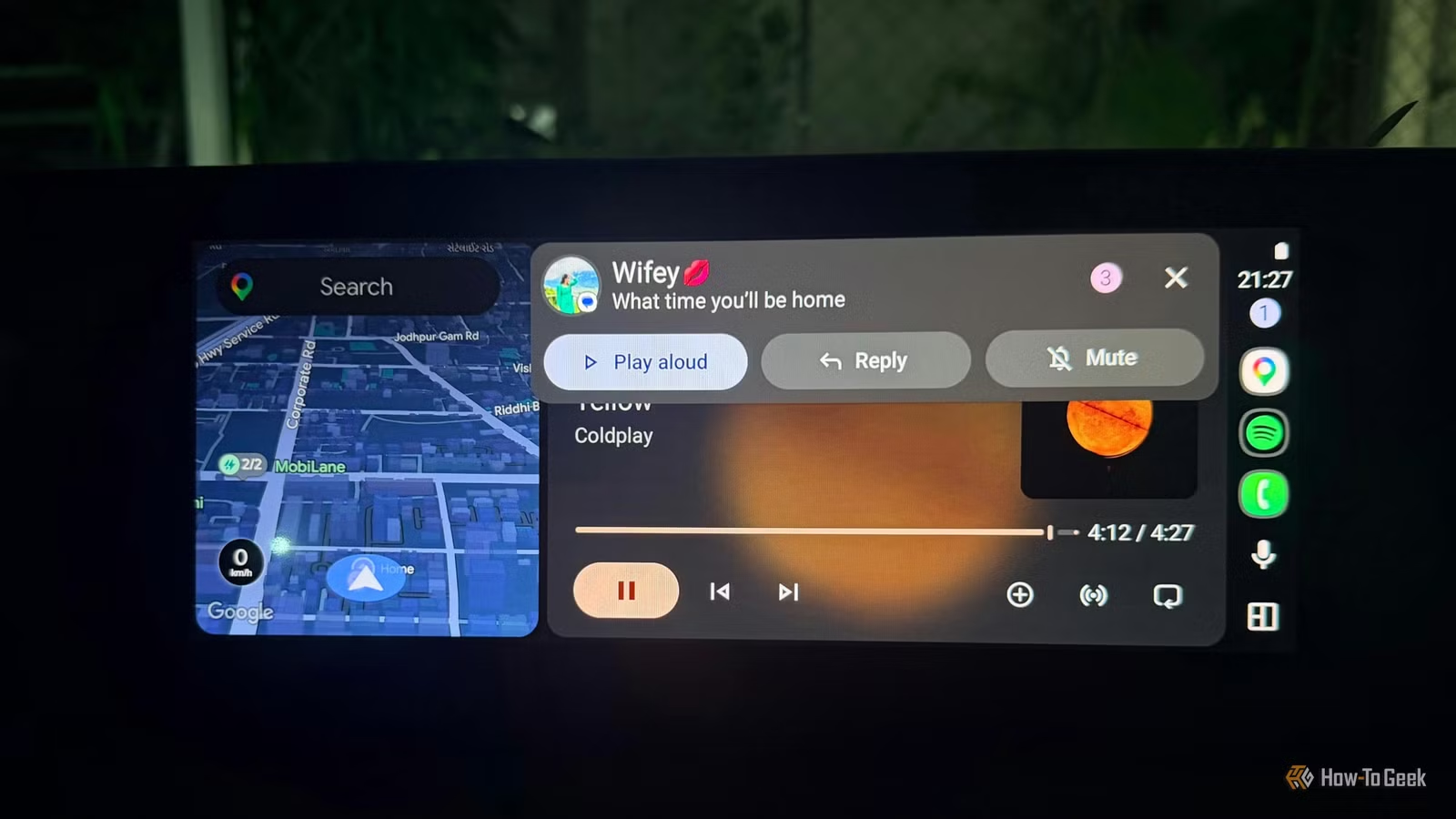
Once I hop into my car, my routine is quite straightforward. I connect to Android Auto, press play, and start my journey. It’s a habit I’ve formed—until Google Messages began interfering with my experience.
With each incoming message, my music would either lower or pause. Initially, I brushed it off, but as it happened frequently, it genuinely began to irritate me. I wasn’t interested in engaging in conversations while driving; I simply wanted to enjoy my tunes.
After trying the standard solutions without success, I eventually stumbled upon a setting that finally made a difference—allowing my music to play uninterrupted by Google Messages.
It All Began with an Irksome Notification
My Music Took a Hit
This disruption usually occurred while I was focused on my drive—Spotify blasting, Google Maps guiding me, and my daughter occupied in the backseat. Then, a message from my husband would cause my music to drop suddenly. One notification was manageable, but when multiple messages came through in quick succession, it became frustrating. Midway through a beloved track, I’d find the volume suddenly reduced due to a text.
There were instances where checking the message wasn’t even on my mind; I just wanted to relish the moment on the road.
What frustrated me further was my desire to still receive messages; I didn’t want to mute Google Messages entirely or prevent Android Auto from showing notifications. The interruption to my music felt unnecessary for each incoming text.
After enduring this annoyance for a while, I resolved to delve into the settings while parked to see if I could finally allow my music to play without interruptions.
I Tried the Obvious Solutions First
None of Them Allowed Me to Enjoy My Music
I started with the settings that appeared to be the root of the issue.
I explored Android Auto’s notification settings, hopeful to find a way to stop Messages from breaking into my music. I also examined Google Messages notification settings, even muting specific conversations, believing this might keep alerts from disrupting my driving experience. However, that only worked on muted chats, which wasn’t ideal. What if I received a time-sensitive message from my mom while chatting was disabled?
I also attempted to reduce the notification volume, but it left me feeling more anxious. The music continued to dip with incoming alerts, indicating I was tackling the wrong issue. I didn’t need more anxiety; I needed my tunes to flow smoothly.
Eventually, I realized that randomly adjusting settings wouldn’t lead to a solution.
An Unexpected Discovery
Ultimately, It Was This
I stumbled upon the key setting by accident. While in Android Auto’s settings to customize my taskbar—something I had been meaning to do—I noticed an option called Play conversation chime. It seemed to be exactly what I needed.
I had already adjusted several notification settings, so I figured I’d risk changing this one.
I disabled the Play conversation chime and decided to test whether this adjustment made any impact. Lo and behold, it worked.
The next time I was driving my daughter to a class, with Spotify playing and Google Maps guiding me, my husband sent a message. For the first time, my music didn’t abruptly lower to accommodate the notification. I could see that a message had arrived, but I didn’t have the annoyance of my music being disrupted with each text.
That moment marked my first feeling of success after random exploration finally yielded results.
I Noticed the Difference on My Following Drives
A Smoother Drive, A Happier Me
The most satisfying aspect of this change was that my usage of Android Auto didn’t have to shift. I also found that I stopped dreading incoming notifications. With the chime turned off, I could focus on driving without my phone distracting me. Even brief trips felt more straightforward, especially when running errands or navigating familiar routes. This small modification eliminated the minor interruptions that had previously tainted my drives.
Sometimes It Pays to Explore
Occasionally, you need to invest some time exploring your phone’s settings. I typically open settings with a specific change in mind, and I likely wouldn’t have discovered this adjustment if I hadn’t been tinkering with my Android Auto options.
You never know when the solution to an annoying problem might be right in front of you.