While there are occasions when it may be necessary to disable Find My, keeping it activated is generally vital for your device’s security.
Apple’s Find My feature is essential for locating lost, stolen, or misplaced Apple devices such as iPhones and iPads. This service leverages a crowdsourced network, where nearby Apple devices communicate via Bluetooth to pinpoint your item’s location, even if the device is turned off. It efficiently relays this information back to you.
Although this tool can be incredibly beneficial, there are specific scenarios in which you might want to turn it off. Particularly, Apple advises disabling Find My when selling, donating, or trading your device, as well as during repairs. Doing so allows technicians to conduct diagnostics without interference from security features. Keep in mind that turning off Find My outside of these situations may expose your device to risks.
Turning Off Find My by Factory Resetting Your Device
If you are parting with your device, one of the simplest methods to disable Find My is to perform a factory reset by navigating to Settings > General > Transfer or Reset iPhone > Erase All Content and Settings. This action prompts you for your Apple Account password to confirm your identity and automatically deactivates Find My as part of the reset process.
It’s important to note that disabling Find My also removes Activation Lock, which binds your Apple Account to the device. With the Activation Lock active, your device cannot be utilized without your Apple Account credentials, even after a factory reset. This feature safeguards your device against being wiped by thieves for resale.
If your device has been lost or stolen, erasing it remotely through Find My or iCloud will not turn off Find My or Activation Lock. Both features continue to provide security and location tracking for your device.
Manually Turning Off Find My

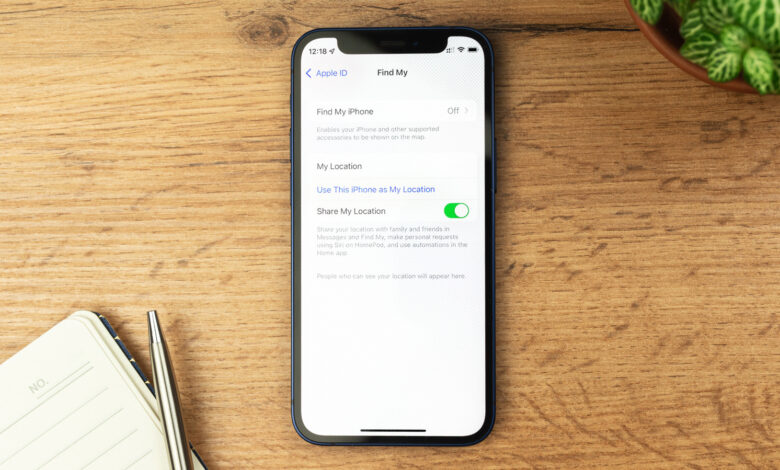
If you are not planning to reset your device, such as when sending it off for repairs, you will need to manually disable Find My. This process is straightforward: go to Settings > [Your Name] > Find My, select Find My iPhone, and toggle it off. Note that this option becomes inaccessible if Stolen Device Protection is activated, which is the default setting from iOS 26.4 onward.
Stolen Device Protection adds further security if your iPhone is away from usual locations, helping to safeguard your data in case of theft. It necessitates Face ID or Touch ID to access sensitive info and delays any changes to critical settings such as your Apple Account password.
To deactivate Find My, first, you must turn off Stolen Device Protection. It’s advisable to do this at home to avoid the security delays. Navigate to Settings > Face ID & Passcode > Stolen Device Protection and toggle it off. After your device has been serviced, you can re-enable these settings using the same navigation.
Additionally, Find My allows you to share your location with friends and family. If you choose to disable it, this sharing will also cease. If your concern is about a specific individual accessing your location, it’s better to stop sharing with them directly. Open the Find My app, click on the People tab, select the person, and choose Stop Sharing My Location. If they are using a modern version of iOS, they won’t receive a notification when you stop sharing, although they may realize you are no longer visible in the app.
Consequences of Turning Off Find My
The most significant consequence of disabling Find My is that you lose the ability to track your device using Apple’s network. If your iPhone is lost with Find My deactivated, you won’t be able to check its location through the Find My app on another Apple device or via the iCloud website.
The functionality of Find My includes a Lost Mode, which lets you display a personalized message, including your contact number, for anyone who locates your device. This feature will no longer be available if you disable Find My, and Activation Lock will not safeguard your phone any longer. Thus, it’s advisable to turn off Find My only when dealing with a trusted repair service and to reactivate it immediately upon receiving your device back.
A critical situation where you should absolutely avoid disabling Find My is when your device has been lost, especially if you receive threatening messages about doing so. Numerous accounts highlight scenarios where stolen phones are linked to intimidation tactics compelling the owners to disable Find My. These threats often target personal data and aim to manipulate feelings.
If you find yourself in this predicament, do not remove the device from your Apple Account. Thanks to Activation Lock, your lost phone becomes useless to anyone attempting to resell it as long as Find My remains active. You can erase your phone for security, but don’t give in to the demands of these criminals.