When it comes to HDMI cables, many people assume all are the same. However, this isn’t true! HDMI has evolved significantly over the years with numerous revisions and enhancements. While this has benefited video and audio technology advancements, it complicates the process of selecting the right cable to ensure optimal picture quality.
Understanding the Risks of Choosing the Wrong HDMI Cable
Your Confusion is Understandable
A key issue is that most HDMI cables appear quite similar. Although manufacturers sometimes alter colors or the cable’s exterior, distinguishing them from one another can be tricky at first glance. The design of the connector remains consistent, allowing cables from a decade ago to connect seamlessly with modern TVs, and the reverse is also true.
This leads to older cables being used in newer systems, which can become problematic. For instance, when I upgraded from a 60Hz 4K television to a 120Hz 4K OLED model, I overlooked the fact that my existing cables couldn’t meet the new TV’s specifications.
Retailers often exacerbate this issue by using ambiguous descriptions like “4K ready” and “high performance.” But what does that mean in terms of actual capability—30Hz for 4K? If you’re fortunate, the cable’s specifications might be printed on the connector or sleeve, but without that, you may find yourself searching for the original packaging to find the necessary details.
Decoding HDMI Versions and Cable Types
Numerical Confusion
Each significant HDMI revision—1.4, 2.0, 2.1—has primarily focused on increasing bandwidth. HDMI 1.4 supported 4K, but only at 30Hz, which is adequate for movies and shows but falls short for gaming. HDMI 2.0 brought 4K at 60Hz and better HDR support. HDMI 2.1 introduced substantial advancements, allowing for 4K at 120Hz, 8K, VRR, ALLM, and enhanced audio features like eARC.
The HDMI community’s naming conventions are not particularly user-friendly:
- High Speed HDMI: Suitable for 1080p and basic 4K at 30Hz
- Premium High Speed HDMI: Supports 4K at 60Hz with HDR
- Ultra High Speed HDMI: Allows for 4K at 120Hz, 8K, VRR, and eARC
- Ultra96 HDMI: Offers bandwidth up to 96Gbps, supporting the full features of HDMI 2.2.
Older terms like “Standard” apply only to 720p or lower-grade 1080p, which are largely obsolete in modern applications. For a comprehensive understanding of these standards, it’s worth checking official HDMI resources.
Signs Your HDMI Cable May Be Underperforming
Identifying Issues
While HDMI cables are backward compatible, older cables might not meet the bandwidth needed for newer devices. This can lead to various performance issues:
- Your display isn’t achieving its maximum resolution or refresh rate, such as seeing “4K 30Hz” on a capable screen.
- Advanced features like VRR or ALLM are unavailable on devices like PS5 or Xbox Series X.
- Audio quality falls below expectations, or eARC isn’t functioning.
- Experiencing flickers, unexpected black screens, or HDMI handshake problems.
If the cables work properly at lower settings but fail at higher ones that your devices support, this likely indicates that they lack the necessary specifications.
Identifying Your HDMI Cable
A guessing game
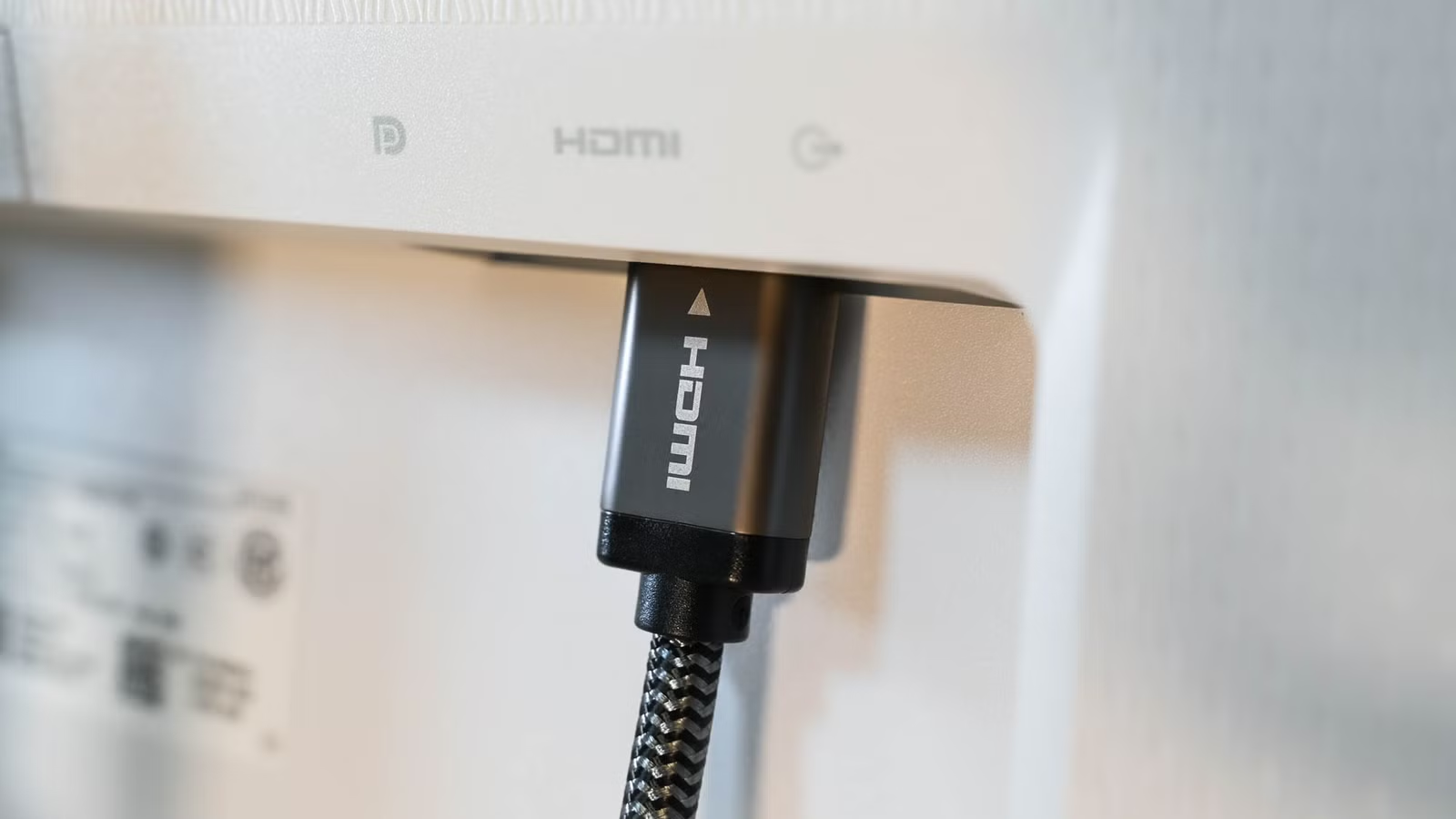
Determining cable specifications can be challenging without plugging it in. Start by examining the cable sleeve or connector for any markings indicating standards like “Ultra High Speed.” If no inscriptions are present, the cable might be outdated compared to current HDMI standards.
Some newer cables have small QR codes that can be scanned for certification verification. If you still have the packaging, that is the easiest way to verify the cable’s specifications.
Considering A New Purchase
If you’re still unsure about the cable’s capabilities, the best approach is to test it before committing to installation. Remember, if your HDMI setup includes intermediary devices, they must also meet the higher specifications, or the HDMI signal will downgrade to the lowest quality in the chain. Once you identify your cables, consider labeling them for future reference.