Many drivers are unaware that they are not utilizing the full potential of Google Maps. Beneath its straightforward exterior lie a range of user-friendly features and gestures that enhance driving safety, reduce stress, and streamline navigation. These intuitive functions are integrated within the app to ensure a more secure and pleasant driving experience.
Once you familiarize yourself with these key controls, you’ll quickly realize how superior Google Maps can be. Instead of viewing it as a basic tool, you’ll discover it can serve as an invaluable ally for every journey.
Swipe to Preview Directions
A Handy Gesture that Often Goes Unnoticed
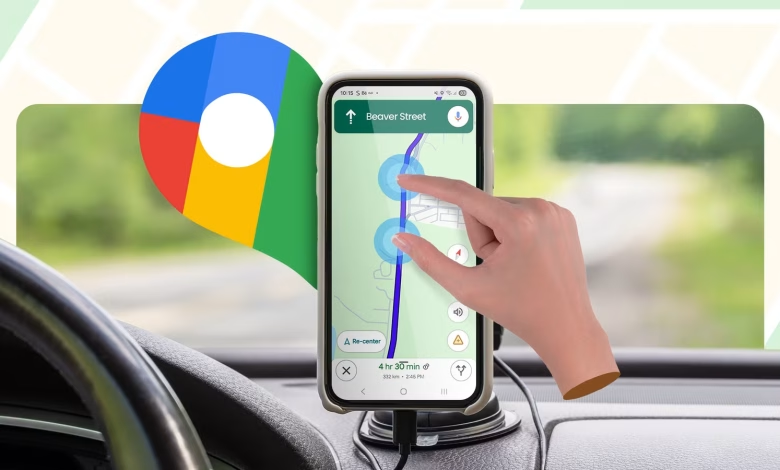
Using Google Maps for navigation, I only discovered last year that you can preview upcoming route details by swiping the Direction Box. This feature is particularly beneficial when navigating complex urban streets or taking an unfamiliar route.
This simple swipe provides a quick overview of your next turns, allowing you to easily confirm directions without laboriously scrolling through the map. It is a time-saving and efficient method that is compatible with both Android Auto and CarPlay, making it accessible on various devices.
Re-center the Map
Improving User Focus on the Road
The Re-center Map function plays a significant role in navigation, as it quickly restores the view to your current location, enhancing driving safety. This feature comes in handy when exploring new or different areas where panning around the map may distract you. One tap on the Re-center button instantly realigns the map with your car’s position.
If you ever encounter an issue with the on-screen button, you can use a voice command, such as “OK Google, Re-center,” for the same effect.
Two-Finger Rotate
Getting a Clearer View of Your Journey
The Two-Finger Rotate is a useful gesture for adjusting the map’s orientation while navigating. By placing two fingers on the screen and twisting, you can change your perspective and view your route from different angles.
This function is particularly helpful for aligning the map with your direction of travel or when exploring, allowing for a clearer understanding of your surroundings.
Add a Stop
Flexibility in Your Route Planning
Adding stops within Google Maps offers convenience and efficiency during travels, especially for those unplanned pit stops for things like gas or food. Whether you tap a location on the map or search for a nearby place, it can be quickly integrated into your existing route without needing to start over.
Report an Accident
Enhancing Road Safety for All Users
The “Report an accident” feature is an essential tool that can significantly enhance road safety by keeping everyone informed about hazards. While navigating, simply tap the Report icon to indicate incidents like crashes, construction, or other disruptions. Your input helps provide real-time insights into road conditions for fellow drivers.
Control Voice Navigation
Choosing When to Listen
The voice navigation feature in Google Maps provides crucial instructions and updates while keeping your hands free for driving. If you find the audio prompts unnecessary, you can quickly adjust the settings to mute or limit notifications only to essential alerts.
Share Trip Progress
Keeping Loved Ones Informed
This feature allows for a shared navigation experience by enabling you to provide your live location and route status to selected contacts. It’s a great safety measure, especially during longer trips when keeping others informed is beneficial.
Download Offline Maps
A Lifesaver for Bad Connectivity
Downloading offline maps is crucial for maintaining navigation reliability, especially in areas with poor cell service. Before heading out, save specific map areas to ensure uninterrupted access to directions and location information, even without a signal.
Change Your Route Instantly
Adapting to Changing Traffic Conditions
Google Maps offers flexibility in your route selection. While navigating, any alternative routes appear in gray, and you can quickly switch to one by tapping it. This allows you to adapt to traffic changes efficiently.
Familiarize Yourself with These Essential Features
At the very least, download your city’s offline map. It’s a feature I recommend highly, as it has saved me countless times during my travels. Remember, Google Maps is more than just a navigation tool; understanding and utilizing its features enhances your driving experience.