For almost 20 years, I’ve exclusively used Android devices, yet I only recently considered developing an app. Thanks to Google’s AI capabilities in Android Studio, it has become easier for anyone to dive into app creation, especially with the introduction of custom widgets.
Starting Small
Widgets Simplified
My initial project was more ambitious than it should have been. I aimed to create a Wear OS watch face, and while I’m genuinely proud of the outcome, it required significant time and effort. It’s often wise to start with simpler tasks.
After successfully creating the watch face using the AI feature in Android Studio, I transitioned to developing a phone application. Instead of a simple app, I aimed high and designed a comprehensive home screen launcher that mimics webOS app previews and includes a keyboard. Achieving a reliable version of this app required extensive troubleshooting.
If you’re eager to start coding an Android app but feel overwhelmed, I recommend beginning with a widget. Every Android widget is fundamentally part of a larger application, but creating a widget alone is straightforward. Widgets meant for exclusive use don’t appear in the app drawer; there’s nothing to launch, which allows you to focus solely on the widget itself.
While my watch face and launcher projects spanned days or even weeks, I managed to create a functional widget in under an hour.
Visualizing Your Idea
Sketching Instead of Scripting
The most advantageous aspect of utilizing the AI agent in Android Studio is the ability to visually communicate your ideas. You can use a detailed graphic designed in software or even a rough sketch captured with your phone. For instance, I created a mock-up of my vision.
Accompanying the image with a text description is beneficial. Here’s how my initial command read:
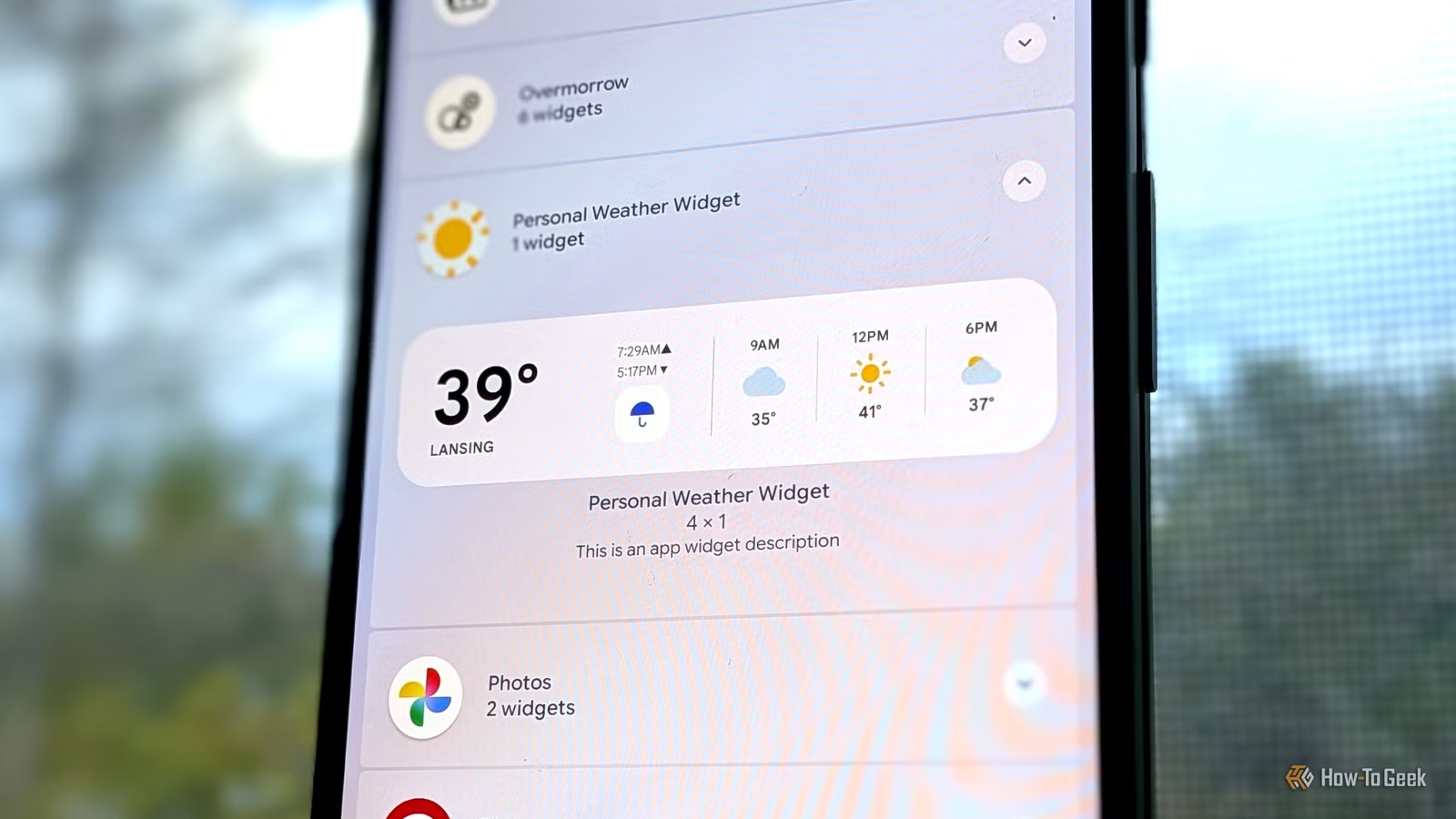
This is a representation of my desired widget. The current temperature is displayed prominently with the label “RIGHT NOW” above it. The city name appears below. Sunrise and sunset times are indicated with up and down arrows, respectively. An umbrella icon is included, fading when it’s not raining, and fully visible when it is. Additionally, upcoming temperatures are displayed with corresponding weather icons at 9 AM, 12 PM, and 6 PM in chronological order.
You might be amazed at the accuracy achieved in the first attempt. In my case, the widget was about 70% complete. It had all the visual components but lacked functionality.
This is where the interaction begins. I simply requested, “I need it to pull weather data.” Within minutes, the AI agent integrated the Open-Meteo API for live weather updates and enabled a refresh feature through tapping the widget.
At that point, I could have finished. The widget was operational after just two commands. However, I wanted to enhance its appearance. The spacing was off, I desired a larger temperature display, the city name was truncated, and the forecast was out of order.
After several more commands, as shown in the progression above, I developed a weather widget that now includes essential information: current temperature, need for an umbrella, sunrise/sunset times, and temperatures at key times of the day when I typically go outside.
Your Unique Creation
It’s remarkable what can be achieved with just a few commands and an AI companion. Android’s recent “Create My Widget” feature simplifies this process for everyone. However, while the results may be impressive, they can also feel generic. By vibe coding a widget, you gain more creative freedom using the same text inputs. Trust me, you can accomplish this!