4 Smart Hacks to Transform Your Galaxy Watch into a Mechanical Timepiece Experience

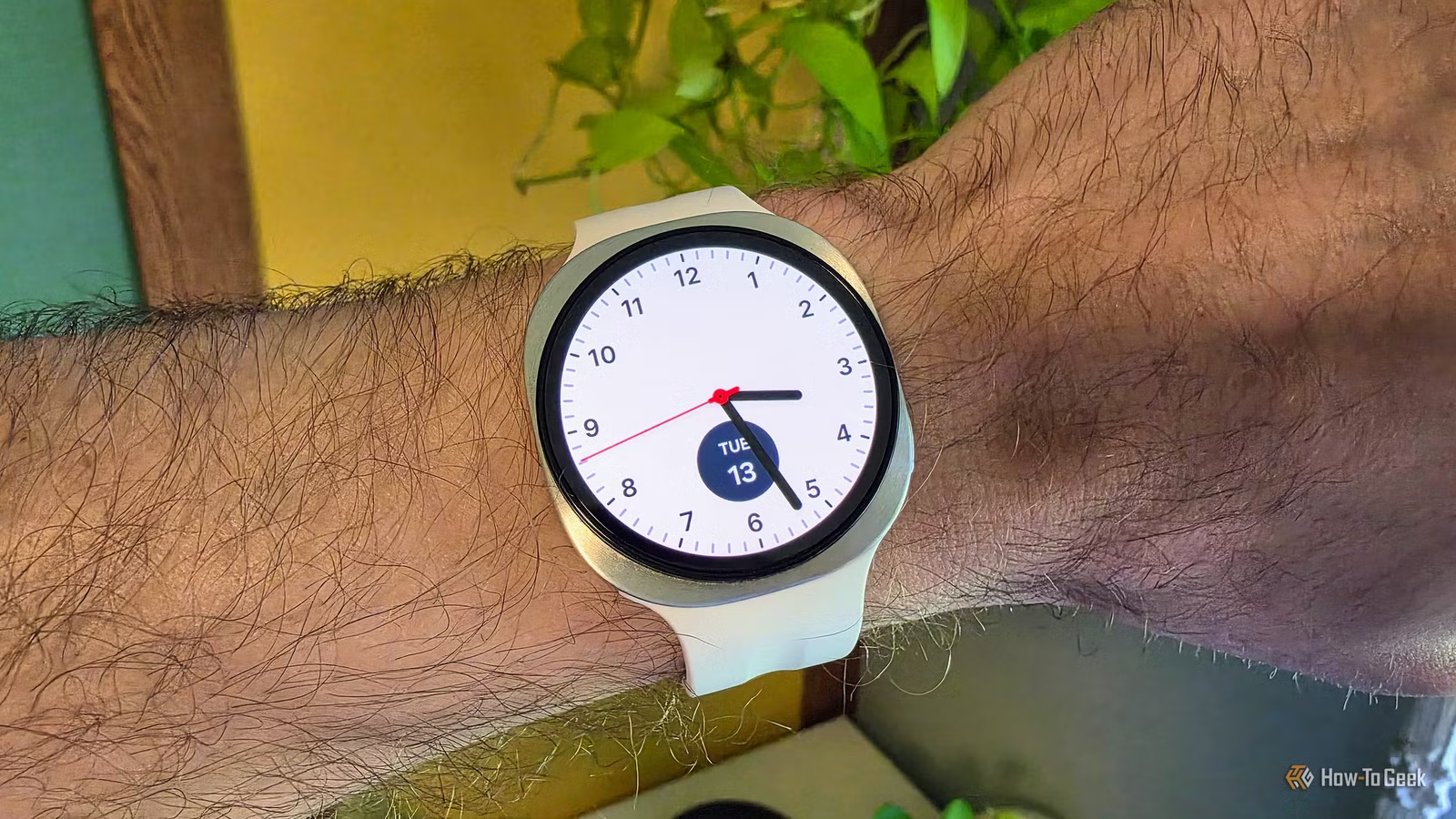
Smartwatches are advanced, but that doesn’t imply traditional watches are inferior. Mechanical watches, for instance, run solely on a tightly wound spring without any batteries. Fortunately, you can give your Galaxy Watch a similar aesthetic with just a few adjustments.
While we can’t alter the internal mechanism of a Galaxy Watch, we can modify some settings and make visual tweaks to evoke the charm of a mechanical watch without sacrificing smart features.
Emulate the Sound of a Traditional Watch
Mimicking Mechanical Sounds
A mechanical watch is filled with intricate components that generate a subtle ticking sound. Although it’s not loud all the time, you can hear it if you bring the watch close to your ear.
Samsung Galaxy Watches come equipped with a setting in the Sound options known as “Ticking,” which produces a sound reminiscent of a mechanical watch when activated. Note, however, that not all watch faces support this feature. To turn it on, navigate to Settings > Sounds and Vibration > System Sounds > Ticking.
Activate the Always-On Display
Uninterrupted Display Visibility
A practical enhancement is enabling the always-on display. Unlike smartwatches, traditional watches show the time continuously without requiring any action to activate the screen.
Recent Galaxy Watches have been optimized for battery conservation while using the always-on display. If you charge your watch nightly, you likely won’t notice a significant change in battery usage. By combining this setting with the previous one, you might even enhance battery life. Visit Settings > Display > Always On Display to adjust this feature.
Encourage Manual Interaction
Reduce Digital Touches
To further save battery while enhancing the mechanical feel, you can limit the activation of the main processor by turning off “Raise Wrist to Wake.” Doing this also makes the device feel less digital. For an even more analog experience, consider disabling “Touch Screen to Wake,” which means you will need to use physical buttons to wake the display. Both settings are accessible under Settings > Display.
Choosing the Right Watch Face
Key Features to Consider
While not a direct setting, your choice of watch face plays a crucial role in achieving a mechanical look. Keep in mind that not all watch faces support the ticking sound. However, you can use the “Ticking Sound Wear” app to add this sound to any watch face. Most of Samsung’s analog designs work well with this feature, such as the “Simple Classic” face illustrated earlier.
Another important feature to seek is a sweeping second hand. This visual characteristic mimics mechanical watches, providing a smooth and continuous motion instead of distinct ticks. Some watch faces allow you to activate this feature, while others do it automatically—Simple Classic happens to have it too.
Maximize What You Have
It’s essential to recognize that no one will confuse a Galaxy Watch for a mechanical one, as each has its distinct advantages, especially in terms of features. The goal here is not to deceive but rather to give your Galaxy Watch a touch of an analog feel, potentially saving battery in the process, which is always beneficial.