Transitioning from Windows to Linux is not a simple shift; it’s not merely a matter of switching between applications where familiar concepts remain intact but with a different interface. Linux presents a variety of distinct and often unfamiliar concepts that can conflict with the habits and instincts you’ve developed over the years while using Windows. Here are four major concepts that can be jarring for newcomers to Linux.
Understanding the Linux File System
No Drive Letters—Just Symbols
When I made the leap from Windows to Linux, I was surprised to find that the file system presented some unexpected challenges right from the start.
In Windows, the organization of files and folders is largely based on drive letters. Most users predominantly utilize the C: drive for storage, but many opt to create additional partitions like D: or E: for other types of data, while keeping C: for system files.
Windows does allow for a degree of flexibility in how you choose to manage your drives. For instance, you could decide to use the C: drive solely for storage while installing applications on the D: drive, or even install Windows on D: without issue. This degree of versatility is one of Windows’ advantages.
In contrast, Linux operates without the concept of drive letters. Everything is organized under a single root directory denoted by a forward slash (/). All files, applications, configuration files, and external devices are rooted under this singular structure.
Linux adheres to a standardized Filesystem Hierarchy Standard (FHS). Each directory has a specific purpose, and most software adheres to this organization. While you can move files around, doing so could lead to applications or packages misbehaving since they expect certain files in specific locations.
For example, system-wide configuration files are found in /etc, while the binaries for installed applications typically reside in /usr. The /opt directory is used for larger third-party applications, and your personal files are kept in /home, similar to the Users folder on Windows. If you connect a USB drive, it will usually appear in /mnt or /media.
Unlike Windows, where applications can be scattered across multiple directories, Linux maintains clear guidelines on where everything should reside.
Backslash vs. Forward Slash
While we’re discussing file paths, it’s worth mentioning the format differences.
In Windows, file paths are structured with backslashes (\), as in C:\Users\YourName\Documents. This is second nature for anyone accustomed to Windows. In contrast, Linux uses forward slashes (/), like this: /home/yourname/documents.
Interestingly, Windows is an outlier in this respect. Forward slashes are common in URLs and in many programming languages, making the choice of backslashes a remnant from the days of DOS.
As you transition to Linux, you’ll find yourself needing to adjust your muscle memory, commonly reaching for the backslash out of habit for quite some time.
Understanding Package Managers
Where Do Applications Come From?
In Windows, installing software is often straightforward. You visit the app’s website, download the installer, and follow a few prompts to complete the process. Each application has individual installation processes and updates manage themselves.
Linux takes a different approach to software installation. Most applications are provided via package managers—tools that facilitate downloading, installing, and updating software from centralized repositories. Instead of manually retrieving installers from websites, you use a software center or package manager, which resembles an app store, to find and install applications.
The situation becomes more complex because there isn’t a single package manager; different Linux distributions utilize different ones. For example, Debian-based systems use APT, while Arch has Pacman and Fedora employs DNF. Each package manager may access various repositories, meaning an app could be available on one distribution but not another.
To address some compatibility issues, Linux has universal packaging systems like Flatpak and Snap that can function across multiple distributions. However, even these systems are not uniform, as some applications might only be available as Flatpaks while others exist as Snaps. Although they simplify some compatibility problems, they do not eliminate the need for managing different package sources.
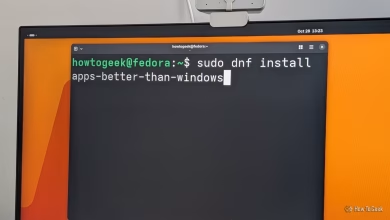
On a positive note, once you get accustomed to a specific distribution and its package manager, installing software becomes notably quicker than in Windows. You simply input a single command in the terminal, and the software installation completes—no installers, no bundled nuisances, and no options to manually check or uncheck.
Linux Distributions Explained
Understanding the Difference Between Linux and Distributions
This is a significant source of confusion for many new Linux users. Unlike Windows, which exists as a single operating system, Linux itself is merely the kernel. The operating systems that operate on top of this kernel are referred to as Linux distributions, or distros.
While they are based on the same core Linux kernel, each distribution offers a distinctly different user experience. For instance, Ubuntu is designed with beginners in mind, while Arch is intended for those who want to customize their systems from scratch and understand every component. Moving from Ubuntu to NixOS can feel as disorienting as transitioning from Windows to Ubuntu.
Desktop Environments in Linux
A New Perspective on Operating Systems
In Windows, the desktop is an integral part of the operating system. Elements like the taskbar, Start menu, and File Explorer are embedded in the OS.
Linux, however, adopts a modular approach. Instead of incorporating the graphical interface within the OS, Linux utilizes desktop environments—collections of tools and applications that shape the visual experience, system applications, and how windows function. Essentially, what you might consider the OS is treated in Linux as a replaceable graphical interface.
Even within the same Linux distribution, switching the desktop environment can drastically alter the appearance and functionality of the system. For instance, GNOME offers a streamlined, minimalist design better suited for a virtual desktop workflow, while KDE Plasma has extensive features and a layout reminiscent of Windows 7.
Initially, it can be perplexing to realize that two users running the same distribution, such as Fedora, can have entirely different desktop experiences simply due to their choice of desktop environment.
Unlearning Windows Habits
None of these concepts are particularly challenging; the confusion often comes from letting go of Windows-centric assumptions such as drive letters, the integration of desktops in the OS, and conventional software installation practices. Linux adopts different principles that are often more modular and explicit. In fact, once you adapt to this new mindset, you may even prefer the Linux way of operating—many users, myself included, find it to be a more satisfying experience.