Why My Android Battery Was Draining Rapidly: Uncovering Insights from These 4 Permissions

I’ve noticed that my Samsung Galaxy Z Fold 6 began losing battery life much sooner than anticipated, and I wasn’t sure why. My usage patterns had remained the same: responding to WhatsApp messages, browsing Instagram, looking up recipes, and using Google Maps when traveling.
Initially, I attributed the issue to the usual culprits and started closing unused applications, but that didn’t improve the situation.
Then my spouse suggested I review my Android permissions. To my surprise, I found some alarming information.
Here’s what I discovered upon investigation.
Location
Something we often overlook
The first permission I evaluated was location access, primarily because I had never scrutinized how many applications had this capability.
Naturally, Google Maps requires it while I’m navigating, but I was puzzled as to why numerous apps needed to track my whereabouts.
For instance, Zara doesn’t need to monitor my location while I shop, and Uber Eats shouldn’t require my location when I’m simply browsing their menu at home. I realized I’d granted more access than necessary to several apps. Background location checks could lead to unnecessary battery drain.
On my Fold 6, I adjusted the location settings from “Always” to “Only while using the app” for those applications. This way, they won’t track my location when not in use.
Physical Activity
Apps tracking physical activity? Who knew?
My original thought was that physical activity tracking would be limited to fitness-related apps. Apps designed to log workouts, monitor steps, or motivate workouts came to mind. However, when I opened the Permission Manager, I found Google Maps there too. Why did it need to know about my physical activity?
This sparked my curiosity. Android utilizes phone sensors to determine if you’re walking, driving, or running, allowing Maps to offer more tailored navigation features.
I reviewed the permissions and pondered whether each app genuinely needed that level of access. For the non-fitness related applications, I disabled the tracking.
Nearby Devices
Earbuds made me rethink this permission
Connecting my earbuds to my Fold 6 made me realize the importance of this access. I frequently use apps like Google Home, which rely on nearby device access to function. However, apps that I rarely use didn’t warrant such permissions.
I disabled access for those applications that didn’t seem to need it. While it won’t drastically extend my battery life, any reduction in background activities is beneficial.
Camera and Microphone
Permissions I nearly ignored
This section almost slipped my mind since I use both my camera and microphone frequently for photos, voice messages, video calls, and quick inquiries. However, I noticed that many apps had microphone access, which made me reconsider.
The same applies to the camera. While it makes sense for a photo-editing app to have access, if I haven’t touched a particular app in weeks, there’s little reason for it to retain such permissions.
I turned off access for less frequently used apps to minimize background processes and extend battery life.
A few saved percent of battery can be quite impactful
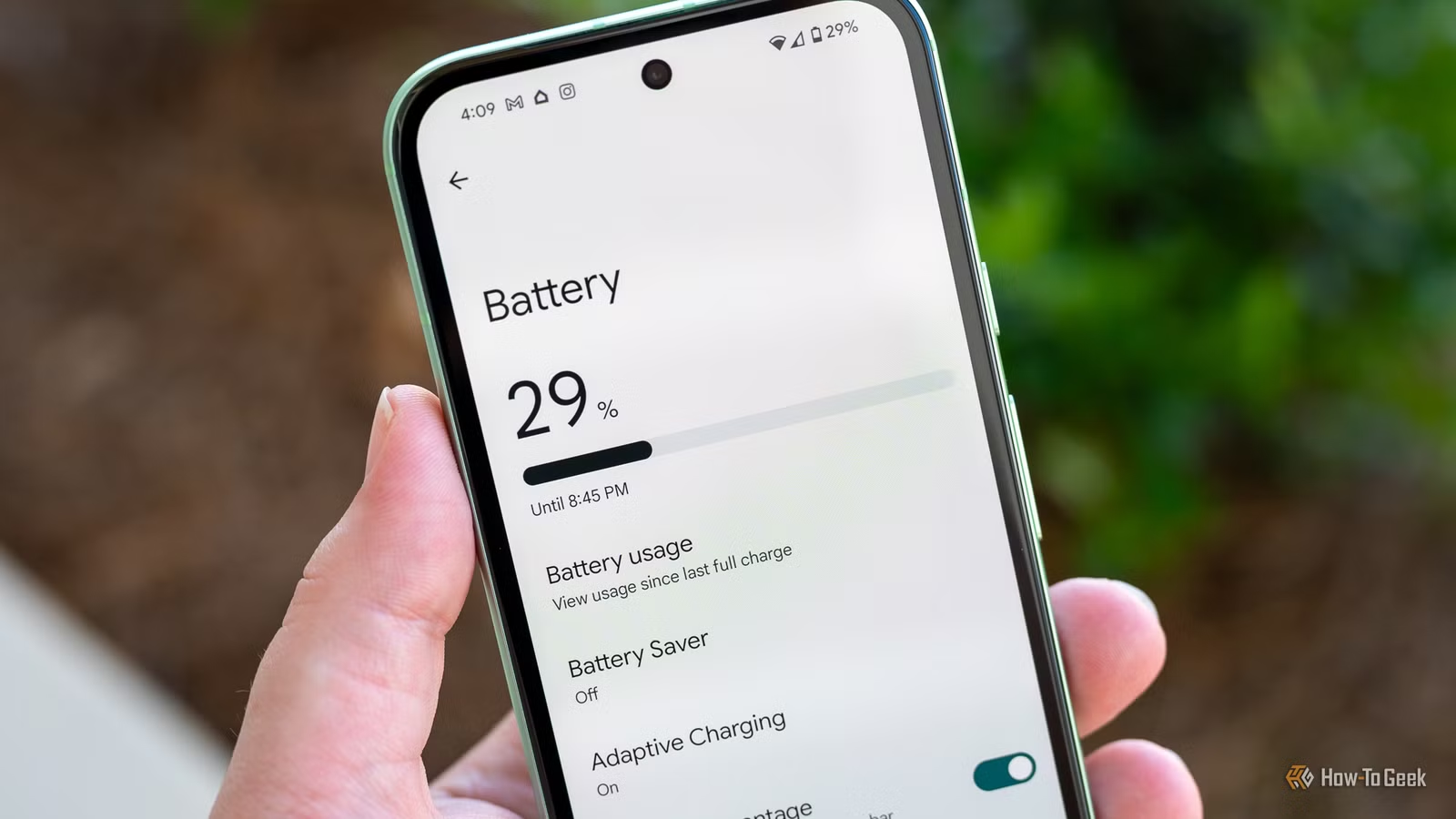
Recently, I checked my battery level at 29%, only to later find it at 31%. While not all that difference came from changing permissions, it highlights how small adjustments can accumulate when striving for battery efficiency.
Permissions are just one piece of the puzzle. I also monitor apps that persistently run in the background, adjust screen brightness, and de-activate features not in use. Utilizing the battery saver mode is another helpful strategy when away from a charging source.
Next time your battery percentage decreases, take a moment to check your Permission Manager— you might find several permissions you can disable.