Unlocking the Secret: How to Activate the Hidden Settings Shortcut on Your Samsung Phone

Streamlining Your Samsung Galaxy Settings: A Handy Guide
Navigating through the Settings app on Android devices can sometimes feel like a chore. Even though there’s a search feature available, pinpointing the correct setting can be a struggle if you don’t know the specific keyword to use.
If you’re a Samsung Galaxy user, there’s an easy method to streamline access to settings you use frequently by creating shortcuts. This feature can be a real time-saver, as I’ve found with my own Galaxy S26 Ultra, making daily adjustments much easier.
Curious about how to set it up? Let’s dive into the steps to simplify your Samsung experience.
Are you finding it hard to locate settings within the Settings app?
216 votes
Creating Shortcuts for Quick Access to Settings
By default, Samsung doesn’t allow the creation of shortcuts for system settings in One UI. However, you can unlock this capability using the RegiStar module in the Good Lock app.
To get started, download the Good Lock application from the Galaxy Store if you haven’t done so yet. Once installed, open Good Lock, navigate to the Plugins tab, and select the Life Up section at the top. Look for RegiStar and click on the download icon to install it.
After installing, access the RegiStar module. Here, under Search Options, enable the Allow creation of a shortcut feature. Now you can create shortcuts for any setting in the Settings app by following these steps:
- Open the Settings app and find the setting you want to shortcut. Make a note of the title at the top.
- Return to the home page of the Settings app.
- Tap the Search bar and type the title of the setting you noted.
- When you spot a match under Results, tap and hold it until a prompt appears asking if you want to Add to Home screen?
- Click on the Add button in the prompt.
This will create an app-like icon for the setting on your home screen. You can now access it quickly without navigating through menus.
Repeat these steps to create multiple shortcuts for other settings. If you’re unsure which settings to shortcut, consider those you use frequently or those that are difficult to locate.
Organize your shortcuts into a folder on your home screen to keep things tidy and easily accessible.
Settings I Shortcut and Their Benefits
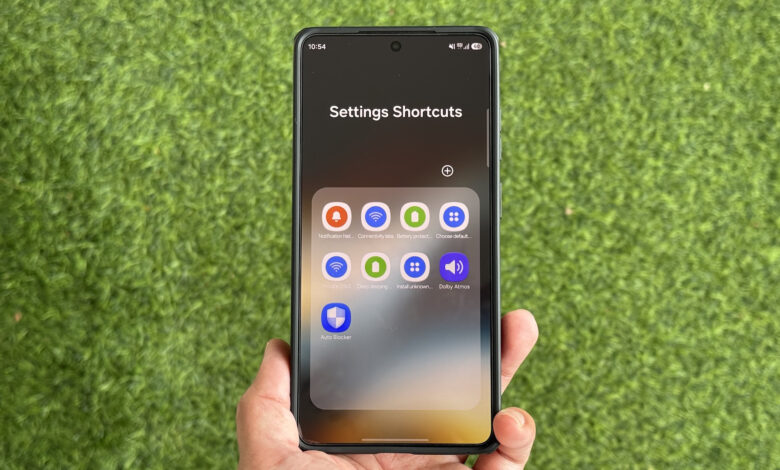
I have various shortcuts for settings grouped by categories like Wi-Fi, notifications, battery, and apps.
For instance, I have a shortcut for Notification history to quickly check missed alerts. I also created one for Auto Blocker, allowing me to toggle it off when installing APKs from the web. A shortcut to Install unknown apps facilitates granting permission for app installations. Additionally, I have shortcuts for changing default apps and viewing deep sleeping apps, among others.
Understanding the Limitations of Settings Shortcuts
While creating shortcuts can greatly enhance your user experience, not every settings page supports direct shortcuts. For example, you cannot establish a shortcut directly for the Connectivity labs page. Instead, you need to create a shortcut for the preceding page, Intelligent Wi-Fi, and navigate from there. However, having a shortcut that leads you to the previous page can still be useful as it highlights the specific setting, saving you from a manual search.
In spite of these limitations, implementing shortcuts can significantly reduce the time and number of taps required to access your favorite settings daily. If you haven’t tried them yet, consider adding this feature to your Galaxy phone for a more efficient experience.
Thank you for being a valued member of our community. Please review our Comment Policy before posting.