Unlock the Full Potential of Google Maps: 4 Settings You Need to Adjust Right Now!

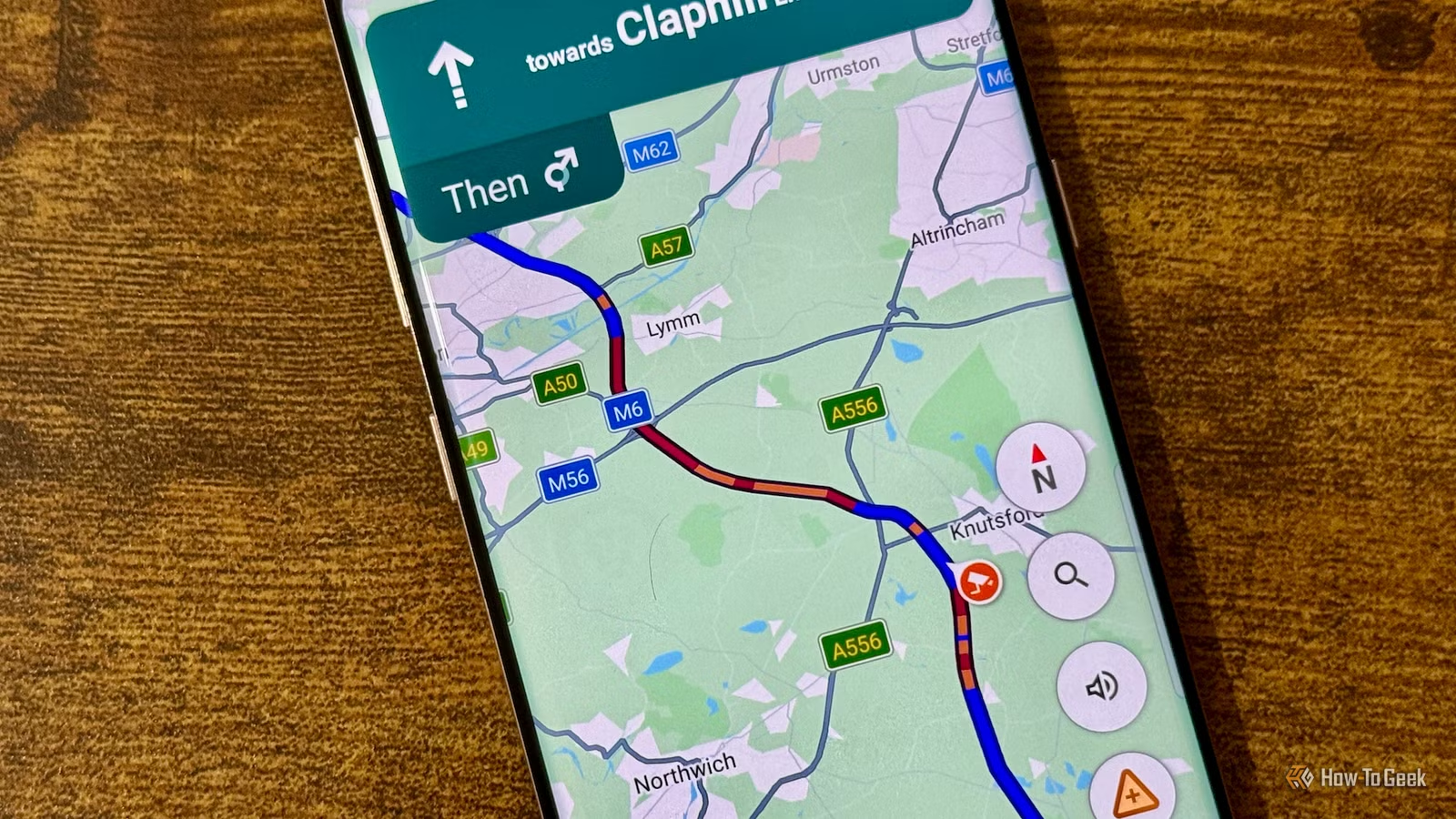
Countless times, I’ve found myself opening Google Maps, entering my destination, and following the blue arrow, trusting it completely. Whether I’m hurrying to pick up my daughter from art class or searching for a new eatery, I usually let the app take control. However, I recently discovered that I’ve been using Google Maps just as I did when I first got it—missing out on numerous features. If you want to unlock Google Maps’ full potential, check out these settings. You might be surprised by its capabilities beyond just simple navigation.
Stop Maps from Tracking Your Movements
Disable Timeline Tracking and Clear Your Data
If you share my concerns about privacy, now’s a great time to adjust those settings you may have overlooked.
I began with the Google Maps Timeline feature. I don’t need the app to remember every place I go, especially since my activities often include routine errands, like taking my daughter to art class or stopping for groceries. The Timeline tracks all the locations you visit and the paths you take—which can feel a bit intrusive. So, I decided to erase that digital footprint.
To disable this feature, I accessed Google Maps, tapped my profile picture, selected Your Timeline, opened the three-dot menu, and chose Location & privacy settings to turn off Timeline Tracking. If you wish to remove your existing Timeline data, just select Delete all Timeline data and follow the instructions.
You can delete your Timeline data for a specific day or for a select range rather than erasing everything at once. This allows you to keep some history while hiding a particular trip.
Reduce Notifications from Maps
Disable Unnecessary Alerts
After clearing my Timeline, I tackled another irritation: the constant buzz from Google Maps notifications. I find it distracting when I’m busy with cooking or trying to concentrate on writing due to alerts about nearby popular spots or activities. While driving, I don’t want another unnecessary notification pulling my focus.
I examined the notification settings within Google Maps and discovered options to customize them. By tapping my profile picture and heading to Settings → Notifications, I could disable the alerts I didn’t need while keeping the genuinely useful ones. I opted to keep location-based recommendations for vacations since I enjoy discovering surprises in new cities.
Focus on Saving Time Over Fuel
Disable Fuel-Efficient Route Options
I learned about this particular setting the hard way. One day, I was late for a gathering and expected Google Maps to direct me along the quickest route. Instead, it proposed a route focused on fuel efficiency, which ultimately cost me more time. I had no interest in conserving gas at that moment; I just wanted to arrive on time.
This incident made me realize that Google Maps can prioritize fuel-efficient routes over faster ones. To change this preference, navigate to Google Maps, tap your profile picture, go to Settings, and then select Navigation settings. Under Prefer fuel-efficient routes, you can turn that option off.
In contrast, my brother always keeps that setting enabled, as he drives an electric vehicle and prioritizes battery efficiency, especially on longer trips. He saves battery life, while I save time—it’s a fair trade-off.
Enhance Maps Volume Over Music
Boost Volume for Navigation
My co-pilot is always alerting me when it’s time to turn—well, that’s Google Maps talking, but I rely on its voice navigation while enjoying the drive instead of continuously checking the screen. However, its timely instructions often get lost in my music, causing me to miss turns and extend my travel time.
After adjusting the previous settings, I aimed to fix this issue too. Now, instead of lowering my music, I can simply increase the volume of the Maps voice guidance. It cuts through the music without disrupting my enjoyment.
To adjust this, head to Settings → Navigation settings → Guidance volume, and select Softer, Normal, or Louder. I chose Louder because I prefer to skip a beat rather than miss a turn.
Making Simple Adjustments
Until now, I had essentially been using Google Maps on autopilot. After exploring its settings, I recognized that I was leaving many options unused.
Sometimes, rather than seeking a new alternative to Google Maps, all it takes is to optimize the app you already have.