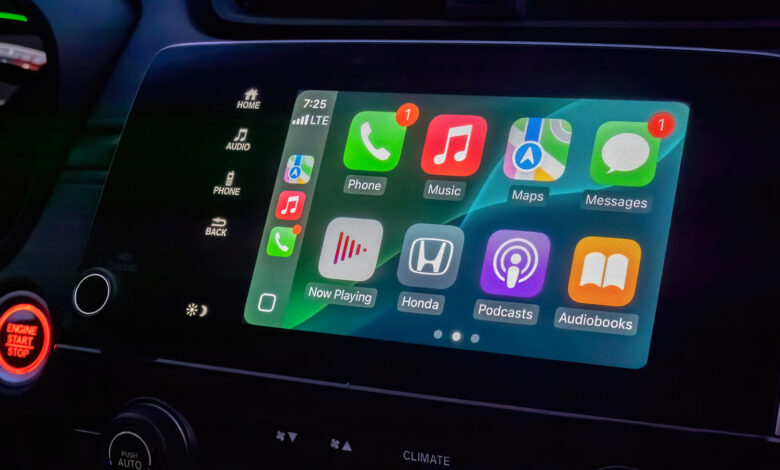
Apple CarPlay is useful as it is, but a few customizations can enhance its practicality.
If your car supports Apple CarPlay, connecting it—either through a cable or wirelessly—can significantly enhance your driving experience. This setup eliminates the need for a cumbersome phone mount, as your navigation app and essential media controls will appear directly on the car’s infotainment screen. With recent improvements to Siri in iOS 27, hands-free interactions should now be more reliable while driving.
The CarPlay interface features bold text and large icons that ensure easy navigation. While effective as is, a few adjustments can help you prioritize the most important information and make everything easier to read.
By default, CarPlay operates in dark mode to prevent glare from the screen in low-light conditions. If you find readability challenging during the day, you can switch to light mode by going to Settings > Appearance in CarPlay. You can opt for Automatic mode to have the system adapt to the changing light conditions.
You can also change the background for your apps through the CarPlay settings (Settings > Wallpaper). While it’s not possible to upload a personal wallpaper, there are various pre-designed Apple wallpapers available.
Additionally, head to Settings > Customize Icons to choose between dark or transparent icon packs that follow Apple’s Liquid Glass design. If you have visibility concerns, the Accessibility options also allow you to adjust text size for better readability.
Rearranging Apps and Utilizing Widgets in CarPlay

Personalizing your CarPlay experience can greatly benefit from rearranging the apps on your home screen. This customization is done through your iPhone. Go to Settings > General > CarPlay, select your car, and then tap Apps.
To prioritize frequently used apps, you can reorder the list. Keep in mind that the size of your car’s display affects how many apps can fit on a single page. You can remove any unused apps by tapping the Remove icon, but some default apps cannot be deleted—move them to the bottom if they are not needed.
Although it took time for iPhone to gain widget support, CarPlay finally added widgets with iOS 26, which can be accessed by swiping right from the main dashboard.
Depending on your infotainment system’s size, one or more widget stacks may be visible. By default, widgets like the clock, calendar, media player, and weather are available. To optimize this feature, customizing which widgets are displayed in each stack is essential; this will prevent the hassle of searching through stacks while driving.
To manage the widgets, return to the CarPlay settings on your phone and tap Widgets. Ensure the Show Widgets toggle is on, and you can add or reorder widgets to your needs, tailoring the experience based on the apps you have installed.