Troubleshooting Tips for Your Nintendo Switch 2: Resolving TV Connection Issues

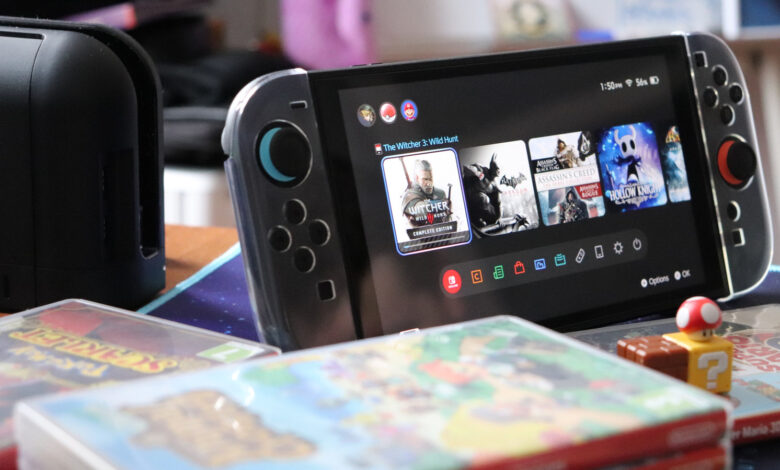
Troubleshooting your Nintendo Switch 2 connection issues.
The Nintendo Switch offers the convenience of handheld gaming, and connecting to a larger screen for home play enhances the experience. However, not all connections run smoothly, leading to potential issues like a black screen or a nonresponsive console. Fortunately, several troubleshooting steps can be taken before reaching out to customer support.
Check the Power Supply

To troubleshoot, start by turning off your TV. Unplug all cables from the Switch 2 dock, including the AC adapter, and allow everything to sit for about 30 seconds. Reconnect the AC adapter to the dock and plug it back into the wall. Ensure the handheld is properly seated in the dock.
It’s crucial to confirm that the dock is receiving power; damaged cables can cause issues. If everything checks out but the dock still isn’t functioning, test the wall outlet with another device to confirm it’s operational. The Switch 2 requires a compatible AC adapter with a minimum output of 54W for optimal performance. If necessary, replacements can be purchased.
Inspect the HDMI Connection

Next, ensure the HDMI connection is functioning properly. Connect an Ultra High Speed (UHS) HDMI cable from your Switch 2 dock to the TV. The Switch 2 comes equipped with a UHS HDMI cable, which supports advanced features. Utilizing a lower-quality cable may result in connectivity issues.
It’s recommended to connect to an HDMI 2.1 port for the best quality, allowing for higher resolutions and refresh rates. However, if you’re using an older TV model, check if it features HDMI 2.1 ports for full compatibility.
Review Your TV’s HDMI Settings
If the connection issue persists, check your TV’s HDMI settings. Use your remote to access the TV’s settings menu and look for options like Auto Low Latency Mode or Gaming mode, and ensure these are enabled for the corresponding HDMI input.
After verifying settings, select the input your console is connected to. If no signal appears, try pressing the power button on your Switch 2 while it’s docked. Ensure the controllers are charged to enable connection.
For continued difficulties, consider testing with another UHS HDMI cable, different HDMI ports, or even a different TV if available.
Check the Handheld Device

If the Switch 2 is still unresponsive, check if the handheld itself is functioning. Remove it from the dock and turn it on. Make sure the device’s software is up-to-date. Navigate to the settings menu to verify the system is running the latest version.
You can also adjust display settings to ensure compatibility with your TV. Set the TV resolution to automatic and enable the option to match the TV’s power state, which may allow the TV to power on when the console does. However, note that some older TV models may not support this feature.
Reach Out for Support
If you have exhausted all troubleshooting options and still encounter issues, consider reaching out to customer support for assistance. You may need to send in your console and dock for further examination.