I Crafted My Own Excel Feature After a Year-Long Wait for An Official Release

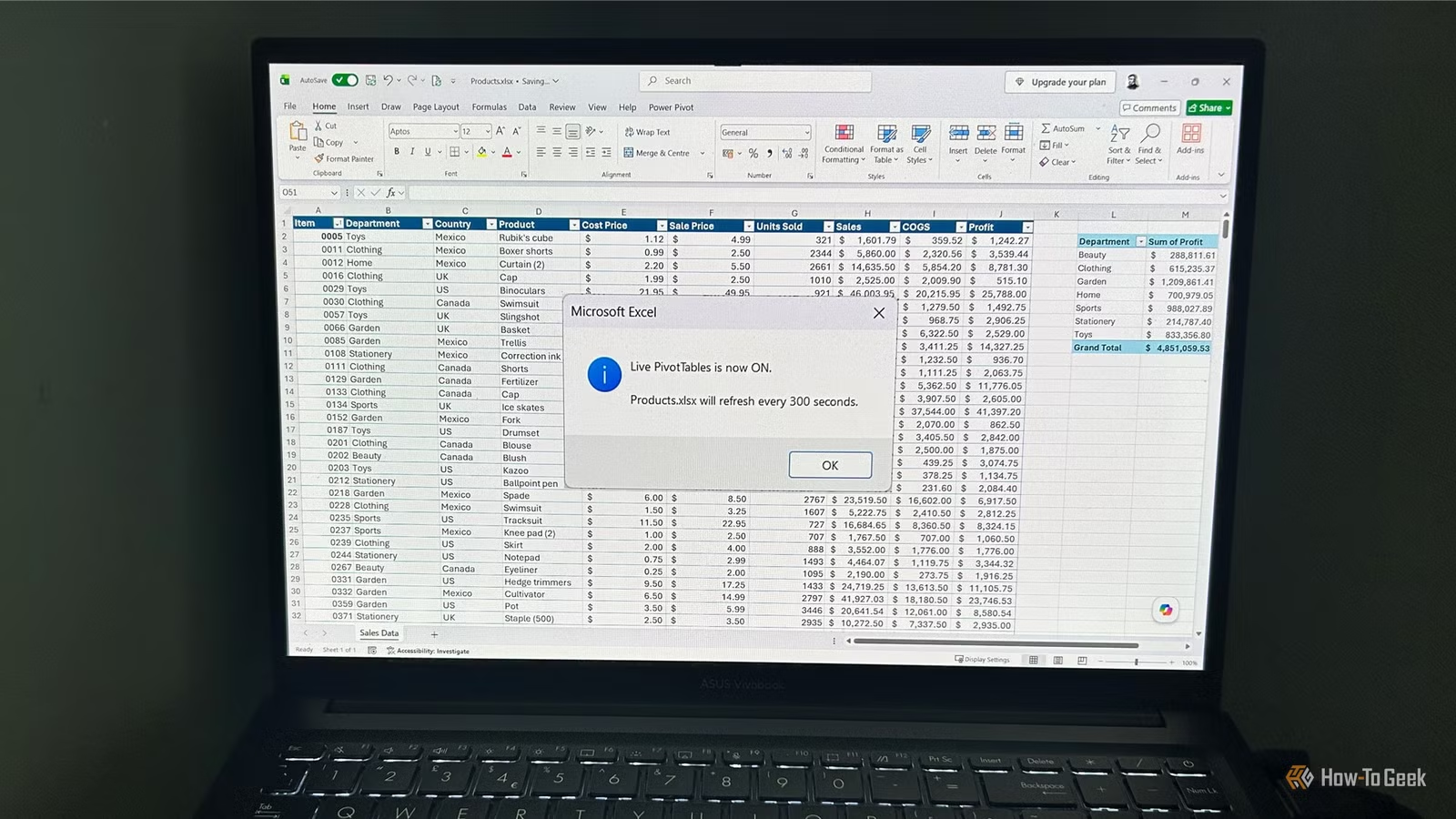
Neglecting to refresh the PivotTables in an Excel report can render it inaccurate. While Microsoft introduced an Auto Refresh feature last year, it has yet to be implemented in my version of Excel. Frustrated by the wait, I decided to create my own solution.
I’ve developed a VBA macro that resides in my Personal Macro Workbook. This macro adds a button to the Quick Access Toolbar (QAT) that enables users to refresh PivotTables automatically at set intervals in any workbook. Additionally, it allows for easy toggling of this functionality whenever needed. While working on this, I personalized the tool to better fit my Excel workflow.
The full VBA code is at the end of this article. To implement it, copy the code into a module of your personal macro workbook (PERSONAL.XLSB), link the ToggleLivePivotTables function to a QAT button, and click it when the desired workbook is active.
My VBA macro introduces automatic PivotTable refreshing to Excel
A one-click toggle keeps reports up to date
Microsoft’s Auto Refresh feature uses a data-source method. It’s set to activate by default for new PivotTables, governed by a single setting for all its instances tied to the same source. I preferred a more tailored approach: a toggle for a specific workbook that would automatically refresh all its PivotTables.
My tool operates simply:
- Clicking the QAT button activates Live PivotTables.
- The PivotTables in the active workbook refresh instantly upon activation.
- They continue to refresh at the designated interval.
- Pressing the button again disables the feature.
I named it “Live PivotTables” to emphasize its toggling nature: turn it on for automatic updates, and switch it off when no longer needed. When activated, a message confirms which workbook is under surveillance along with the refresh interval—especially handy when multiple Excel files are open simultaneously.
This macro is intentionally focused; it refreshes only PivotTables without affecting Excel’s “Refresh All” function, which handles Power Query updates and other external connections.
I programmed the macro to track the targeted workbook
Maintaining control over automatic updates
A key consideration in the design was managing scenarios with multiple open workbooks. I wanted the refresh to be intentional: clicking the button should specify the targeted workbook.
The macro tracks the active workbook’s name:
Public mWorkbookName As StringUpon enabling Live PivotTables, it records the active workbook:
mWorkbookName = wb.NameSubsequent scheduled refreshes are directed exclusively at that workbook. The same name is used when disabling Live PivotTables, ensuring the confirmation message reflects which workbook was affected. An additional safeguard disables the macro if the monitored workbook is closed, preventing it from referencing a non-existent workbook.
A timer automates the refresh of PivotTables
Converting manual action into a scheduled task
The next objective was to automate the refresh process continuously without manual clicks. I utilized Excel’s built-in VBA scheduling feature, Application.OnTime. Initially, I set a parameter to determine the refresh frequency:
Public Const REFRESH_INTERVAL_SECONDS As Long = 300This is set to five minutes (300 seconds) by default, but can be adjusted easily. During trials, I reduced it to 15 seconds for testing the refresh functionality quickly.
The macro schedules the next refresh as follows:
Application.OnTime _
    EarliestTime:=mNextRun, _
    Procedure:="RunScheduledRefresh"
When the scheduled time arrives, Excel executes the refresh procedure. Notably, the next refresh is only scheduled after the previous one is complete, ensuring predictable behavior even in workbooks where refresh durations vary.
The macro provides running status feedback
Incorporating feedback while keeping Excel’s workflow intact
An automated process necessitates a way to inform the user about its status. The Live PivotTables feature provides feedback in two straightforward forms: a confirmation message upon activation and a temporary status bar update during the refresh.
MsgBox "Live PivotTables is now ON." & vbCrLf & vbCrLf & _
       mWorkbookName & " will refresh every " & _
       REFRESH_INTERVAL_SECONDS & " seconds.", _
       vbInformation
When a refresh begins, the status bar updates with:
Application.StatusBar = "Live PivotTables: Refreshing..."This message remains visible for a short duration even after the refresh finishes, ensuring that even quick refreshes leave a trace before disappearing. After two seconds, the macro clears the status bar and returns Excel to normal operations.
Testing the macro shed light on Excel’s refresh handling
Insights gained from real workbook testing
Creating this macro served as a valuable reminder that automatic Excel refreshes do not function invisibly. My testing unveiled several insights:
- Refresh duration varies by workbook: Workbooks using Data Models, extensive datasets, or numerous PivotTables may take longer to refresh. Every PivotTable refreshed correctly after the process concluded during testing.
- Refreshing can temporarily hinder functionality: Excel may become momentarily unresponsive, indicated by a spinning cursor during updates.
- Refresh cancels copy mode: If copying cells during a refresh, Excel interrupts this action.
- Editing a cell delays refresh: If typing when a scheduled refresh occurs, Excel waits until editing is complete to proceed.
- Undo does not revert source data edits: After a refresh, using Ctrl+Z will not undo changes made to source data since the refresh is a separate operation.
Customizing Excel for your workflow
Creating Live PivotTables highlighted that some of Excel’s most beneficial features are those that you tailor for your own needs. Once you establish a personal macro workbook, you can create a custom toolbar with VBA, accommodating everything from inserting timestamps and applying unique formatting to advanced tools like generating clickable sheet indices or selectively deleting completely empty rows. A little VBA can transform Excel into a more personalized tool that aligns with your working style.