Yash Wate / Tech Insights
Follow Tech Insights on Google:
Using the RegiStar module from Good Lock, I’ve turned the backside of my Samsung phone into a virtual button. I’ve programmed double- and triple-tap gestures on my Galaxy S26 Ultra to facilitate quick screenshots and to switch the privacy display feature.
While this method simplifies screenshot capture compared to traditional button presses, it occasionally leads to accidental screenshots when I change how I hold my phone. This results in an excessive number of unwanted screenshots cluttering my gallery, which I have to delete manually to free up storage space.
Fortunately, the Good Lock app includes another feature called Nice Shot that helps resolve this issue.
Did you know you can add a quick delete button to the floating screenshot toolbar?
44 votes
Efficiently Removing Unwanted Screenshots on Your Samsung Device
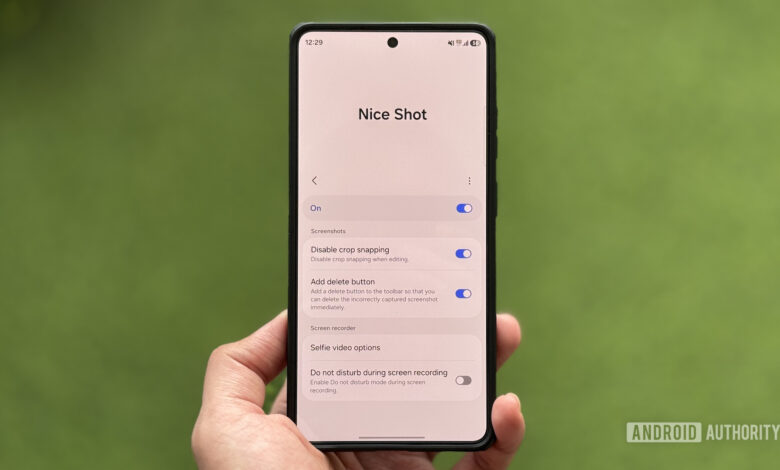
Nice Shot is an often-overlooked module in Good Lock that modifies the default functions of screenshots and recordings on your Galaxy phone. A standout feature is the “Add delete button” option, which places a trash icon on the floating toolbar that appears right after a screenshot is taken. This allows for immediate deletion of any unintended screenshots triggered by the Back-Tap feature.
This option proved particularly beneficial for my needs, but it can be useful for anyone who might take a screenshot they are not satisfied with, such as capturing menus that disappear too quickly. Instead of navigating to the Gallery to delete it, you can swiftly tap the delete button. Be cautious, as screenshots deleted this way won’t go to the Trash—they’re permanently removed.
To enable the delete button on the screenshot toolbar, first open the Good Lock app, available in the Galaxy Store if you haven’t installed it yet. Navigate to the Plugins tab, locate Nice Shot, and tap the download icon. Once downloaded, tap on Nice Shot to open it, then switch on the toggle at the top to activate the module. Finally, enable the option for “Add delete button.”
Additional Features of Nice Shot

Yash Wate / Tech Insights
The Nice Shot module in Good Lock provides more than just an easy deletion of unwanted screenshots. It includes additional features that can benefit frequent screenshot takers or screen recorders.
One such feature is the option to disable crop snapping. When cropping screenshots on Samsung devices, the tool often snaps your selection automatically, which can be useful but not always desired when precision is necessary. Activating the Disable crop snapping feature allows for more control over your cropping actions.
The Selfie video options are another excellent addition. These settings allow for customization of the appearance of your selfie video during screen recordings. If the circular video feed appears too small, you can double its size by selecting “Double selfie video size.”
Moreover, you can make the background of your selfie video transparent by enabling the “Make the background color transparent” option. For effective background replacement, a minimal and clean background is recommended. You can also toggle auto-detection and adjust color detection sensitivity as necessary.
Getting notifications while screen recording can disrupt the process. While you can enable Do Not Disturb mode to prevent this, it can be inconvenient for frequent users. Nice Shot offers a useful solution: it automatically activates Do Not Disturb whenever you start screen recording, blocking incoming notifications. Just toggle on the “Do not disturb during screen recording” setting and follow the instructions to activate it.
I find the Back-Tap feature for screenshots immensely convenient, and with the quick delete button in my screenshot toolbar, I can continue using it without worrying about excessive unwanted screenshots cluttering my gallery. If you often take screenshots, whether using Back-Tap or traditional methods, enabling the delete button and exploring the other features can enhance your experience.
Thank you for being part of our community. Please review our Comment Policy before sharing your thoughts.