There are several methods to maintain an additional copy of your iPhone’s data, with iCloud being the most convenient. Storing your contacts and photos in the cloud alleviates concerns in case of any issues. However, not every application supports iCloud synchronization.
This is why a reliable backup is essential. In addition to syncing elements like notes and contacts, iCloud can create a complete backup of your device automatically when enabled. To verify if this feature is active, navigate to Settings, tap your name at the top, and select iCloud > iCloud Backup. Ensure that the Back Up This iPhone option is turned on.
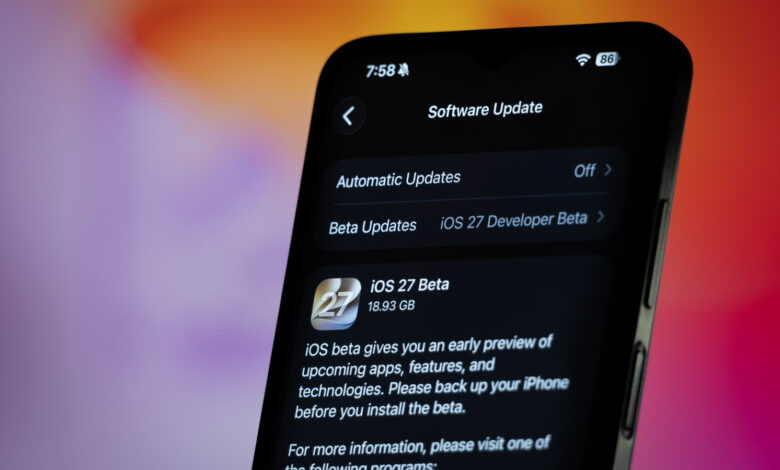
While iCloud backups function well in normal scenarios, they may not be ideal for beta testers because these backups can be updated without notice. When you install a beta version of iOS on your iPhone, iCloud will eventually replace the previous backup with one that reflects the beta. If you need to revert to an older version for any reason, this new beta backup will not be compatible with that stable version.
Therefore, it’s advisable to create an archived backup on a computer before installing a beta. Start by connecting your iPhone to your computer; you may need to input your iPhone’s passcode to secure a trusted connection. On a Mac, locate your device name in the Finder sidebar. For Windows users, the Apple Devices app will suffice.
Regardless of the platform, access the General tab after selecting your device. Opt for the setting that says Back up all of the data on your iPhone to this Mac/computer. Checking the Encrypt local backup option will ensure that sensitive information, such as saved passwords and health data, are secured. Be sure to remember the password used for encryption, as it is required to restore the backup.
Once these steps are completed, select Back Up Now. The duration of the backup process will depend on the amount of data stored on your iPhone. After the backup finishes, click on Manage Backups, right-click the latest backup in the list, and select Archive.
This action preserves the specific backup even if new backups are created later. Consequently, you will have a comprehensive copy of your iPhone’s data from before beta installation, which will be applicable should you decide to revert to the prior version of iOS.