
Many users rely on a limited set of Excel commands daily, often missing out on tools designed to enhance spreadsheet management. This weekend, discover five valuable features that could significantly improve your Excel experience.
Let Excel Write Your Formulas for You
A Smarter Way to Address Repetitive Tasks
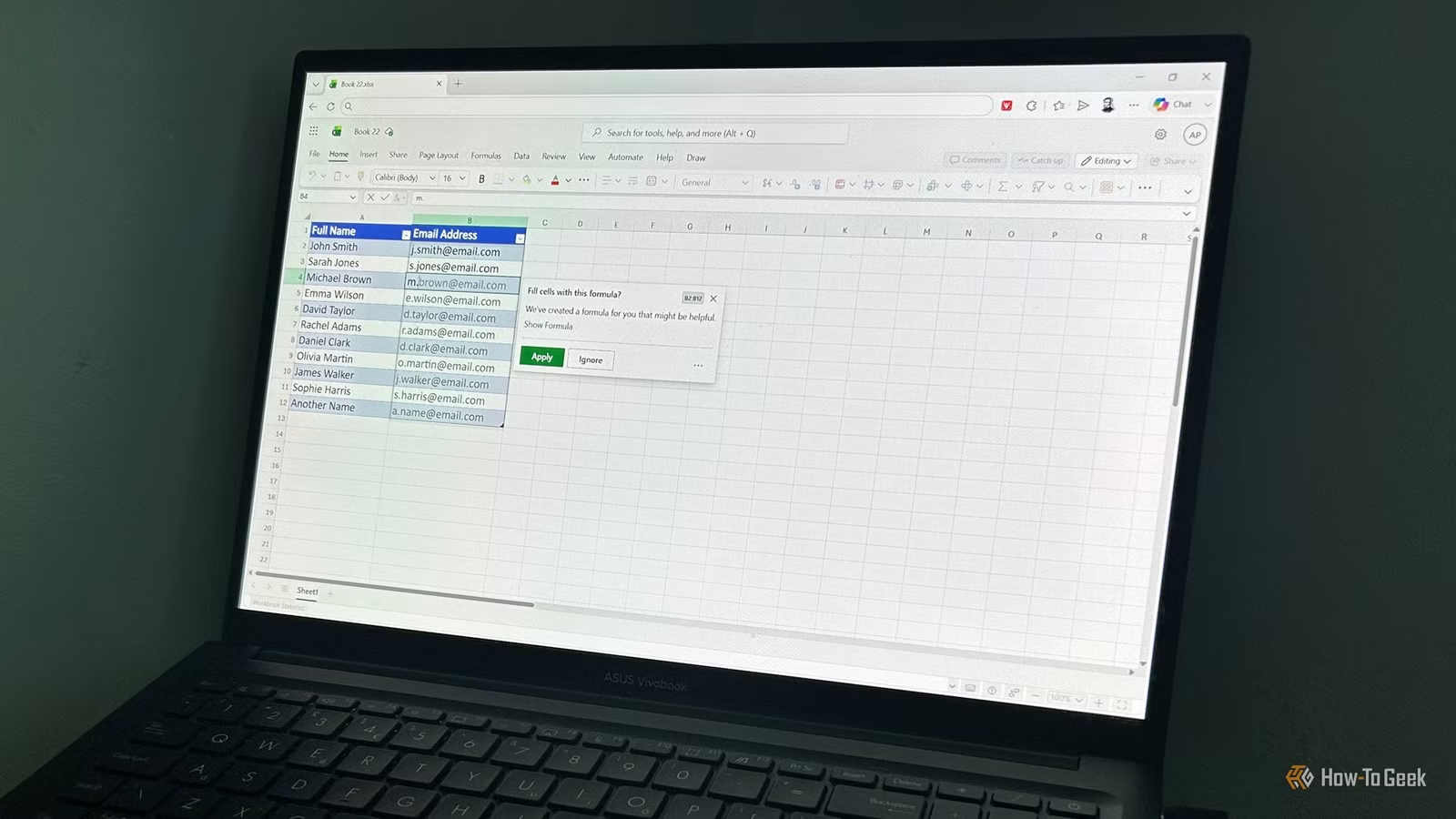
If you’re primarily using the desktop version of Excel, you might not be familiar with Formula by Example, which is only available in Excel for the web. The bright side is that anyone with a Microsoft account can access Excel Online for free.
This feature takes inspiration from Flash Fill, allowing you to do more than just fill in static results. It observes what you type and generates the appropriate Excel formula to apply to the remaining rows. Since these results are formula-driven, they automatically update when the source data changes. Additionally, if your data is in a table format, the formula will continue to fill down as you add more rows.
One of the best aspects of Formula by Example is that you can review the formula it constructs, helping you understand how Excel tackled the problem. It’s an excellent way to learn about functions without needing to figure out the syntax on your own.
If you accidentally reject a suggestion from Formula by Example, it may not immediately appear again. Refreshing your browser can often bring the suggestion back.
Locate Any Sheet, Table, or Chart Instantly
Navigating through large workbooks can quickly turn cumbersome, often requiring you to click through numerous similar tabs. The Navigation Pane, available via the View tab in Excel for Microsoft 365 on both Windows and Mac systems, as well as in the web version, acts as a searchable directory of key components in your document.
I find the Navigation Pane invaluable, especially in workbooks with numerous sheets; it’s significantly more efficient than manual tab navigation. It displays not only sheet names but also incorporates tables, charts, PivotTables, images, and named ranges, enabling you to discover and access sections of a workbook you might have forgotten.
By typing a few characters into the search box, you can quickly filter the workbook to find specific components. This feature proves handy when needing to locate misplaced charts, hidden slicers, or to rename confusing objects—all without scrolling through sheets or ribbons.
Select Exactly the Cells You Need in One Click
The Quickest Method to Audit Disorganized Spreadsheets
If you’ve ever dealt with a cluttered spreadsheet, you know how long it can take to track down formulas, hard-coded values, errors, or hidden elements. Instead of manually sifting through countless cells, you can use Go To Special to quickly select specific types of cells throughout your worksheet.
This option can be accessed by pressing F5 > Alt+S or navigating to Home > Find & Select > Go To Special. The tool allows you to highlight cells based on their content. Here are my favorite ways to use Go To Special while reviewing a spreadsheet:
- Blanks: Easily identify missing data requiring completion.
- Formulas: Select cells containing formulas to check the calculations within a worksheet.
- Constants: Recognize values that may have inadvertently replaced formulas.
- Errors: Highlight cells with errors for review and correction.
- Data Validation: Locate cells with validation rules that might otherwise be overlooked in a large file.
Many tutorials suggest using Go To Special to delete blank rows, but this might remove valid data. A row with numerous populated cells and just one blank can still get selected. Instead, consider a safer approach using filters, a helper column, and the COUNTBLANK function, or add a VBA macro to your Quick Access Toolbar for a single-click solution to remove empty rows.
Generate Instant Charts and Visuals Without Navigating Menus
Preview Charts, Formats, and Totals Before Finalizing Your Choices
Creating data visualizations often feels like a process of guesswork, necessitating multiple attempts as you search through menu tabs. The Quick Analysis tool simplifies this process.
Select a data range and press Ctrl+Q or click on the small icon next to your selection to access this feature. A pop-up window allows you to preview charts, conditional formatting, totals, and sparklines before applying them. This is particularly useful when dealing with new data and unsure how best to visualize or summarize it. Hovering over an option lets you see its potential appearance on your data prior to making a commitment.
Observe Excel Calculate Complex Formulas Step by Step
Gain Insight into Nested Functions and Identify Errors
Encountering an intricate nested formula can be daunting, especially when only an error message or an incorrect final result is visible. The Evaluate Formula feature allows you to see how Excel processes a calculation incrementally, uncovering the details behind the final result. It’s also beneficial for understanding formulas you didn’t create, providing clarity on how Excel evaluates each segment.
You can locate this option by selecting a formula cell and going to Formulas > Evaluate Formula. By clicking Evaluate iteratively, you can observe Excel working through the formula one step at a time, displaying calculated results for completed sections. Even with highly complex formulas that include multiple steps, this feature illustrates how Excel arrives at its conclusions and highlights where any errors may have occurred.
Elevate Your Spreadsheets to the Next Level
Exploring underutilized features can make Excel feel more efficient and user-friendly. Once you try these features, continue your learning journey by tackling last weekend’s Excel projects, which range from creating a mini data dashboard with a single function to building an offline password strength checker and designing a digital dice roller.




