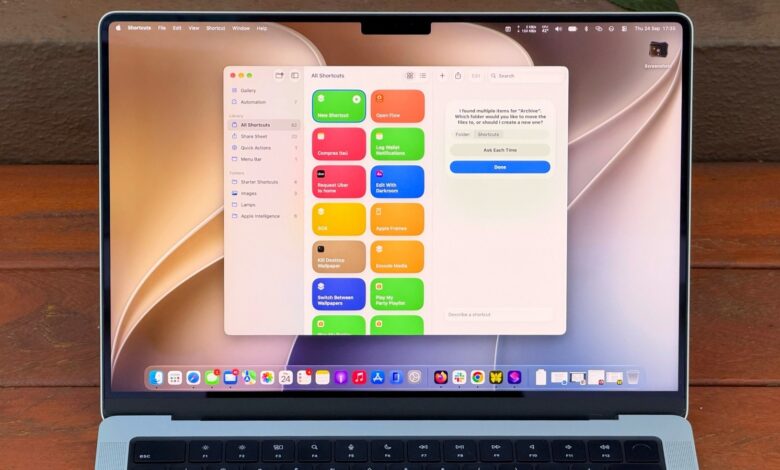
Effortlessly enhance your Mac experience with Shortcuts and Apple Intelligence.
The Shortcuts app has been a feature on Macs since the release of macOS Monterey, yet many users have yet to explore its full potential. Initially, the app may appear daunting, requiring knowledge of various actions and their combinations while hoping for successful execution.
However, the upcoming macOS 27 Golden Gate simplifies this process with the new Describe a Shortcut feature. This allows users to type in their request, and the app utilizes AI to generate the appropriate actions. While it may not be foolproof, it significantly enhances usability, especially for those without expert-level knowledge.
For those unfamiliar, Shortcuts serves as an automation tool enabling users to craft scripts that automate tasks across their devices. For instance, one might set up a shortcut to inform a partner of an estimated arrival time by analyzing traffic data when leaving work. More complex scenarios can involve checking both a calendar and weather conditions to provide a daily summary.
The possibilities are nearly endless, and macOS 27 makes learning this app considerably easier.
Easy Shortcut Creation on Mac

Creating a shortcut is quick and straightforward. Simply open the Shortcuts app and click the Plus button to start. Providing detailed instructions increases the likelihood of the app understanding your request accurately. For example, instead of saying “Clean up my Downloads,” specify “Every Friday, move files older than 30 days from my Downloads folder to an Archive folder.” This clarity tends to yield better results.
This is particularly useful for routine tasks we often neglect, like clearing our Downloads folder. Users can immediately verify the results by checking the moved files. If too many items are relocated, users can refine their initial request with more detail.
Additionally, shortcuts can summarize lengthy texts with the help of Apple Intelligence. For instance, one could say, “Take the text on my clipboard, summarize it in three sentences, and save it to a new note.” Subsequently, after copying a lengthy article or email, executing the shortcut will yield a concise version in the Notes app.
Accessibility of Your Shortcuts
If a shortcut isn’t integrated into your routine, it’s easy to forget about it. Thankfully, you can assign keyboard shortcuts or pin them to the menu bar for quick access.
To adjust a shortcut, select it and click Edit. In the Shortcut Details menu, choose Add Keyboard Shortcut. To pin it to the Control Center or menu bar, open the Control Center at the top-right of your Mac and select Edit Controls. From there, you can easily add the desired action from the Shortcuts app. Additionally, exploring the Automation tab can aid in creating a seamless series of shortcuts that run automatically when needed.
Moreover, macOS 27 features a Visual Intelligence function with its own keyboard shortcut: Shift + Command + Space. This allows you to select an open window and ask Siri to provide information or take actions, such as adding an event to your calendar. For example, you can use it on an email containing a date. Furthermore, Siri is capable of executing your shortcuts via voice, offering an added layer of convenience.
It’s important to note that both Shortcuts and Siri AI require Apple Intelligence, so you’ll need a Mac equipped with an M1 chip or newer, as Intel models won’t support these features. Additionally, certain limitations may apply when utilizing Apple’s AI functionalities in Shortcuts, particularly with more complex requests.