Overclocking Makes a Comeback: Discover 6 Essential Tools That Handle the Heavy Lifting

Overclocking was once a pastime for tech enthusiasts who dedicated long hours to adjust voltages and clock speeds, carefully testing stability to maximize their hardware’s performance.
However, as technology has advanced, overclocking has become increasingly user-friendly. Today, you can enhance your entire PC’s performance with just a few straightforward tools. These modern solutions eliminate much of the trial and error associated with overclocking, allowing users to achieve significant performance boosts with minimal effort.
Keep in mind that overclocking may void your warranty and carries risks such as instability or permanent damage. Always check your manufacturer’s warranty policies and proceed with caution.
The Nvidia App Simplifies GPU Overclocking
Nvidia’s Automated GPU Tuning Made Easy
Overclocking your graphics card is one of the most effective and straightforward ways to boost gaming performance without any added costs. Nvidia has made strides in this area with the introduction of its Nvidia App.
While gamers typically utilize this app for configuring DLSS settings, it also features a convenient one-click overclocking function known as Automatic Tuning. This tool can take around 20 minutes to analyze your hardware and select optimal GPU overclock settings. Users can customize voltage, power, maximum temperature, and fan speed, allowing for a tailored performance experience.
This feature applies a conservative tuning strategy, ensuring the graphic card operates within its thermal and power boundaries, and it doesn’t void your warranty. While the performance increase from this app is relatively modest—often under 5%—it’s still an effortless method to gain additional performance.
AMD Adrenalin Offers Comprehensive Tuning for Radeon GPUs
Incredibly User-Friendly
Similar to Nvidia, AMD provides a robust tool for overclocking GPUs with AMD Software: Adrenalin Edition. Interestingly, AMD introduced automatic overclocking years before Nvidia, launching its first version in late 2018 with the Radeon WattMan tool, while Nvidia’s version came out in 2021.
AMD’s performance options are notably more advanced, offering features like one-click Overclock GPU and options for Undervolt GPU and Overclock VRAM, which offer similar modest performance gains or improved efficiency.
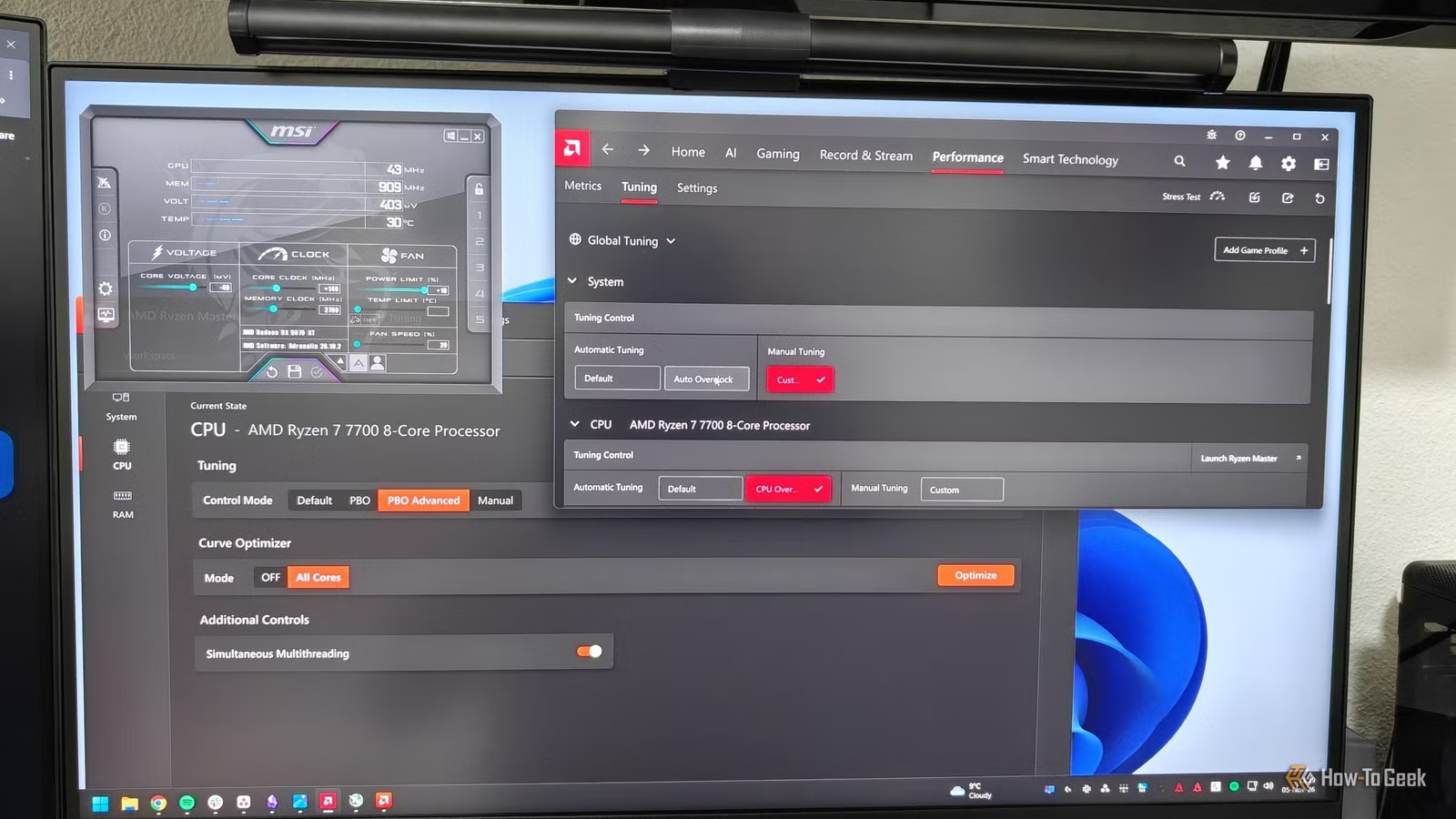
Furthermore, AMD allows for considerable manual tuning, including maximum frequency adjustments, voltage offsets, VRAM tuning, power limits, and custom fan curves. Personally, I’ve benefited from a custom overclock combined with mild undervolting on my RX 9070 XT, and it performs admirably.
MSI Afterburner: A Versatile Third-Party Overclocking Solution
A Strong Alternative to Official Tools
If you found Nvidia’s automatic overclocking feature lacking or if you prefer manual adjustments, MSI Afterburner remains a top choice for third-party applications. One of its standout features is its compatibility with GPUs from nearly all manufacturers, making it more adaptable than official solutions. However, its OC Scanner one-click feature only works with Nvidia cards due to reliance on the Nvidia OC Scanner API.
In addition to overclocking capabilities, MSI Afterburner also offers extensive hardware monitoring and an in-game overlay through its integration with RivaTuner Statistics Server, allowing for easy tracking of configuration and performance enhancements.
AMD Ryzen Master Brings CPU Overclocking into Windows
Precision Boost Overdrive Enhancements
If you’re curious about overclocking your AMD CPU but prefer not to navigate your motherboard’s BIOS, AMD Ryzen Master is an excellent starting point. This first-party tool enables you to monitor and adjust various CPU and RAM settings directly from Windows.
For novices, activating Precision Boost Overdrive (PBO) is the simplest way to overclock your CPU, replacing the standard power limits with those from the motherboard, potentially allowing for higher sustained clock speeds. You can also undervolt your CPU for cooler temperatures using this tool.
Additionally, Ryzen Master allows for RAM and Infinity Fabric overclocking on compatible hardware. The easiest approach for memory overclocking is to enable EXPO, using the settings stored on your RAM kit.
Intel XTU: A Dual Approach to CPU Overclocking
Special Features for Unlocked Processors
Intel users also have a first-party option with Intel XTU (Extreme Tuning Utility). Like AMD’s PBO, Intel’s Speed Optimizer allows for easy one-click overclocking of supported unlocked processors.
For those looking to delve deeper, the Advanced View offers an AI Assist mode that analyzes your system and recommends suitable clock speed and voltage adjustments. Once configured, you can conduct stress tests and monitor CPU parameters right within the tool.
Your Motherboard’s UEFI Simplifies RAM Overclocking
Activating Your RAM’s Advertised Speeds
So far, we’ve covered tools that operate in your OS. However, an essential one-click step you shouldn’t overlook is setting your RAM profile to XMP (for Intel) or EXPO (for AMD).
These are preconfigured settings based on tests conducted by the memory manufacturer, which typically work flawlessly with compatible hardware but are disabled by default to ensure stability across various combinations.
While Ryzen Master can enable EXPO, it’s often easier to do so directly within the UEFI, where the motherboard can retrain memory settings during startup if the initial settings don’t succeed. If you’re unfamiliar with enabling XMP or EXPO, take a moment to consult your motherboard manual or watch a tutorial online. Generally, it involves accessing the UEFI during boot, modifying the RAM profile, and saving changes.
Manual Overclocking for Serious Performance Gains
The allure of quick, one-click overclocking is clear, as these tools simplify the process and allow users to boost performance with little hassle.
Nonetheless, for enthusiasts seeking more significant improvements than these automated features can provide, diving into manual configurations remains an option. Use these automated tools as a baseline, then tweak your settings to extract the maximum performance from your hardware.