The new Googlebooks have emerged as the advanced successors to Chromebooks, integrating native Android apps, a range of AI functionalities, and an upgraded local file management system. This article provides insight into locating your files within Googlebook OS, encompassing everything you’ve downloaded.
Locating Downloaded Files in Googlebook OS
The Files App is Your Go-To
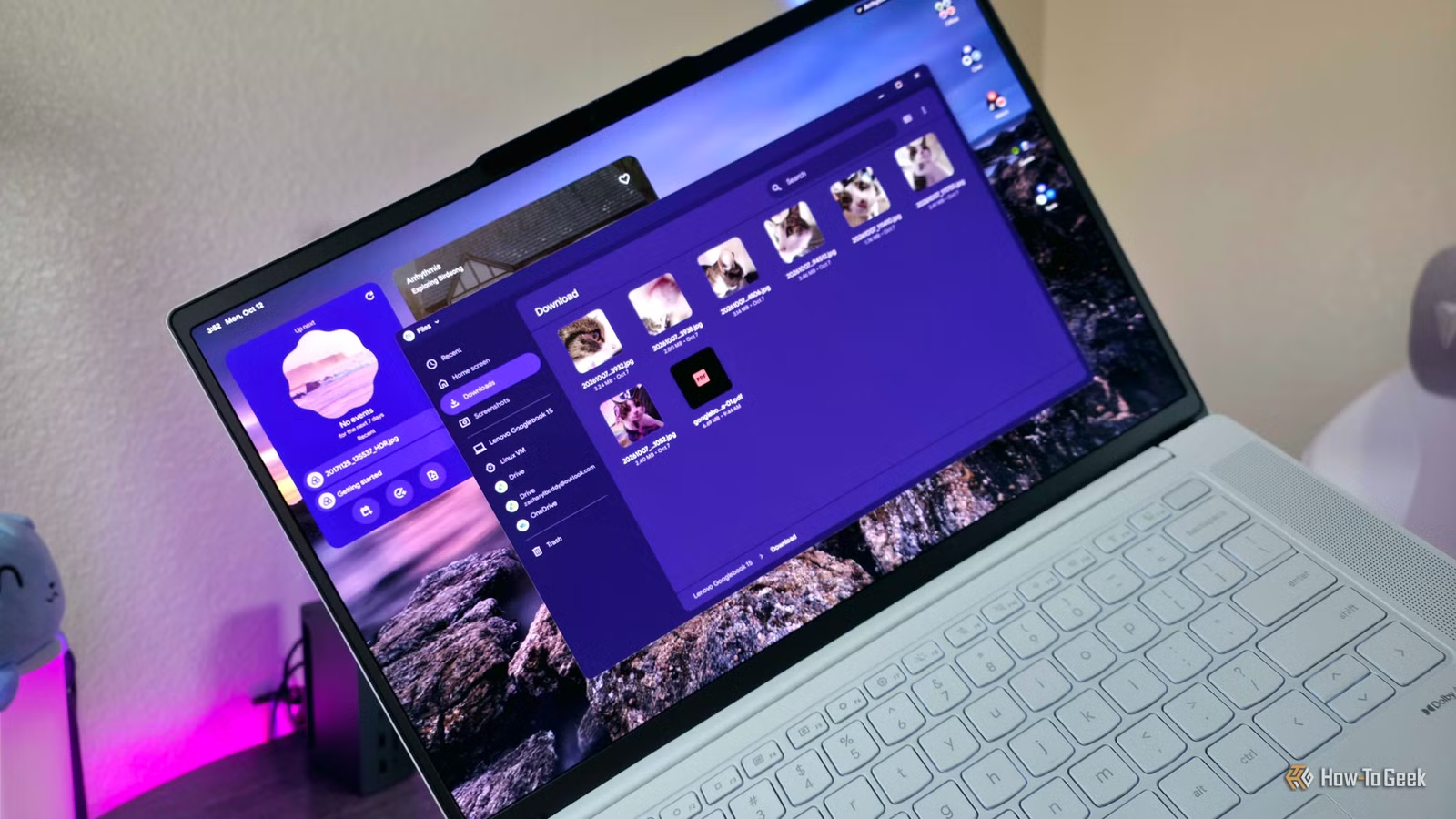
Google has revitalized the Chromebook Files app, offering a sleeker design, enhanced features, and a sharper focus on always-accessible local storage. By default, all downloaded images, documents, and files from Chrome (which does not permit alternative download paths) will be stored in the Download folder within Files. Unlike its predecessor, Googlebook OS aims to minimize the chances of “losing” files.
- Launch the Files app from the app drawer, your taskbar, or by pressing Google + F.
- Select the Downloads folder at the top of the left navigation panel to view all your downloaded files.
- To find screenshots, navigate to the Screenshots folder, which is located just below Downloads.
- If you prefer accessing Downloads or Screenshots directly from your home directory, click on the device folder in the left menu (your device name will vary, e.g., Lenovo Googlebook 15). Downloads will be in the Downloads folder, while screenshots can be found in Pictures, followed by Screenshots.
- Within the Files app, you can open, preview, rename, and share your files. Moving them to different locations on your Googlebook is straightforward using the Copy, Cut, and Paste options from the right-click menu or by utilizing standard keyboard shortcuts (Ctrl + C/X/V).
Tips for Utilizing the Googlebook Files App
Exploring File Management Functions
The Googlebook Files app lacks the extensive capabilities found in Windows File Explorer—there’s no option for opening tabs, selection boxes, or detailed search settings, nor does it match the file management features available in operating systems like macOS or many Linux distributions. However, there are still various tricks to enhance your experience with the Googlebook Files app.
- Utilize the AI integration to search for files naturally or obtain brief descriptions of file content. Alternatively, you can disable these AI features via the three-dot menu in the top-right of the Files app.
- Within the same menu, select Sort by… to rearrange your files based on name, modified date, file type, or size.
- Change your file layout using the View button next to the three-dot menu—List View presents more detailed information, while Grid View offers visual file previews.
- Press Ctrl + Enter to quickly rename selected files.
- Select multiple files by holding Ctrl and clicking on each one individually, as the app does not support selection boxes.
- Use the Space bar to preview a highlighted file quickly (note that this only works for one file at a time).
- Set up the Terminal app to create a Linux Virtual Machine folder for storing files and programs dedicated to the Linux Terminal, with options for granting Terminal access to local folders.
- In Settings, add your Google Drive and OneDrive accounts to mount them in Files (this feature may have occasional inconsistencies).
- Enable Cross-Device Services to connect your Android device for easy file transfers through the Files app (this feature can also be inconsistent).
- Check the Trash folder to restore or permanently delete files you’ve recently discarded, noting that items remain for 30 days before automatic deletion.
Ease of Use in the Googlebook Files App
While Googlebook OS is marketed as a more powerful, desktop-like alternative to Chrome OS, many of its features, including the Files app, still reflect mobile app design rather than the experience of traditional operating systems like Windows, macOS, or Linux. Nonetheless, the Files app is user-friendly and specifically designed for efficient local file management.