There’s a growing appeal for “dumbphones” or minimalist devices that focus solely on essential functions. The allure lies in having only the vital features like calls, maps, and calendars, steering clear of time-consuming distractions.
However, shelling out $500 for a device like the Light Phone or Wisephone doesn’t sit well with everyone. Instead, I set out to transform my Pixel 9a into a more tranquil gadget. The good news? I’ve succeeded!
Here’s a look at how I managed this transformation and the tools that facilitated it.
Would you prefer to declutter your current phone or invest in a dumbphone?
25 votes
Reducing distractions
The first step was silencing notifications from most apps, allowing only essential alerts. Using Android’s notification channels feature helped manage this effectively.
To further minimize distractions, I turned to Switchly, a highly customizable app block that’s both free and open-source. This app supports NFC tags and QR codes. Instead of investing in expensive alternatives, I printed a QR code that mimics the desired functionality. Switchly allows me to block addictive elements of social media—I’ve configured it to automatically disable Instagram Reels and YouTube Shorts. Overall, I’ve set up a profile that eliminates distracting apps and websites with a simple tap.
One tap and there’s peace.
Discovering BlockAds was a game-changer. This VPN-based ad blocker significantly improved my experience by eliminating those annoying full-screen ads from free Android apps.
Utilizing minimalist app versions
While Android offers plenty of diverse apps and features, it can also feel overwhelming. More often than not, you can find a minimalist, ad-free variant of any app.
In my experience, free and open-source applications from independent developers tend to be better optimized and ad-free, often featuring options to disable unnecessary elements. I started with the Fossify suite, which provides sleek, ad-free alternatives for essential apps like Gallery, File Manager, Calendar, Music Player, Messages, and Phone. While I like the native Phone and Messages apps, I find Fossify’s lighter versions for Photos, Files, and Calendar much easier to navigate.
For weather updates, I use Breezy Weather, an open-source app that offers customization. Instead of getting lost in YouTube’s tempting feed, I prefer NewPipe, which provides a curated subscription list without distractions. NewPipe allows me to watch videos ad-free and download them for offline viewing—it’s a nice supplement to my YouTube Premium subscription.
Switching to FUTO Keyboard was another upgrade. It’s a free, open-source keyboard that lets me customize my interface by showing only the features I need, unlike the bulkier Gboard.
For browsing, I lean on Fennec, an open-source version of Firefox. It lacks telemetry and unnecessary features while supporting ad-blocking extensions like uBlock Origin.
Crafting a distraction-free home screen
Upon starting with the Pixel 9a, I immersed myself in customizing the lock and home screens, adding various widgets. This eventually led to decision fatigue and compulsive scrolling.
While I typically use Pixel Launcher, I disabled the At a Glance widget, a long-requested feature from Google. The Discover feed page, which was a source of anxiety, has been removed as well.
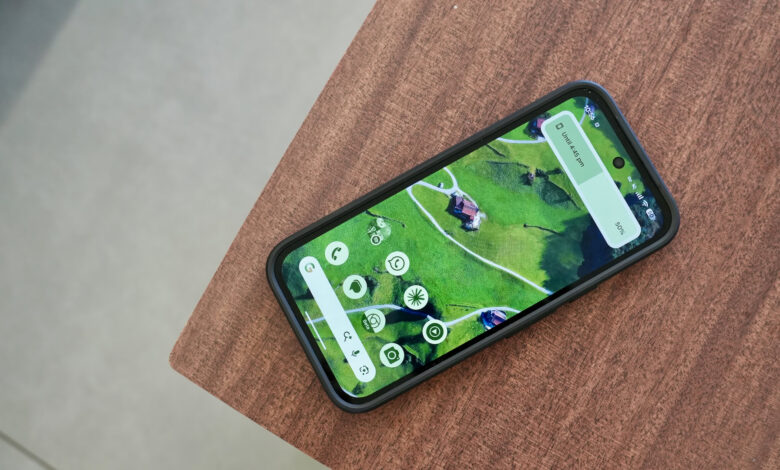
I stripped all widgets and now maintain a simple, single-page setup with themed icons. Accessing apps via the swipe-up gesture on the Pixel is quick. Occasionally, I use the Niagara Launcher for its minimalistic theme, pinning a few useful apps and perhaps a widget.
Streamlining apps where possible
Not all apps can be easily replaced, and Chrome is a prime example. While I use Fennec predominantly, certain scenarios require me to use Chrome for testing or website compatibility.
I did my best to simplify Chrome by removing any unnecessary shortcuts and feeds on the homepage, focusing solely on the search bar. I also disabled the notification pop-up, which has enhanced my browsing experience.
Some apps you can switch, some apps you just can’t.
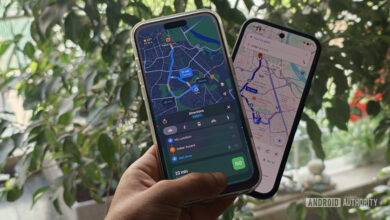
I apply the same principles to Gmail and Google Maps. Disabling the Meet tab and various features in Gmail helps minimize distractions. Although I depend on Google Maps for navigation, I’m not keen on the increasing emphasis on features like Explore. Disabling suggestions here, too, creates a calmer environment.
In conclusion, I encourage everyone to explore their phone settings. There are many options available to turn off annoying notifications, suggestions, and distracting features.
Thank you for being part of our community.