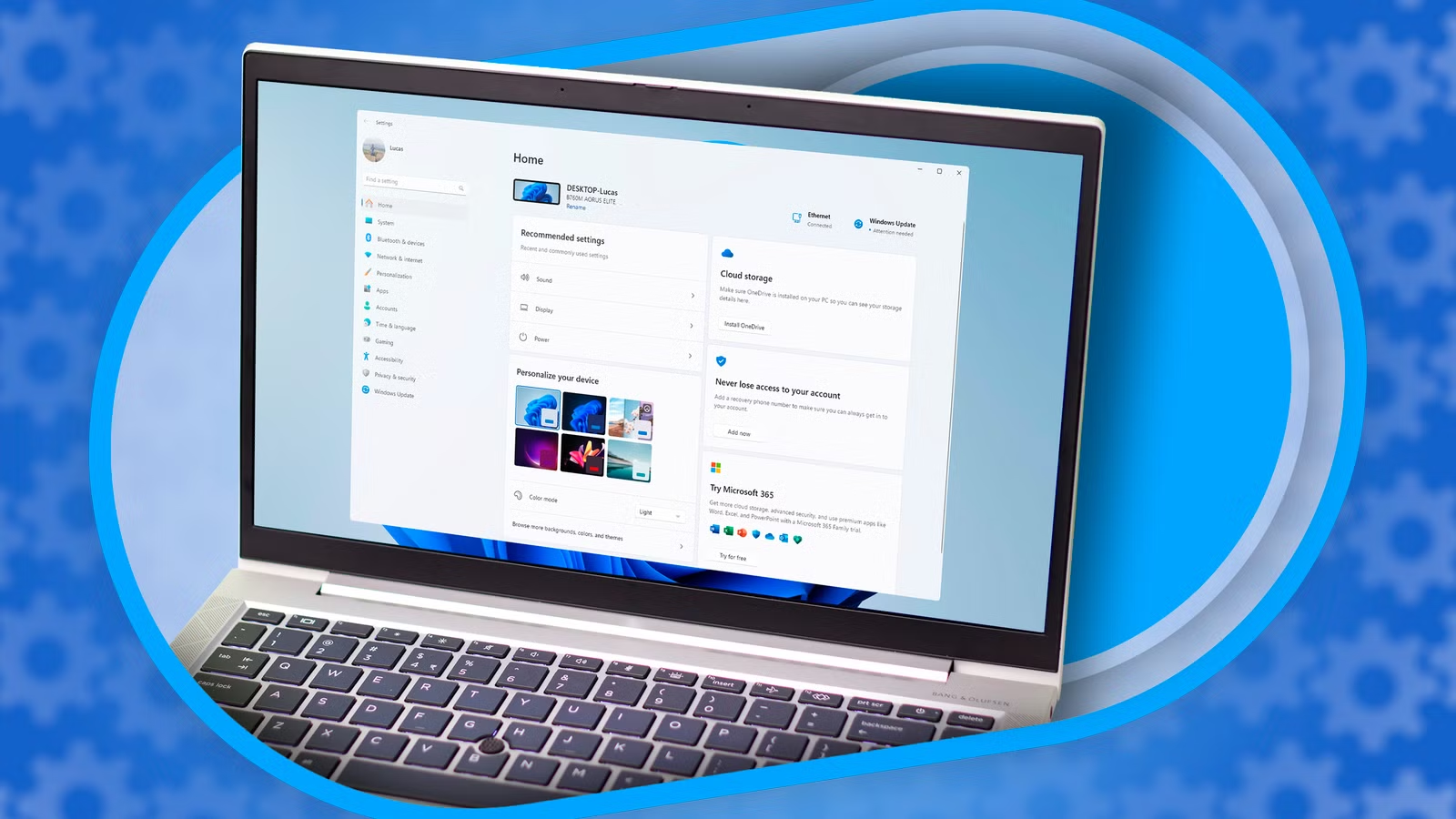
The Windows Settings application has seen significant updates and improvements, particularly in its user interface. However, despite these advancements, many features still require the traditional Control Panel. As of 2026, users continue to depend on the Control Panel for numerous intricate configurations.
A notable example is the shortcut sysdm.cpl, which highlights the ongoing relevance of the Control Panel and its indispensable functions, even with the presence of the Settings app.
Understanding sysdm.cpl
A Legacy Shortcut
sysdm.cpl serves as a System Applet for the Control Panel on Windows PCs, providing access to the classic System Properties window. This window has been part of Windows since version 95 and encompasses crucial system configuration settings such as user profiles, remote assistance, and environment variables.
To access this window, open the Run dialog with Win+R and type sysdm.cpl. You’ll encounter several tabs, starting with the Computer Name, alongside various advanced settings.
Power of the System Protection Tab
Configuring System Restore
The System Protection tab stands out as a vital feature. This section is the command center for System Restore, a crucial safety feature that allows users to revert their devices to a previous functioning state in case of mishaps.
From here, you can enable or disable protect on individual drives, manage disk space for restore points, and create manual restore points if you’re unsure about a Windows update or other risky changes.
Settings Limitations
Redirect without a Redesign
One might wonder why essential configurations aren’t fully integrated into Windows Settings. Despite its wealth of options aimed at optimizing system performance, System Protection isn’t sufficiently represented. Technically, there is a related option available under System > About, but it merely redirects to the old System Properties window rather than offering a standardized modern interface.
Microsoft has not fully transformed this aspect within Settings, providing just a link instead. It’s likely that seasoned Windows users will opt for the Run command or PowerShell instead.
Acknowledgment of Limitations by Microsoft
Legacy Compatibility Concerns
Microsoft is aware of these shortcomings. In April 2026, a company representative confirmed that efforts are ongoing to transfer all Control Panel functionalities to the updated Settings app. However, challenges exist due to long-standing compatibility issues with various legacy systems and hardware.
This proactive approach is promising, yet System Protection hasn’t been highlighted for redesign, leaving it hindered within the old interface.
Broader Implications
Multiple Functions of sysdm.cpl
While System Protection is a key feature of sysdm.cpl, it boasts additional invaluable functions. The Advanced tab lets users modify virtual memory and performance settings, while the Computer Name tab provides options for renaming the computer and joining a domain. The Remote tab deals with remote assistance permissions.
It’s important to note that these functionalities lack proper counterparts in the Settings menu. Although renaming your PC is possible there, domain joining or remote settings merely redirect you back to the same System Properties window, indicating that while the Settings app addresses basic functionalities, it relies on older dialogs for advanced features.
Legacy Dialogs Still in Use
Until Microsoft successfully revamps features like System Protection and memory management within Settings, sysdm.cpl remains the quickest and most dependable way to conduct these operations. The next time you need to make such adjustments, don’t hesitate to access the Control Panel and utilize traditional methods.