Google Drive provides free cloud storage, making it easy for users to access files from various devices. It’s an integral part of services like Google Docs, Gmail, and Google Photos, and many people utilize it daily without giving it much thought.
However, the application has its downsides: at 350MB, it occupies a significant amount of space for simply syncing files. Its design mirrors the web version, featuring Google’s Material Design, which can feel less like a native application. Additionally, it doesn’t support Linux. This leads many to wonder if an alternative exists.
Rclone: A Command-Line Cloud Storage Solution
Seamless Integration with Google Drive and Other Providers
If privacy is not your main concern, Google Drive can be an excellent option for storing various files, including documents and project files that you may need on multiple machines.
Rclone simplifies the process of syncing or accessing these files from your desktop, working similarly to rsync for local or network file transfers. The software is available for macOS, Windows, and various Linux distributions, with an easy installation process via a single executable download.
After installation, you can start using the rclone command. The utility includes a wide range of subcommands; just type rclone without arguments to view the full list.
Your first step is to run rclone config, which will guide you through an interactive setup. While the process is lengthy and outputs a lot of information, most default settings are suitable. Be sure to select “drive” for the initial storage option and feel free to leave other preferences at their defaults.
When naming your remote (Google Drive), choose a short, simple name to make future commands easier—something like “gd” works better than “googledrive.”
Managing Files with Rclone
Effortless File Transfers Between Google Drive and Other Devices
After successfully configuring rclone, you can test it by listing the top-level directories in your Google Drive with the following command:
rclone lsd remote:Be sure to use the name you assigned to your remote, followed by a colon.
You may encounter an error indicating that the remote uses a shared Google Drive client_id, which is being phased out in 2026. It’s advisable to create your own client ID for better reliability.
Rclone offers various listing commands that function similarly to the local ‘ls’ command. The lsjson command stands out by providing structured JSON data for automating tasks related to your files.
To download files or directories, use the copy command like this to retrieve everything from a directory named “docs” to your current directory:
rclone copy remote:docs .Remember to quote file paths with spaces, e.g., rclone copy ‘remote:My Docs’.
You can also copy individual files by executing a command like the following after creating or editing a document:
rclone copy file remote:docsAdditionally, you may choose to sync files. This command operates similarly to copying, but it can also delete files in the destination to ensure it matches the source exactly. Use rclone sync source remote:destination with caution, as it modifies the destination.
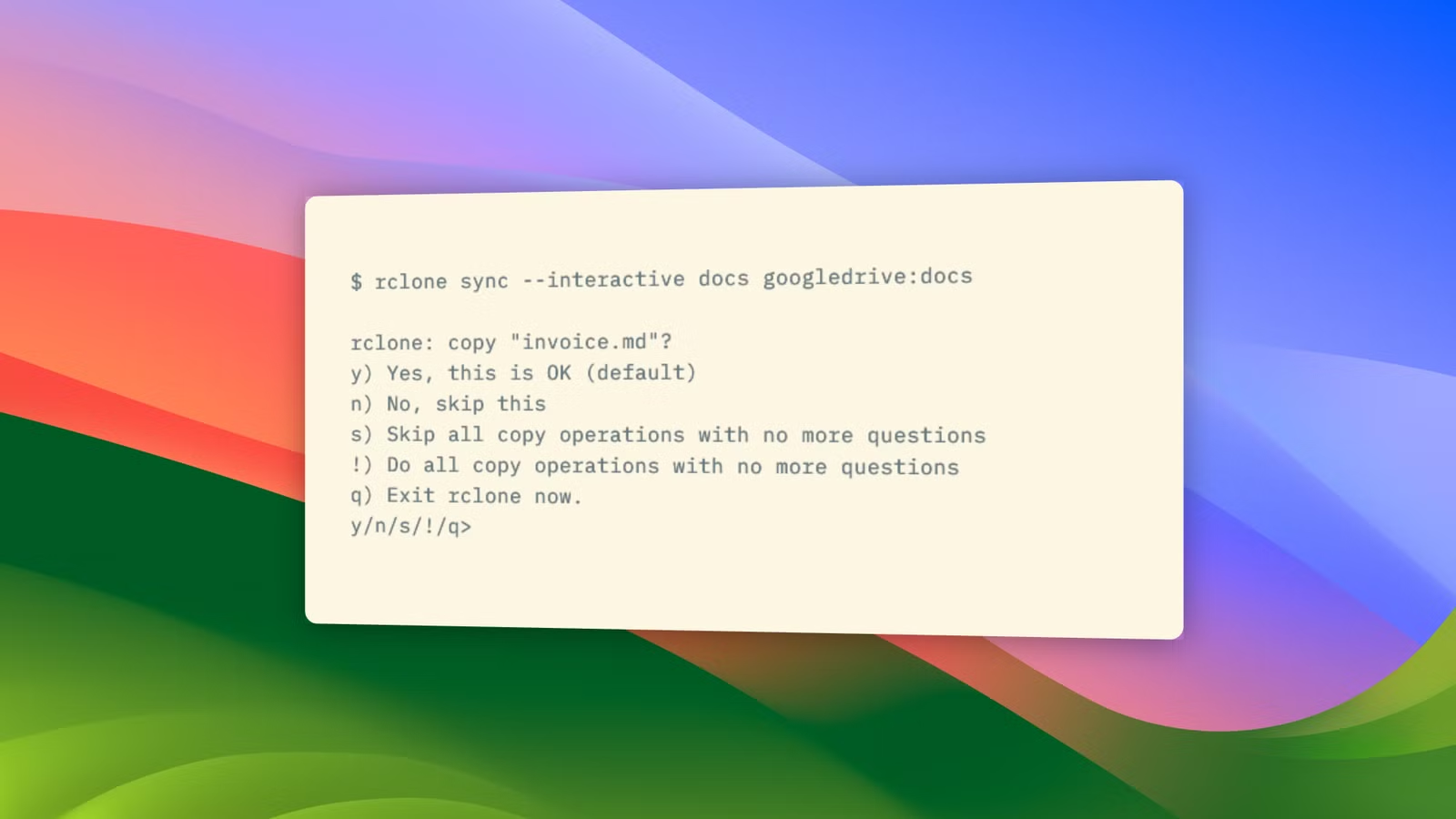
To proceed safely, use the –interactive option. This will prompt you for confirmation for each file action, allowing you to approve, skip, or terminate the transfer. The –progress option gives real-time updates on transfer speeds and sizes, which is helpful for large data sets.
Rclone: Useful but Not Without Flaws
While I initially critiqued the Google Drive app, Rclone also has its drawbacks. The setup may feel cumbersome, and the command-line interface deviates from typical conventions.
Still, as a streamlined and efficient way to synchronize files, Rclone is invaluable. It simplifies the process, offers opportunities for scripting, and can extend functionality to other services, making it a valuable tool in any user’s toolkit.