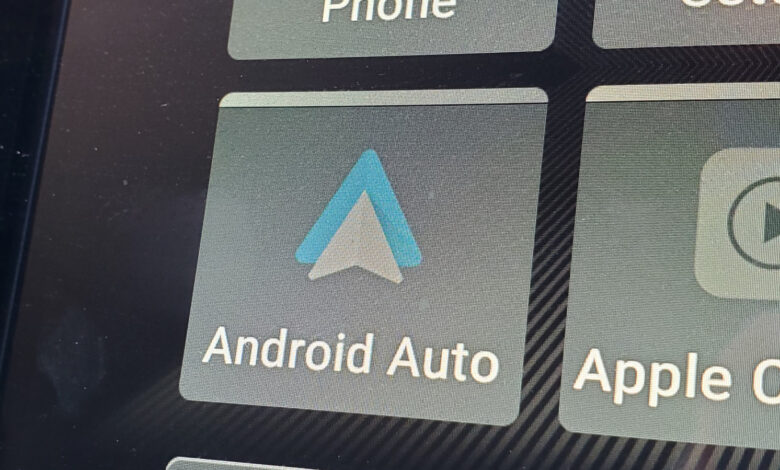
Adjusting your Android Auto settings can be done easily here.
Android Auto effectively mirrors essential applications from your smartphone onto your vehicle’s infotainment screen. It handles navigation, music, and messaging efficiently. However, there is an often-overlooked developer menu within the app that many users have yet to experience.
This hidden developer menu features various powerful options, including a wireless connectivity toggle and an “Unknown Sources” feature that allows for installation of apps not sourced from the Play Store. So, how can you access these functionalities?
Locating the Secret Menu in Android Auto

Gabriela Vatu
Accessing the hidden display settings of Android Auto is quick and quite straightforward. Here’s how to do it:
- Open your phone’s Settings and search for Android Auto. Alternatively, navigate to Settings > Connected Devices > Android Auto.
- Scroll to the very bottom of the page.
- Tap Version and permission info about ten times rapidly.
- Your device will request confirmation to enable developer settings; confirm this request.
- Return to the top of the Android Auto menu and select the three-dot menu in the upper corner.
- Choose Developer settings to gain access.
Be aware that the names of these menus might differ slightly depending on your device.
Activating Android Auto’s Hidden Display Features
The developer menu includes a variety of settings that can enhance your experience. Here are several features that may be particularly beneficial:
Wireless Android Auto Toggle
This setting determines whether Android Auto can connect to your vehicle or a wireless adapter without needing a cable. It is typically checked by default, but you can adjust it manually if necessary. If you’re experiencing issues with wireless connectivity, toggling this option can often resolve problems.
Unknown Sources
This feature allows applications not found on the Google Play Store to appear on your car’s display, similar to standard sideloading methods. For example, apps like CarStream and Fermata Auto can enable YouTube streaming on your infotainment screen, offering convenience for users waiting in their cars.
Force Video Resolution
This option allows you to set a higher output resolution when connecting your phone to the car, enhancing the clarity of icons, maps, and text on the dashboard.
Developer Features to Avoid
Unless necessary, it is advisable to avoid enabling options like saving video, audio, and microphone inputs, as they can overly stress your phone’s processor, potentially leading to overheating, battery drain, and storage issues.
Should You Explore Android Auto’s Developer Menu?

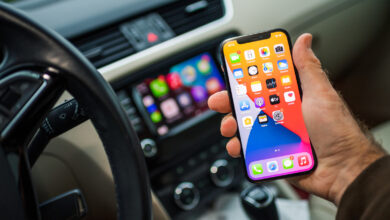
Gabriel Nica/Shutterstock
For many drivers, enabling the Unknown Sources feature and the wireless toggle can be beneficial. Though it makes sense that Google restricts access to apps that occupy the infotainment screen, there is a clear demand for such functionality, evident from the number of available apps. Third-party solutions are stepping in where Google hasn’t yet addressed user needs.
While the developer menu is unlikely to revolutionize your Android Auto experience immediately, it does provide a degree of control that isn’t prominently marketed. Some features are quite valuable, while others might not be suitable for regular use. Nevertheless, with just a few taps, you can elevate your understanding of Android Auto, far beyond the average user.