If Only I Had Known: 5 Essential Android Auto Settings to Maximize Your Experience


Photo by Joe Maring
Until a couple of months ago, I was driving a 2003 PT Cruiser for nearly ten years. This car saw me through numerous phases of life, but a malfunctioning transmission and a hefty repair fee of over $4,000 marked the end of our journey together earlier this year.
It was time for a new vehicle, so I opted for a 2022 Hyundai Tucson. As you can imagine, the leap in technology from a nearly 20-year-old car was considerable. Now, I enjoy features like cruise control, heated seats, and, of course, Android Auto.
Entering the world of Android Auto, I was essentially clueless, but after just a few months of use, I can’t fathom how I lived without it. My experience would have been even smoother had I known about these five essential settings beforehand.
What Android Auto feature can you not live without?
193 responses
Taskbar Widgets

Photo by Joe Maring
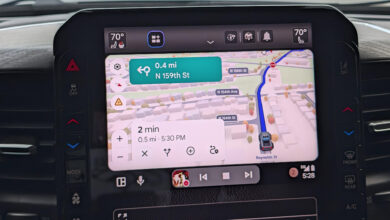
Android Auto’s bottom bar acts as a taskbar for apps. While this is helpful for switching between apps, there’s a more valuable way to use this feature.
Open the **Settings app** on your Android device, search for “Android Auto,” and select the option to access settings for the car screen. Find the **Display** section, then toggle on **Taskbar widgets**.
When enabled, your taskbar will show small widgets instead of app icons, depending on your current activity. For instance, if music is playing while you use the Google Maps app, you’ll see a mini music player in the taskbar with quick playback controls. Conversely, a full-screen music app will display turn-by-turn directions in the taskbar.
It may seem like a minor adjustment, but this has quickly become one of my favorite features of Android Auto. This enhancement allows for efficient multitasking on the road, and I don’t plan to turn it off.
Launcher Customization

Photo by Joe Maring
While Android Auto’s launcher can’t compete with the extensive customization available on smartphones, it does offer some options. On the same settings page we were just on, scroll to the **Display** section and click on **Customize launcher**.
This will direct you to a page dedicated to personalizing the Android Auto app drawer. You can rearrange app order and hide any apps you don’t want visible. While not groundbreaking, it’s definitely a useful feature.
Change Home Screen Layout

Photo by Joe Maring
I often use navigation and media playback in my car. By default, Android Auto places the maps app on the left side and the media app on the right. This layout can be inconvenient if your car has a sizable cabin or infotainment screen, placing the media controls out of reach. Thankfully, you can modify this arrangement.
Navigate to the *Advanced* section in the Android Auto settings and select **Change layout**. Then, choose **Media closer to driver** to switch the positions of the navigation and media apps.
Play Media by Default

Photo by Joe Maring
Android Auto typically resumes playing whatever audio you last listened to when you turn on the car. While this is usually fine, there are times I prefer to choose what to listen to first.
To change this, return to the settings and locate the **Startup** section. Here, toggle the **Start music automatically** feature off.
With this setting disabled, Android Auto won’t automatically start playing music or podcasts when you get in your car.
Gemini Actions

Photo by Joe Maring
Some may feel indifferent about the Gemini feature, but it can be genuinely useful when harnessed effectively. To make the most of Gemini in your car, go to the customization page we discussed earlier, click **Add a shortcut to the launcher**, and select **A Gemini action** from the options that appear.
Here, you can enter a command for Gemini and name it. The appeal of Gemini actions lies in their ability to execute multiple tasks with a single button press. For instance, I created an action called “Driving home” that initiates navigation to my house, adjusts the air conditioning, activates my living room lights, and plays a specific playlist.
Gemini actions will appear in the app drawer, allowing you to arrange them with other apps like before. By dedicating some effort to creating useful multi-step actions, you could find them incredibly powerful.
Thank you for being a valued member of our community.