Prevent Data Collection and Boost Your Galaxy’s Battery Life with This Simple Setting on Samsung!

In today’s digital age, many users seek longer battery life and enhanced privacy on their smartphones. However, there’s a lesser-known feature in Samsung devices that could be draining your battery while collecting your personal data.
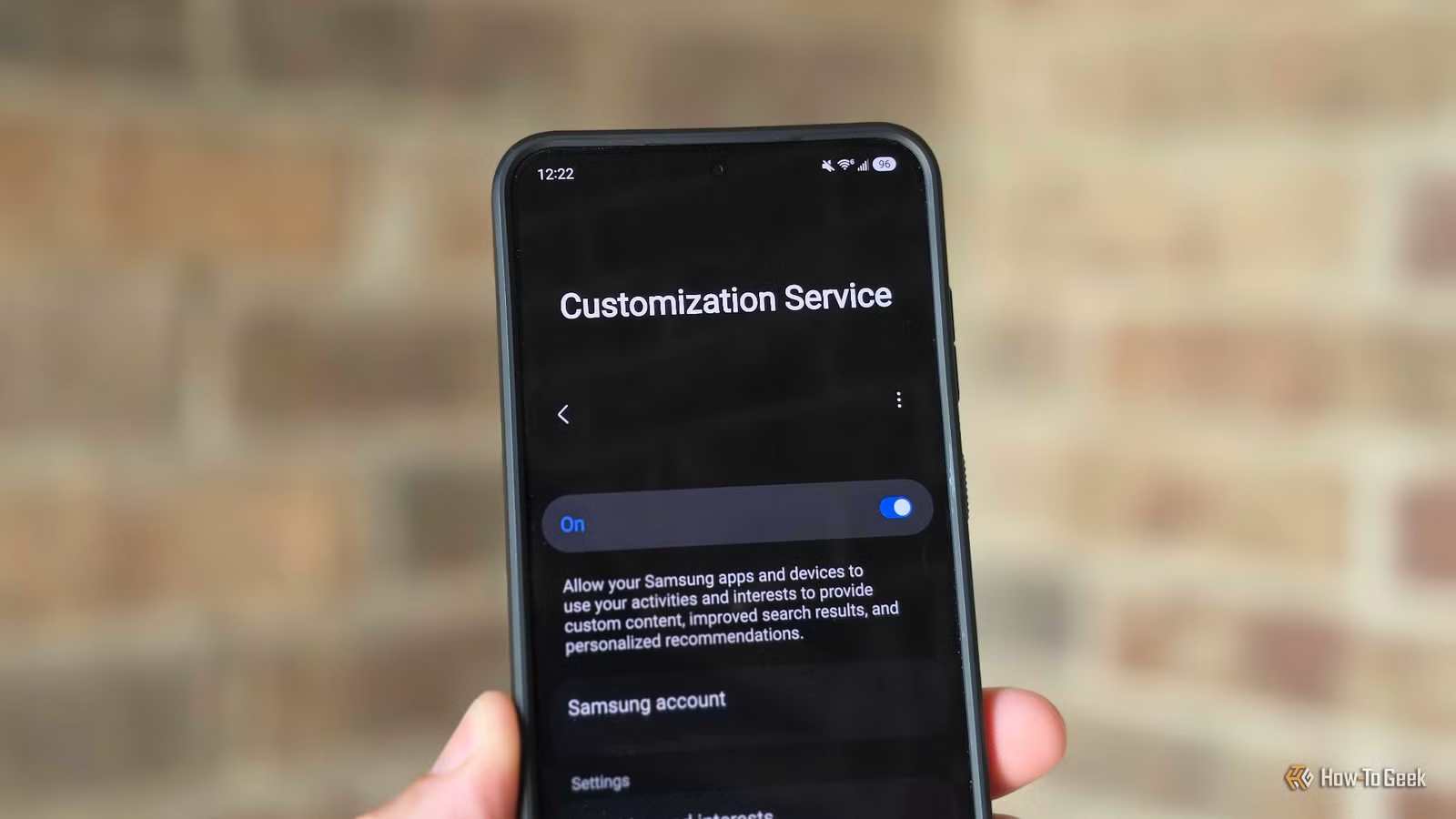
Recently, I embarked on a mission to boost the battery performance and clear up the storage on my Samsung Galaxy phone. This involved uninstalling unnecessary apps, monitoring battery usage, and tidying up the device. To my surprise, it wasn’t external applications or social media that were causing the battery drain, but a hidden feature known as “Customization Service.” Here’s everything you need to know about it and how to turn it off.
Understanding Samsung Customization Service
How It Affects Your Battery
If you own a Galaxy phone, you may have unintentionally activated the Customization Service during the initial setup or while signing into your Samsung account. This feature is often overlooked, and its impact on battery life is not immediately obvious, yet it can be significant.
The Customization Service gathers data from various Samsung and third-party applications and services, using this information to provide personalized recommendations and advertisements. It claims to enhance user experience by delivering tailored content based on your activities and interests.
For many users, the fact that Samsung collects such detailed information is concerning. The feature operates continuously in the background, requiring resources to send the acquired data to Samsung’s servers, which understandably drains battery life.
If you frequently use Samsung’s apps and services, the data collection and processing could contribute considerably to your battery consumption. For some, this service might rank high on the battery usage list, so it’s worth checking how much power it consumes on your device.
How to Disable Samsung’s Customization Service
Better Battery Life Awaits
Now that you’ve learned about this hidden feature, here’s how to disable it:
Navigate to Settings > Accounts > Samsung account > Security and privacy > and select Customization Service. Switch the toggle off, and confirm by tapping Stop or Okay when prompted. Alternatively, you can search for Customization Service in the Settings menu to access it directly.
If privacy is your main concern, consider erasing the data collected before disabling the service. Within the Customization Service section, select Erase personal data and follow the prompts.
If you prefer to keep the feature enabled, you can still limit its data collection. The Customization Service section allows you to view tracked activities and interests, manage data, and even choose Customized Apps to uncheck any apps you want to keep from collecting data.
Turning off or adjusting this feature can lead to decreased data collection, and you may notice an improvement in battery life as a pleasant side effect.
No Downsides to Turning It Off
It’s essential to understand that your experience with the Customization Service will vary based on how you set up and use your phone. Some may not notice its impact, assuming it’s a standard component of Samsung’s tools. Technically, that is correct, yet it is not essential for your device’s functionality.
Personally, I haven’t encountered any drawbacks from disabling this feature, and likely, you won’t either. Most applications and services will continue to work normally, although ads may become less targeted. If ads aren’t that important to you, it’s a negligible difference.
If your older phone isn’t holding up with its battery performance, it may be worth considering an upgrade instead.