Unlock a Secret Multitasking Feature on Your Samsung Galaxy That Outshines Android 17’s App Bubbles!

Android 17 introduces a standout feature known as App Bubbles, designed to enhance multitasking on devices, particularly for Pixel users. However, Samsung has implemented a similar concept long before, showcasing its readiness to innovate in this area.
While Samsung’s Galaxy devices are packed with impressive features, the company often falls short in educating users about them. The “Pop-Up View” feature is Samsung’s counterpart to the new App Bubbles in Android 17. This functionality is activated by default and available for immediate use, yet there are some helpful tips users should be aware of.
Samsung’s Long History with Floating Windows
An Established Feature
Although App Bubbles have recently gained attention, Samsung’s pop-up window concept has existed for over ten years. Initially featured in devices like the Galaxy S3 and S4, a more refined version debuted with the Galaxy S7 series in 2017.
This feature has undergone substantial improvement since then, with enhancements that have transitioned from Good Lock modules to mainstream settings. Initiating pop-up view has become easier through gestures, and it offers more customization options compared to App Bubbles.
Samsung provides various ways to access pop-up view for apps. Notably, users are not confined to the stock launcher to enjoy this feature. While App Bubbles might appear cleaner and require less setup, the flexibility of Samsung’s pop-up view presents a significant advantage.
Activating Pop-Up View on Samsung Devices
Effortless Multitasking
Multiple methods exist for launching an app in pop-up view on Samsung smartphones. One way is akin to activating split-screen mode: swipe up from the bottom to view open apps, scroll to the desired app, tap its icon above the preview, and choose “Open in pop-up view.”
The second option requires enabling a specific setting but streamlines the process of using pop-up view. This allows you to swipe inward from the screen’s top corner to directly open an app in this view and resize the window. To enable this feature, navigate to Settings > Advanced features > Multi-window, toggle on “Swipe for pop-up view,” and adjust the size of the gesture area accordingly.
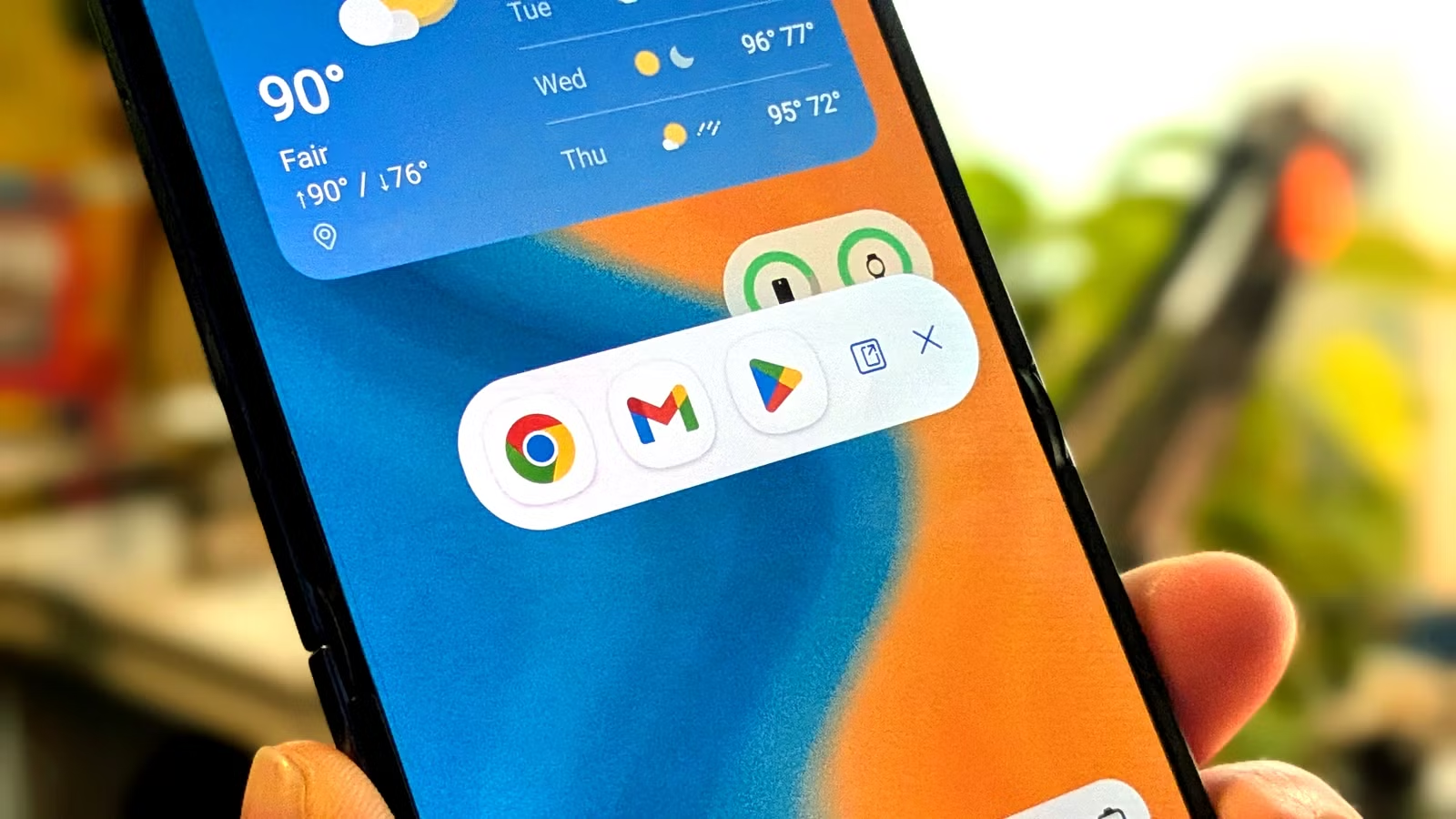
Once an app is in pop-up view, users have several options. You can click and drag from the top of the window to reposition it, minimize it by flicking it to the screen’s edge, and resize it by dragging from any corner. Tapping the top bar reveals options to minimize, maximize, enable split screen, or close the app. When minimized, the app turns into a floating icon that can be moved anywhere on the screen. If multiple apps are minimized, their icons group together, allowing for individual or collective reopening.
Comparing Google and Samsung’s Approaches
As expected, Samsung and Google adopted contrasting methods for this feature. Google’s version is simplified and clean but lacks flexibility, with floating windows that cannot be resized. In contrast, Samsung offers more choices, though this can lead to a more complex experience.
Ultimately, which implementation is preferable depends on user preference. Galaxy phone users may find themselves leaning towards Samsung’s feature set.