
Different brands of Android phones have their own unique approaches to the look and feel of their devices. For instance, Xiaomi tends to imitate Apple’s iOS, whereas Samsung has dedicated years to refining its One UI interface.
Like many, I have mixed feelings about One UI. While Samsung has occasionally overloaded its phones with unnecessary features, the recent iterations of One UI have significantly improved. Nonetheless, there are several settings I deactivate as soon as I set up a new Samsung phone.
RAM Plus
It’s more of a setback in my opinion
As I write this, there’s a worldwide RAM shortage, but the issue has persisted for quite a while. Android generally requires more memory than iOS due to Apple’s advanced memory management, yet Samsung responded with its RAM Plus feature, essentially creating a swap file for phones.
Enabled by default, RAM Plus uses part of your phone’s SSD as virtual RAM, but it can lead to a slower performance, as noted by various tech experts. Most users likely won’t need it if their phones are equipped with over 8GB of RAM.
Turning off RAM Plus won’t harm your device. In fact, you might find your phone runs smoother without it. If you’re not faced with low memory alerts or app crashes, you probably don’t require this feature.
To disable it, navigate to Settings > Device Care > Memory > RAM Plus, where you can either lower the amount allocated or turn it off entirely.
Customization Service
Intrusive features masquerading as services
The Samsung Customization Service offers a polite facade for features that allow the company to monitor your usage and employ this data for marketing purposes.
This feature can be inadvertently activated during setup, meaning it might already be running on your device. I find such monitoring comparable to intrusive TV tracking technologies, and I prefer not to have my data collected and shared without consent.
To modify or disable this feature, go to Settings > Accounts > Samsung account > Security and privacy > and tap on Customization Service. You can turn it off entirely or adjust its settings, keeping in mind that some functionalities, like sleep tracking, may be disabled as a result.
Scene Optimizer in the Camera App
I prefer natural photography
Samsung Galaxy phones are renowned for their exceptional camera capabilities. Personally, I enjoy macro photography, and while I find many features in Samsung’s camera app helpful, I also disable the “scene optimizer,” or whatever it’s currently called.
This feature, generally located under Camera Settings > Photo enhancer > Scene detection, uses AI to identify what you’re photographing and adjusts the settings accordingly. While it may enhance your images, I prefer to have full control over my photo adjustments.
Lift to Wake
Brightness issues
Although some gesture features are convenient, I always turn off the “Lift to Wake” option, as it tends to be more disruptive than useful. This functionality is designed to activate the screen when you pick up the phone, but I often find myself in situations where I don’t need the screen to light up.
I utilize the Always-On Display feature, which allows me to check the time without the need for an active screen. Additionally, I find it unpleasant when my screen illuminates suddenly in the dark, causing discomfort to my eyes.
To disable this option, go to Settings > Advanced Features > Motions and gestures > Lift to wake, and click to toggle it off.
Edge Panels
Removing the distraction
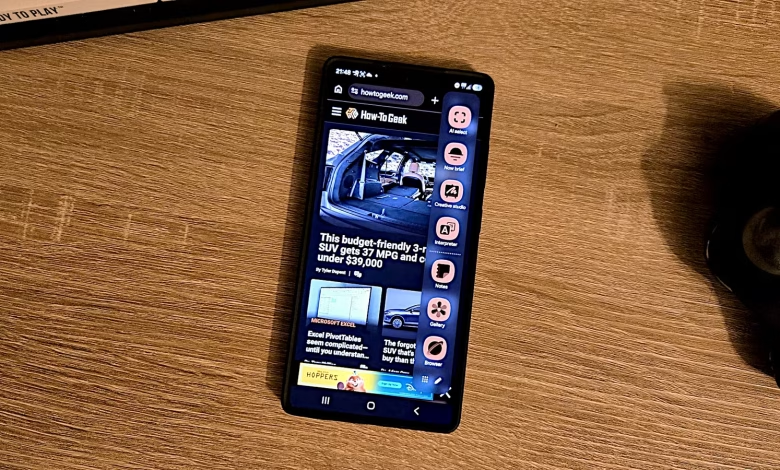
Samsung’s Edge Panels aim to provide quick access to frequently used functions. This feature manifests as a small tab on the side of the screen that opens a shortcut menu when swiped.
If you find this unnecessary or bothersome, you can disable it by navigating to Settings > Display > Edge Panels.
While some may find value in these panels, I find the tab visually distracting and rarely utilize it. For my needs, having app folders in the main quick access bar suffices.




