Unlocking Hidden Potential: 3 USB Upgrades on Your Motherboard You Might Overlook


Building PCs is a passion of mine, though I must admit that motherboards often lack the excitement that surrounds GPUs and CPUs, especially when price tags come into play.
Unlocking Internal Potential
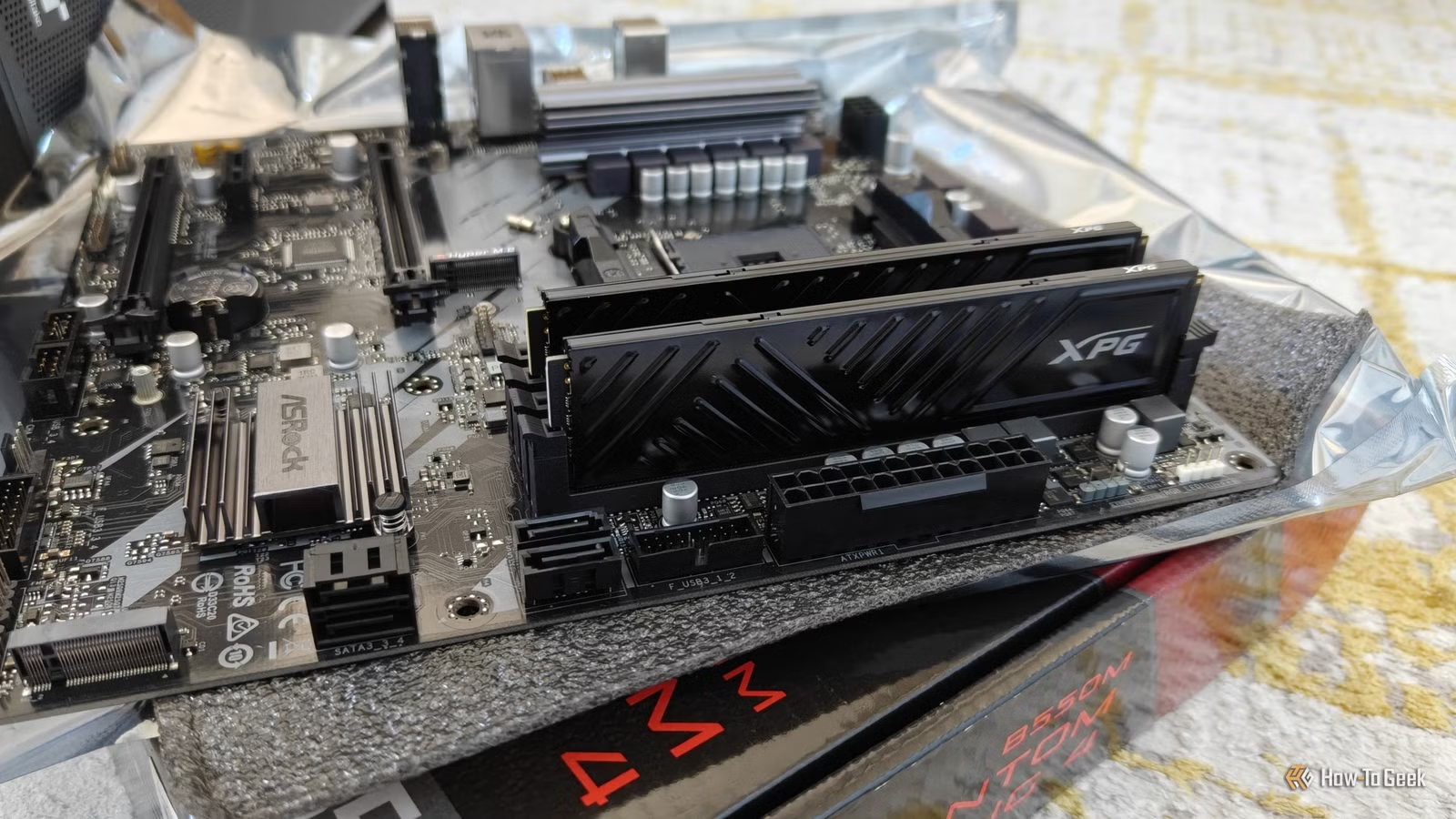
Let’s delve into what USB 2.0 headers are. These compact 9-pin blocks, usually found at the bottom of your motherboard, typically come in pairs. Each header is responsible for managing two USB ports, meaning you could have up to four internal USB 2.0 ports already built into your setup. While that number seems generous, you might find yourself running out of them sooner than expected.
A clever “hack” to enhance your connectivity is the use of an internal USB hub. This device allows you to convert a single 9-pin header into four ports. Priced around $20 to $30, these compact hubs can be discreetly placed inside your case, maintaining the aesthetic appeal of your build.
The hub’s advantages extend beyond simple port expansion; it also addresses power distribution concerns. Motherboard headers generally provide 500mA per port, meaning if you use a passive splitter, each device may not receive adequate power. Therefore, choosing a hub that connects to your PSU via SATA power is a wise way to ensure your devices get the power and performance they require.
You’ll often find that once you start connecting your components—like front panel ports, AIO pump displays, and RGB controllers—the need for additional headers quickly arises.
Turn Unused Headers into Ports
Unlike the previous solution, this tip enables you to utilize an unused header on your motherboard. By acquiring a slot plate adapter, which costs about $10 to $15, you can convert a spare 9-pin or 19-pin header into additional ports. This is especially beneficial for mid-tower cases that may feature two USB 3.0 headers for just one front panel connection.
Alternatively, if you’ve exhausted all your headers, PCIe x1 cards can introduce two more ports with their own power supply. However, it’s essential to keep in mind that USB 3.0 can increase interference in the 2.4GHz range, potentially affecting the performance of nearby wireless devices, such as keyboards and mice.
Add a USB-C Port to Your Setup
Chances are your motherboard includes a USB-C header, known as Type-E or Key A. Many modern motherboards are equipped with this, but if your case lacks a corresponding port, you won’t be able to utilize it. Fortunately, you can solve this issue with a slot bracket adapter.
By connecting this adapter to the Type-E header, you can create a functional USB-C port at the back of your PC, rather than relying on a cumbersome external adapter. Given today’s market, you may find it a while before you decide to upgrade your entire system.
Check Compatibility Before You Buy
These hidden upgrades prevent you from resorting to less effective alternatives via USB ports, streamlining your setup. However, before making a purchase, always take a moment to ensure that any accessories you choose are compatible with your motherboard and case.