
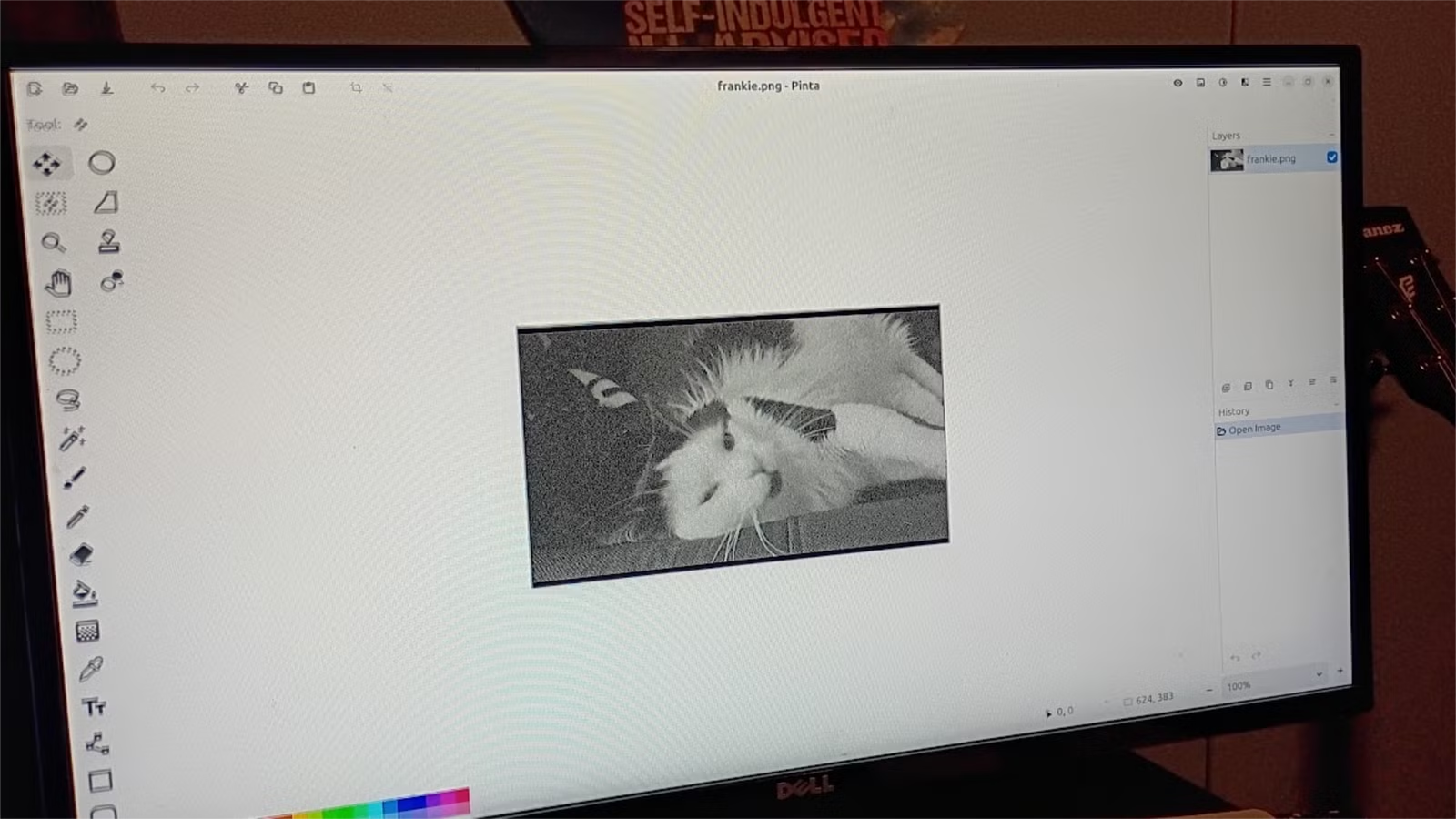
Since the demise of Flash, I’ve had a growing disinterest in Adobe products. There are numerous open-source replacements for most Creative Cloud applications that do not enforce a subscription model or necessitate a separate uninstallation tool. Among my preferred image-editing programs is Pinta, which stands out for its user-friendly layout and functionality. It offers all the tools I require from Photoshop at no cost, providing a more streamlined experience compared to GIMP.
No More Searching for Features
Pinta is an open-source software that is consistently updated. Inspired by Paint.NET and GIMP, it strikes a balance in features that I find especially appealing, serving as a suitable alternative to Photoshop, which I never fully embraced. It allows me to execute tasks typical of Photoshop while also functioning as a straightforward painting and image editing tool, greatly enhancing my workflow.
I’ve occasionally found mobile editing apps frustrating because they often feature countless icons without clearly labeling their functions. Pinta, however, displays an intuitive organization of icons that facilitates easy use for image editing, fitting perfectly into my workflow.
When you open Pinta, the interface features an array of icons on the sides with the workspace centralized. This minimalist approach enhances my editing experience, as hovering over an icon reveals its function, minimizing confusion.
Pinta comes equipped with numerous keyboard shortcuts, increasing overall efficiency for its users, which I greatly appreciate.
Photoshop Functions Feel More Intuitive in Pinta
Working with Layers Made Easy
To illustrate how Pinta enhances my productivity, I recently created an image for an article by combining a character photo from a known franchise with a random static wallpaper. Importing images to work on layers is effortlessly accomplished through straightforward commands in the menu.
After adding the static background, I resized it, applied a color dodge effect, and adjusted its transparency. To transform the image into black and white, navigating to the adjustments menu was simple, but I also often rely on keyboard shortcuts for convenience.
Utilizing shortcuts significantly streamlines my tasks in Pinta. For instance, pressing F4 opens layer properties, and CTRL + SHIFT + X crops to the selection. The O key can be used for drawing lines and arrows.
The Clone Stamp Feature is User-Friendly
Introducing the Clones
I’ve struggled with clone stamp tools in previous software, but Pinta has proven effective. For instance, it allowed me to effortlessly clean up an image of a desktop by removing an unwanted icon, creating a natural-looking result.
The cloning tool excels at object removal, and I’ve found myself using it more frequently than similar functionalities in other editing programs.
Simplified Image Adjustments and Resizing
No More Estimation Needed
In working with multiple images, Pinta has become crucial for optimizing them for web usage. Resizing an image can be executed swiftly with a keyboard shortcut, allowing me to choose either pixels or percentages efficiently. Additionally, the selection and move tools facilitate quick cropping and adjustments.
Previously, I relied on online platforms like Photopea or Canva and desktop applications such as Photoshop and GIMP for these tasks. However, switching to Linux and using Pinta has eliminated my reliance on most of those programs.
Lack of AI Features
May Not Suit Everyone, but I’m Content
I have a strong aversion to generative AI applications when it comes to creative work, finding them intrusive and sometimes annoying. Consequently, I prefer applications that aren’t heavily reliant on AI features. My dissatisfaction with Canva’s aggressive marketing of paid options and AI capabilities led me to stop using it, making Pinta’s straightforward approach a significant draw for me.
Pinta is Continually Evolving
Pinta is always adding new functionalities to improve user experience. Users also have the option to explore its source code online. For the type of work I engage in, Pinta stands out as one of the best image-editing tools available today, significantly outshining Photoshop.




