Losing your phone can be stressful, especially because your digital wallet contains sensitive information. Fortunately, you can easily disable it remotely.
When you realize your phone is missing, anxiety can take over. Whether you left it at a café or misplaced it at the airport, it’s important to act quickly. Utilizing tools like Find My for iPhone or Find My Device for Android can help locate your phone. If retrieval isn’t immediate, safeguarding your personal data becomes essential to prevent unauthorized access.
Prioritizing the security of your digital wallet is crucial. Disabling it ensures that no one can access your payment credentials, loyalty accounts, electronic tickets, or gift cards. You might also store other important items like digital car keys or mobile IDs.
Luckily, you can easily disable access to your digital wallet from another device, such as a tablet, laptop, or even a family member’s phone.
Disabling Your Digital Wallet on Android
To secure your Android device, start by marking it as lost. Navigate to Find My Device on any accessible device, sign in to your Google account, select your phone, and click on Mark as lost. You’ll be prompted to enter your device’s PIN, pattern, or password.
This action will log you out of your Google account and remove all payment cards from your Google Wallet. You also have the option to display a message on the lock screen with a contact number for anyone who finds your phone. Once you retrieve your device, you can simply re-add your cards to Google Wallet.
If you’re unable to log into your Google account for any reason, there’s an alternative method. Visit android.com/lock from any device’s browser, enter your phone number and the required security information to lock your Android phone. The device will lock as soon as it connects to the internet.
For Samsung Galaxy users, if you’ve set up SmartThings Find, there’s an additional layer of security. This setup will lock Samsung Wallet by default and suspend transactions. To lock your phone, sign in to your Samsung account on the SmartThings Find website, select your device, and click on Lock.
Disabling Apple Wallet on iPhone
For iPhone users, the process is quite similar. Use another Apple device to access the Find My app and locate your phone under Devices, or access Find My via a web browser. Select your device and activate Lost Mode. This action locks your iPhone, restricting access to Apple Pay. Once you recover your device and re-authenticate, your Apple Wallet contents will be restored.
If you cannot locate your device through Find My, or if you wish to take extra precautions, you can entirely remove cards from your Wallet. On another Apple device, go to Settings, select your name, and choose the lost device. Then, find Wallet & Apple Pay and select Remove Items. You can also access your Apple Account online for this purpose.
Additional Steps to Take When Your Phone Is Lost
While your phone is missing, it’s wise to review the security settings for your accounts (Google, Apple, or Samsung) using another device. This can help you identify any unauthorized access.
If recovery isn’t immediate, consider reaching out to your bank and card issuers to report your digital cards as lost or stolen. Many banks offer the option to freeze a card through their app with another device. Freezing digital versions is often more convenient than processing a new physical card, which could require additional steps to update.
If all else fails and you believe you won’t find your phone, you might need to perform a factory reset. For iPhones, this can be done remotely through Find My, which wipes all data while keeping Find My and the Activation Lock intact. This allows continued tracking of the device. However, resetting an Android device remotely means you won’t be able to track it afterward, so proceed cautiously.
Moving Forward with Digital Wallets
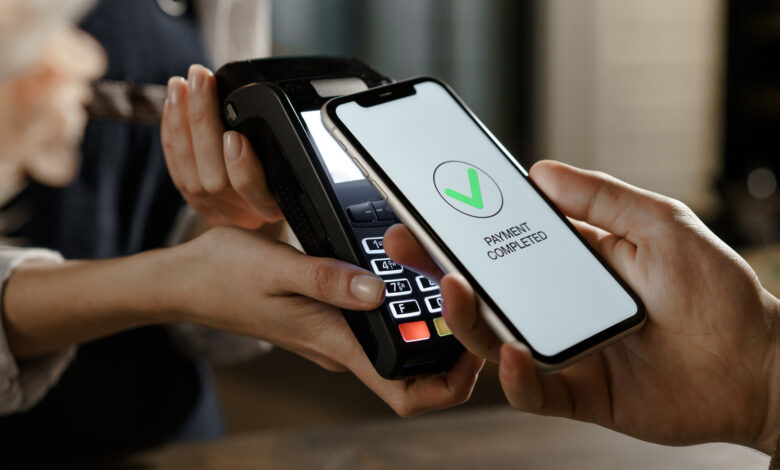
Digital wallets boast both advantages and disadvantages. They grant users the ability to make purchases, access digital passes, and collect loyalty points without physical cards. Transactions usually don’t require a separate PIN, and the security features of your phone, like a strong PIN or facial recognition, enhance safety.
This means you have time to secure your phone and digital wallet before any unauthorized transactions can take place, unlike physical cards that can be used immediately. Additionally, these transactions utilize one-time tokenization, preventing thieves from accessing your card information. Unlike magnetic stripe cards, digital wallets eliminate the risk of skimming.
While overall secure, the thought of someone accessing your phone and viewing your wallet contents can be alarming. This could expose information about your banking institutions, events, and travel plans. However, by acting quickly to lock or remove items from your wallet, you can find reassurance while awaiting the return of your device or its remote wipe.