I Finally Embraced VLC: 5 Must-Know Keyboard Shortcuts That Changed Everything

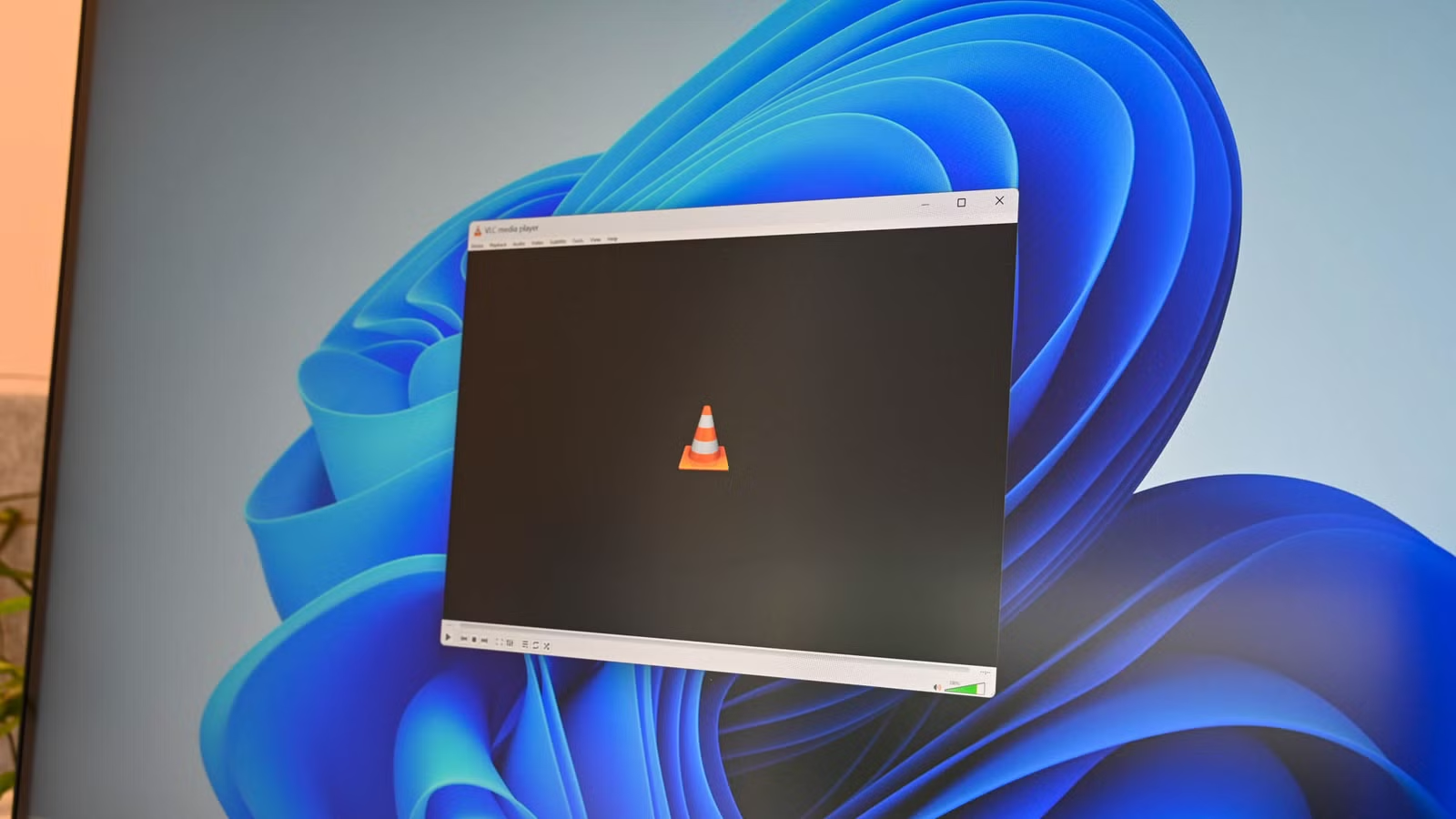
VLC media player is a tool that many users install and then largely forget about. However, it offers a multitude of features beyond merely playing media files, most of which are not immediately evident from the user interface. To utilize its full potential, one simply needs to know the right keyboard shortcuts.
You Don’t Need to Use the Progress Bar to Navigate Through Videos
Keyboard Shortcuts Make Video Navigation Much Simpler
Image Credit: VLC Media Player
Manually scrubbing through a video using the standard progress bar in VLC can be cumbersome. Anyone who has attempted to navigate a long video by clicking on the tiny slider knows how easy it is to miss the desired spot. Fortunately, VLC provides alternative options for smoother navigation.
Users can jump forward and backward in varying intervals. For brief jumps, press Shift along with the Left or Right Arrow keys for 3-second intervals. To jump forward 10 seconds, use Alt with an Arrow key, and to leap 60 seconds, press Control along with an Arrow key. For longer jumps, press and hold both Control and Alt and then an Arrow key to move ahead by 5 minutes (300 seconds). It may be helpful to jot these shortcuts down for easy access while watching.
Quickly Sync Audio and Subtitles
Four Keys Can Fix Audio and Subtitle Sync Issues
Image Credit: VLC Media Player
Having audio and subtitles out of sync can significantly detract from the viewing experience. Many viewers may tolerate this annoyance, but it can be easily resolved with VLC’s built-in controls. Keys J and K are your best friends here: J removes 50 milliseconds from the audio, helping align it with the video, while K adds a 50-millisecond delay if the sound is too early.
If adjustments are made too aggressively or with a different file, press Control and G (Cmd and G on Mac) to reset audio delay settings. For subtitles, use G to show them earlier and H to delay them, with the same reset combination available for subtitles as well.
Adjust Playback Speed for a Better Experience
Use Bracket Keys to Control Playback Rate
Image Credit: VLC Media Player
When watching educational content, I often prefer a faster playback speed. While clicking is an option, it can be inefficient for fine adjustments. The left bracket key [ decreases playback speed by 0.10x with each tap, while the right bracket key ] increases it by the same amount. For larger jumps, the plus (+) and minus (-) keys will adjust speed by 0.5x.
To return to the normal playback speed, simply hit the equals (=) key. VLC visually indicates your current playback speed in the corner of the screen, ensuring you know your settings at all times.
Simplify the Interface for Less Clutter
Image Credit: VLC Media Player
The default VLC interface may seem outdated with its heavy toolbars and menus reminiscent of older Windows versions. However, users can switch to a Minimal Interface Mode by pressing Control and H on Windows or Linux, which removes excess visual elements. This streamlined look allows users to focus on the video without distraction, although it does not enhance performance as background processes still operate.
Combat Loud Movie Audio Issues
A Single Switch Balances Sound Levels
Modern films often feature a wide dynamic range, which can lead to dramatic discrepancies between quiet dialogue and loud sound effects. To mitigate this issue, VLC provides users with a Dynamic Range Compressor. Activate this by hitting Control and E (or Command and E on macOS) to access the Effects and Filters menu, and then enable the compressor to balance sound levels in real time.
For more fine-tuning, navigate to the Audio Effects tab and access the Compressor settings to adjust parameters according to your preferences.
Memorizing Shortcuts Takes Time
These shortcuts can be used without any additional installations or changes in settings, making them simple to implement. The audio synchronization controls will likely be the most frequently utilized, especially for users who watch a lot of poorly encoded content. Rather than trying to memorize all shortcuts at once, focus on learning the jump and speed controls first, then gradually pick up the others.