I Discovered a Superior Free Alternative to the Windows Snipping Tool—Here’s My Experience!

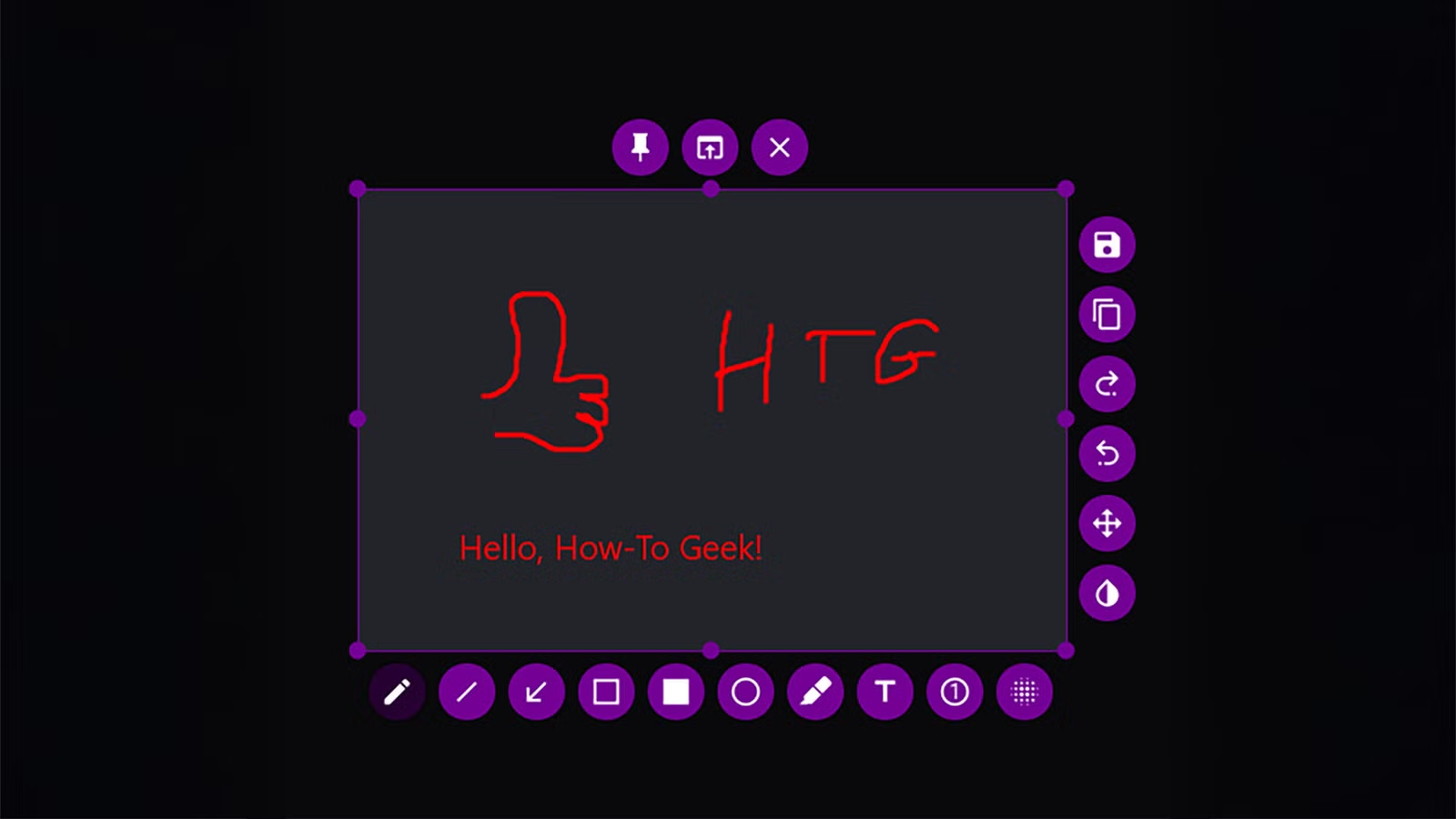
The Snipping Tool in Windows has evolved over the years but still lacks features for frequent screenshot users. Flameshot, an open-source and free alternative, addresses these shortcomings with ease.
What is Flameshot?
A Lightweight Screenshot Tool for Speed and Precision
Flameshot is a versatile screenshot utility that originated on Linux and has expanded to Windows and macOS. Its primary function is standard—capturing regions, windows, or the entire screen. However, Flameshot stands out by providing an editing overlay immediately after capturing. Instead of simply saving an image to your clipboard or desktop, it allows you to annotate directly where you captured the shot. You can draw arrows, add text, hide sensitive information, highlight important parts, or create shapes—all before the image leaves your screen. This eliminates the need to open a different editor for adjustments.
Developed in C++ using the Qt framework, Flameshot remains lightweight and fast, even on less powerful devices. It operates quietly in the system tray and can be activated with a customizable keyboard shortcut, smoothly integrating into your existing workflow. User settings are easily accessible, allowing you to change the default save location, adjust the appearance of editing tools, and configure global shortcuts.
As an open-source tool, Flameshot is actively developed on GitHub, with contributions from a community dedicated to fixing bugs and enhancing features. It is free of telemetry, does not offer an upsell for a “pro” version, and requires no account for usage. Simply install it, set your shortcut, and you’re ready to use it.
Should You Use It?
Why Flameshot is a Valuable Addition to Your Toolkit
For those who frequently take screenshots, installing Flameshot is recommended. Its built-in annotation tools alone provide ample justification for switching from the default Windows tool. The ability to obscure a password, highlight buttons in tutorials, or add text labels within the same window saves time significantly over the week. If your work involves documentation, creating guides, reporting bugs, or sending annotated screenshots to colleagues, the efficiency gains are considerable.
Flameshot also appeals to users who prefer control over their tools. You can define a custom save path, choose whether to save to disk or copy to clipboard directly, and modify nearly every visual element of the editing interface—all without navigating complex menus. The options are clearly laid out in the settings.
However, Flameshot may not be necessary for everyone. If you only need to take a screenshot occasionally—perhaps just to capture a confirmation number or error message—the default Snipping Tool likely suffices. Additionally, Flameshot lacks some advanced features found in paid alternatives, such as scrolling capture for lengthy web pages or integrated cloud syncing. It’s primarily focused on screenshotting and annotation, not designed as a comprehensive screen-recording or sharing platform.
For other users, especially on Linux where built-in tools vary significantly across environments, Flameshot represents a notable improvement. It’s free, actively maintained, and effectively addresses a common issue.
What Other Screenshot Alternatives Are Available?
Comparing Alternatives Before Making a Decision
Flameshot is not the only choice for those seeking to move beyond Windows’ default options. ShareX is a close competitor on Windows with a longer history. It boasts numerous features, including scrolling captures, OCR, video recording, and direct file uploads to many services. However, this complexity may overwhelm users seeking a quick annotated screenshot without extensive configuration.
Greenshot is another lightweight, open-source alternative that has been available for a while. It offers solid annotation capabilities and a small footprint, though its interface may feel somewhat dated compared to Flameshot’s cleaner design.
If you’re using macOS, the built-in screenshot tool (accessible via Shift+Command+5) has become quite robust with features like screen recording and basic markup, making third-party applications less critical.
For Linux users, the best alternative will often depend on your specific desktop environment. GNOME and KDE both offer enhanced screenshot tools but still lag behind Flameshot’s immediate annotation capabilities.
Ultimately, the choice hinges on your feature needs. ShareX is worthwhile for power users desiring features like cloud uploads and scrolling captures, whereas Flameshot remains the top recommendation for those seeking a fast, simple, and efficient tool.
A Small Tool Solving a Daily Issue
While Flameshot may not replace specialized screen recorders or cloud-sharing applications, it excels at everyday screenshot tasks and quick annotations, outperforming the built-in Windows options.




