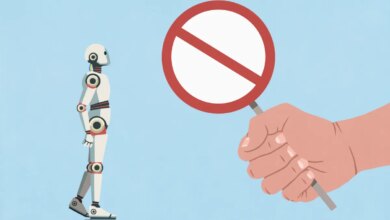
Upon opening Google Docs to work on an article, I was taken aback by a pop-up encouraging me to “write with Gemini.” After searching for a way to dismiss the bright AI notification and finding none, frustration set in.
Instead of diving into my article, I’ve decided to share how to eliminate those AI interruptions from your Google Docs interface, a task that took me a while to figure out. Here’s how to reclaim your writing experience.
The solution is quite simple:
- Select “Gemini” from the top menu bar of your document.
- In the dropdown menu, click on “bottom bar preferences.”
- You can then disable the bottom bar to remove that AI notification from your screen.

I admit, my initial anger led me to overlook the “bottom bar preferences” option. I mistakenly clicked “Ask something else” and inquired if Gemini could help me disable its own presence. It promptly advised me to click the “X” icon, which only closed our conversation instead of removing Gemini entirely. How convenient!
Others have reported additional features, including a hovering “help me write” function that could be equally bothersome. It might be wise to address these issues before they become more pervasive. As Benjamin Franklin famously noted, “An ounce of prevention is worth a pound of cure,” and this applies to product design too.
Instead of disabling each AI feature one by one, we can turn off “smart features” across our Google Workspace through Gmail.
- First, go to your Gmail inbox.
- Click on the gear icon for Settings.
- Then select “See all settings” from the menu at the top. You might as well pick a fun theme for your inbox while you’re at it!
- Once in the settings, scroll down until you spot “Google Workspace smart features,” then click “Manage Workspace smart feature settings.”
- Here you will see options to disable smart features in Google Workspace (e.g., those pesky Gemini pop-ups in Docs) and other features that may not be as irritating. I chose to toggle off just the first option, but if you find Gmail’s automatic calendar events for flights to be bothersome, you can handle that here as well.
With these adjustments, you should be free from disruptive Gemini pop-ups when using Google Docs. Breathe easy and enjoy your writing!
When you purchase through links in our articles, we may earn a small commission. This doesn’t affect our editorial independence.