Adopt a systematic strategy to identify what consumes the most storage on your computer and effectively remove unnecessary files.
Your computer’s storage is often cluttered with numerous files, including programs, photos, videos, games, downloads, along with system files like temporary files and updates. It’s common to overlook the sheer volume of data, especially when duplicates and unnecessary junk files can accumulate.
When it’s time to free up space in Windows, there are simple ways to identify what is consuming the most storage. By understanding this, you can create ample space with minimal effort, only resorting to in-depth methods if absolutely necessary. Instead of randomly browsing folders, focus on eliminating the items that occupy excessive space.
Step One: Access Storage Settings
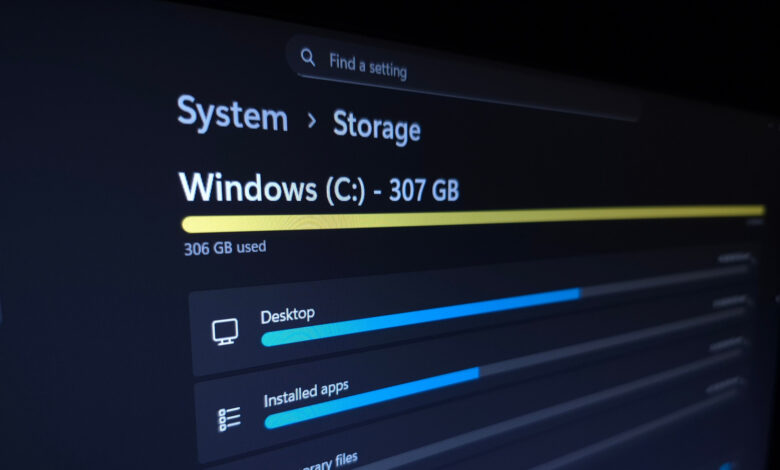
To begin, utilize Windows’ built-in storage management tool: press Win + I to bring up the Settings menu, then navigate to System > Storage. Here, you’ll find an overview of your primary drive’s total used space along with a detailed breakdown of what’s consuming this storage. Click on specific categories to delve deeper and manage them accordingly.
A significant portion of storage might be taken up by Installed apps. By clicking this option, you will be directed to the Settings > Apps > Installed apps page. Set the Sort by dropdown to Size (Large to Small) to quickly identify the largest apps. Use the three-dot (…) menu to select Uninstall for any programs you no longer need. If your system has multiple drives, certain applications (like Microsoft Store games) may also allow you to Move them to a different location.
In the Temporary Files section, you’ll see several options such as Thumbnails, which can easily free up space. Click Cleanup System Files for additional clutter categories. Be cautious with the Downloads and Recycle Bin folders — although they may consume significant space, consider reviewing their contents before deletion. It’s advisable to check your Recycle Bin to restore any crucial files before permanently clearing it. Similarly, ensure that none of your important downloads are deleted.
If you have more than one storage drive, return to the Storage page, expand the Advanced storage settings, and select Storage used on other drives for further insights.
Minimizing Storage Usage from System Features

Within the System & reserved section, accessible via Show more categories, you can assess how much space Windows features occupy. It’s advisable to approach these options cautiously, as disabling them can affect your system’s functionality, yet reclaiming this space is possible.
If hibernation is not a feature you use, disabling it can remove the sizeable hiberfil.sys file. Open the Start menu, search for “cmd,” right-click on Command Prompt, and choose Run as administrator. In the command prompt, enter powercfg /hibernate off and press Enter. To reactivate hibernation in the future, use powercfg /hibernate on.
System restore allows you to reverse unwanted changes, such as problematic updates. By clicking Manage system restore, you can access its Control Panel interface. Select your System drive and click Configure. If you’re comfortable with having fewer restore points available for troubleshooting, reduce the Max Usage slider. Alternatively, clicking Delete will remove all restore points for even more immediate space.
Using TreeSize to Analyze File Space

The Storage menu provides a good overview, but it may not be ideal for checking individual files. Categories like Music and Videos lead to File Explorer locations, which aren’t always effective. Various third-party applications can simplify the process of visualizing storage use across folders, with TreeSize Free being a notable choice.
For optimal results, run the application as an admin via the top toolbar, and then click Select Directory to scan areas such as your entire C: drive. You’ll find the largest folders at the top, and you can expand these to explore further. Expect significant usage from Program Files and Program Files (x86), which house your installed applications. Avoid direct deletions; instead, follow the uninstallation process mentioned earlier.
Check the Users section to identify which personal files may need to be moved or deleted. If AppData is using ample storage, consider emptying caches or removing app downloads from browsers, streaming services, and email clients. You can right-click any folder and select Open to view it in File Explorer.
dupeGuru is another useful tool, designed to locate duplicate files across your system that TreeSize may overlook.
Effective Strategies to Free Up Space
Your specific strategies for freeing up storage on Windows will rely on what you identify as significant space consumers from the earlier steps. If there are Steam games you rarely play, uninstall them directly through the client. Remove any large files you no longer need, and don’t forget to clear your Recycle Bin after recovering any data you want to keep.
For larger files that you wish to retain but lack space for, consider alternatives like uploading lengthy videos to platforms such as YouTube, then deleting the local copies. Sync your photos with cloud services like Google Photos, and eliminate the versions saved on your computer. You could also configure OneDrive to keep only cloud versions of older files. Always ensure that critical data is backed up in multiple locations.
If low storage is a persistent issue, investing in a secondary drive can greatly help. High-quality external SSDs offer a terabyte or more of space for those who regularly find themselves in a crunch. Although external HDDs are slower, they remain useful for infrequently accessed data and generally have lower costs. A few flash drives can also contribute to your storage solution.
To save time in the future, revisit Settings > System > Storage and activate Storage Sense. This feature automatically clears out junk files periodically, requiring no action on your part. Turn on Keep Windows running smoothly… to regularly remove temporary files, and also enable Automatic User content cleanup.
You can configure Storage Sense to trigger when storage is low or at predetermined intervals. Make sure to set the options for Recycle Bin and Downloads wisely to avoid unintentional loss of important files. As you organize your computer moving forward, try to place only items you don’t need frequently in Downloads, allowing for easy clearing when required.