By Joe Maring
The appeal of Pixel devices stems from their lack of unnecessary applications and advertisement distractions. However, it seems Google is starting to shift from this principle.
Following the launch of the Pixel 11 series, numerous users, including myself, began to notice advertisements about the new phone appearing on older Pixel models. This kind of behavior is more commonly associated with brands like Samsung, rather than Google.
Fortunately, there’s a straightforward method to prevent these ads from appearing.
Are smartphone ads overstepping their bounds?
413 votes
The Pixel should rise above this

By Adamya Sharma
While ads are not a novel concept in smartphones, they have started to permeate even devices renowned for their cleanliness, like Pixels. Traditionally, Pixel users have enjoyed an environment free of pre-installed apps that serve mainly to push advertisements, unlike other brands.
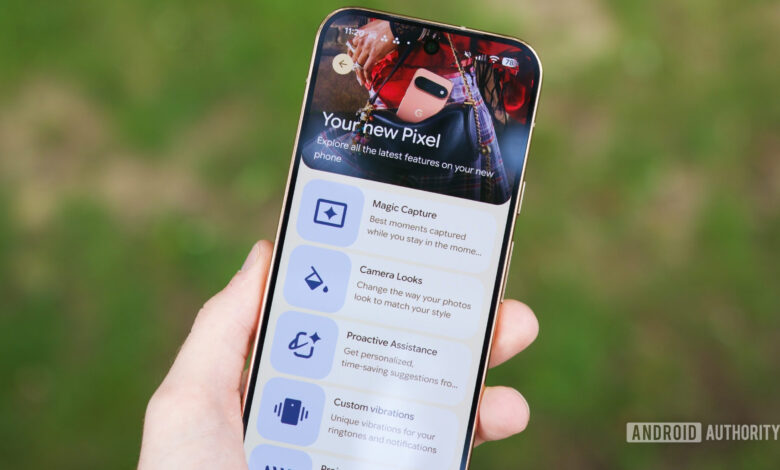
The My Pixel application has altered this dynamic. Formerly known as Pixel Tips, it was designed primarily to provide users with easy access to tutorials and updates about their devices. However, since its rebranding, it has incorporated a Store tab for purchasing additional Google products.
While I appreciate the Store tab, I draw the line at unsolicited notifications and advertisements. After factory resetting my phone, I received ads despite never having opened the app or opted in to notifications. Disabling the My Pixel app will eliminate useful features, but there are alternatives.
How to permanently disable ads on your Pixel
Thanks to Android’s notification settings, users can customize app notifications to exclude advertisements while retaining helpful alerts. You can manage what types of notifications you receive from the My Pixel app, including those ads.
To block these ads, turn off the “New products and offers” category. This allows you to continue receiving important feature updates without the ads. Here’s how to adjust your settings:
- Press and hold the My Pixel app icon.
- Select App info.
- Choose Notifications.
- Tap on My Pixel to see various notification categories.
From there, toggle off “New products and offers” to prevent receiving advertisements while still getting updates on new features and your order status.

By Joe Maring
Receiving a single ad on my Pixel isn’t catastrophic, but as Google expands its product line including various new devices, these ads could become overwhelming.
This marks a concerning trend; will we soon find ads integrated into more features, like conversation suggestions? For now, however, there’s an easy option to turn off these ads, and let’s hope that remains available.