Windows Discards Gigabytes of Trash Post-App Uninstallation—Here’s How to Locate It

When you remove software from a Windows system, you might not realize that remnants are often left behind. While this isn’t typically a major concern, it can accumulate over time. Fortunately, there are various third-party applications available that can locate and eliminate these leftover files that standard uninstallation processes overlook.
Why Standard Uninstallers Miss Important Files
Windows utilizes a defined list of files to uninstall a program, focusing solely on those originally recorded during installation. However, programs generate additional data while they’re in use, such as cache files and configuration settings, which won’t be included in that initial list.
As a result, once the uninstallation process finishes, many of these leftover files remain in locations like AppData, Temp, and Program Files, unaddressed. Compounding this issue, Windows is programmed to act conservatively when it comes to file deletion. Developers can mark files as permanent, preventing the system from removing them.
Files that are shared among various programs are managed through a reference-counting method. Windows won’t delete a file if it’s associated with another application, which can lead to the retention of completely unnecessary files.
This situation raises concerns. When registry entries are removed, the registry file doesn’t physically reduce in size; instead, it simply holds gaps where the original data existed. Over time, these empty spaces accumulate, causing the registry to become cluttered, which can negatively affect system performance and even lead to failures during updates.
A similar process occurs within the file system. NTFS maintains a history of every file that has existed through the Master File Table. When files are deleted, their records become marked as vacant slots, but the table doesn’t shrink. When Windows exhausts its allocated space for the table’s expansion, it resorts to placing new entries in whatever space is available, which can significantly slow down file access times.
How Third-Party Uninstallers Help Clean Up Residual Files
Finding Leftovers with Third-Party Tools
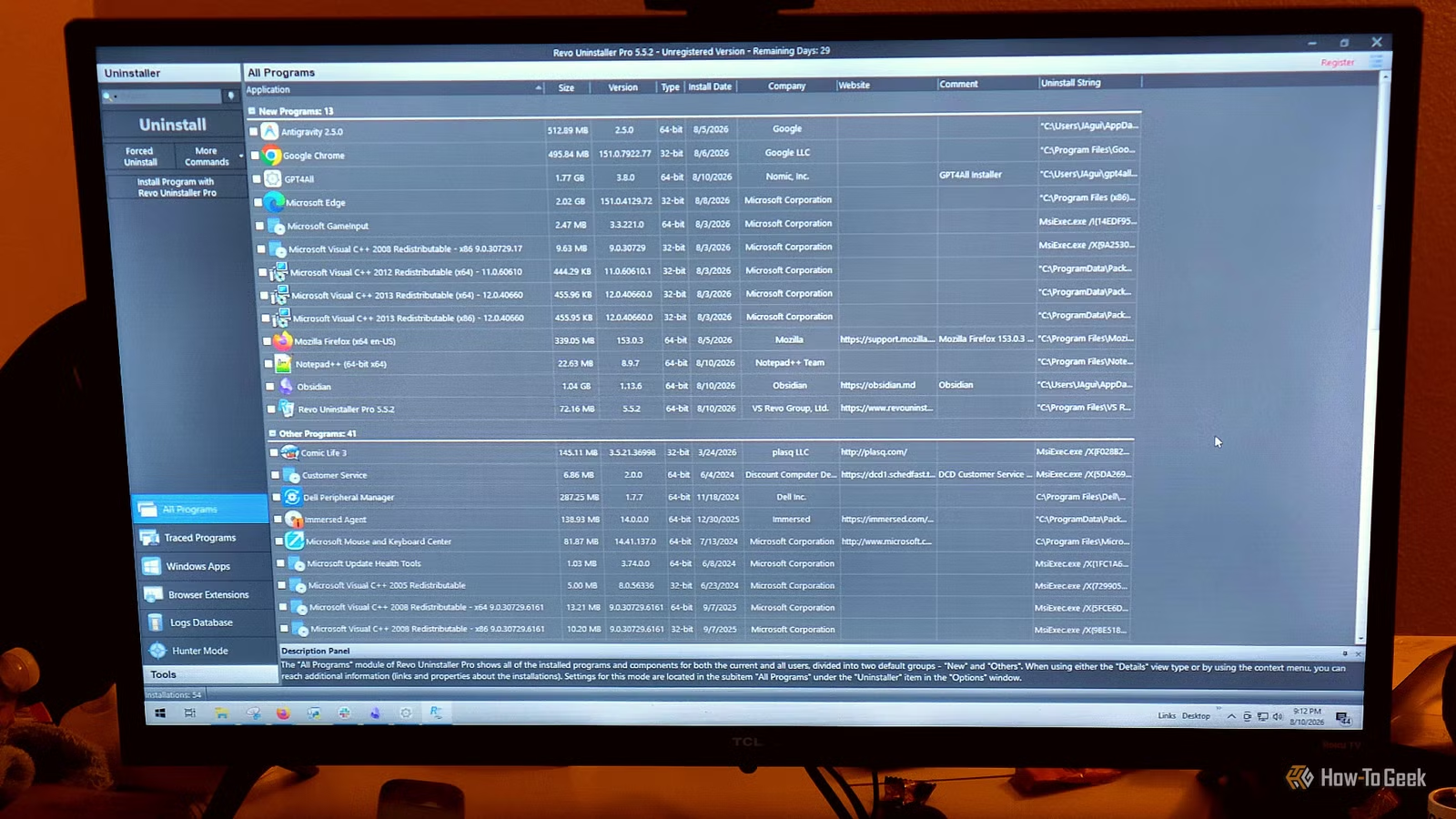
When the default uninstallation process leaves behind data, third-party solutions like Revo Uninstaller and IObit Uninstaller can help rectify the situation. These specialized tools are designed specifically to identify and remove leftover files from your system.
They typically employ two methods. Some, like IObit, operate in real-time, quietly tracking changes made during the installation of a program. This means they log every file created and every registry key altered. When it’s time to uninstall, IObit can easily reverse all those changes. On the other hand, Revo scans the system afterward, utilizing a database to pinpoint where remnants of software are usually found, thus informing its search.
While some cleanup tools have been known to remove too much, these two prioritize user safety by creating a System Restore Point and backing up the registry before proceeding with any deletions. This way, if something of importance is inadvertently removed, you have the option to revert back.
Following this precaution, the tools proceed to run the application’s built-in uninstaller to perform standard removal before conducting a thorough scan for leftover files. Revo allows users to specify how deeply they want the scan to dig through system folders and registry entries.
For applications that don’t appear in the typical uninstall list, Revo includes a feature called Hunter Mode, while IObit has an equivalent called Easy Uninstall. This feature allows users to drag a small interface over any active window, taskbar icon, or desktop shortcut, enabling quick access to options such as terminating the program’s processes, inspecting its install folder, or fully uninstalling it.
After scanning, a single click can clear away all remaining files.
The Risks of Deleting Leftover Files
Contemporary Applications Are Generally Safer
With storage costs being low, leaving behind small amounts of data from uninstalled programs isn’t a massive concern compared to the risks that come with potential data loss.
Given that Windows lacks a centralized registry of program ownership over registry entries, a heuristic scanner is simply making educated guesses. If it misidentifies files, important shared components could be deleted, which may cause other programs to fail unexpectedly.
In more severe cases, these tools operate with administrator access and can mistakenly alter critical components, possibly creating problems with Windows Update that require a complete system reinstall to resolve.
However, modern third-party uninstallers are generally more refined and don’t take a broad approach to scanning and deleting. Instead of making arbitrary decisions about what belongs to an uninstalled application, advanced tools check specific identifiers against known metadata to ensure accurate targeting.
While personal preferences for tools may vary, many users lean towards Revo Uninstaller for its efficiency and privacy benefits.
In Conclusion: Third-Party Uninstallers Offer Enhanced Safety
There are valid concerns about the possibility of a third-party uninstaller inadvertently removing essential files. Yet, programs like Revo operate with improved accuracy compared to older versions and even offer a safety net with their restore point feature. If you’ve frequently uninstalled programs without considering residual data, it’s definitely worth exploring what might be left on your system.