I Explored 6 Methods for Eliminating Blank Rows in Excel—Here Are the Top 3 That Work!

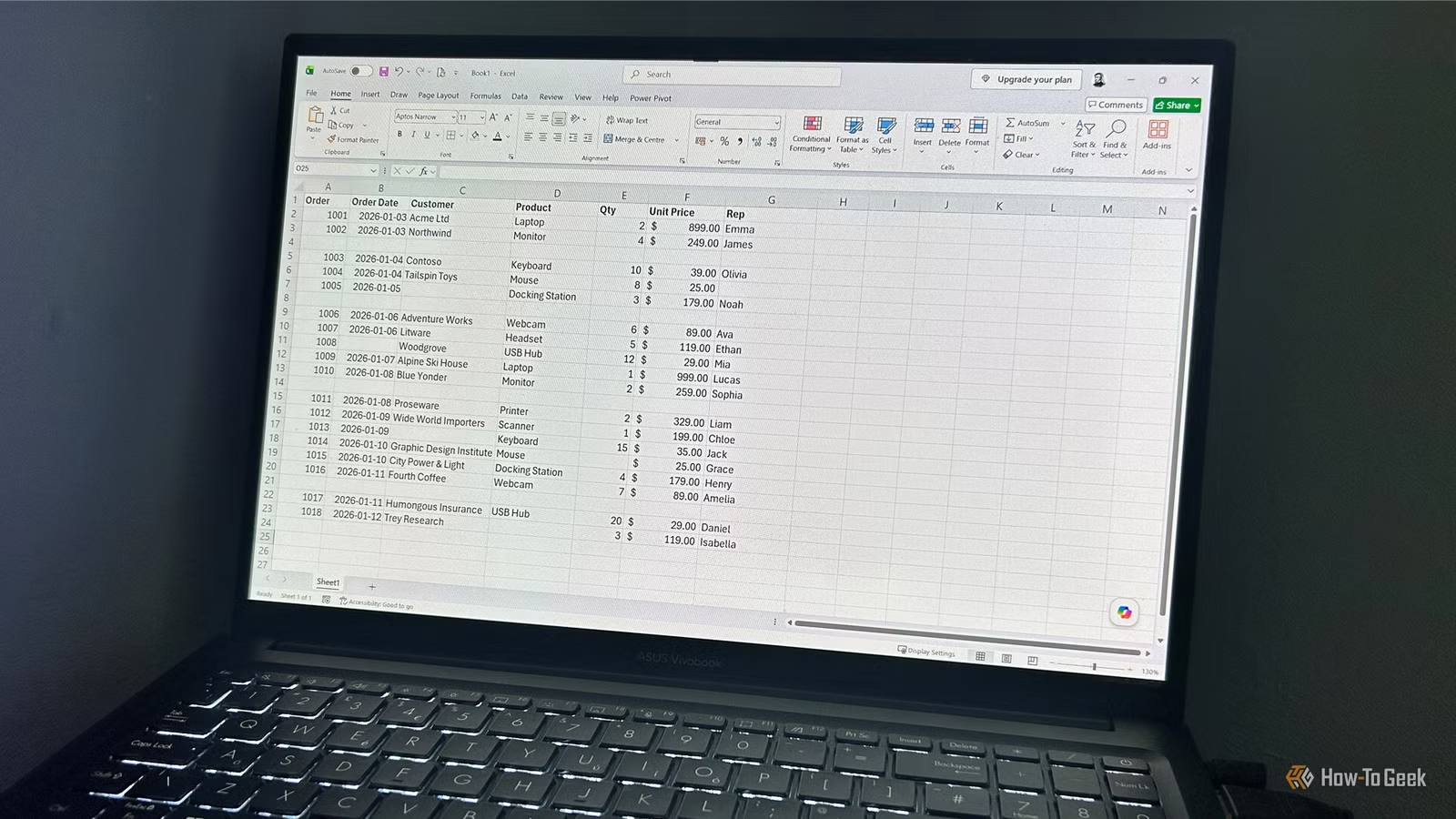
Blank rows in Excel may appear to be a simple issue to tackle, yet finding a reliable method for their removal can be quite complex. After experimenting with six different techniques, I identified a few methods that are viable for handling significant data while also highlighting those that come with potential risks. Ultimately, I narrowed it down to three approaches I would confidently use.
Manual Deletion: Simple but Limited
A Quick Fix That Scales Poorly
The most straightforward method involves right-clicking on the empty rows and selecting Delete. For rows that are scattered throughout the spreadsheet, you can hold down Ctrl while clicking on each row number, or use Shift+F8 to add additional selections easily. While this tactic is effective for smaller datasets, it becomes overwhelmingly tedious when faced with numerous blank rows across extensive records.
| Pros | Cons |
|---|---|
| No setup needed | Time-consuming with larger sheets |
| Compatible with any Excel version | Risk of overlooking rows or deleting unintended ones |
Conclusion: This approach is adequate for a few blank rows but not recommended for regular use.
Using F4: A Faster Approach
A Handy Shortcut for Small Handfuls
The F4 key is primarily recognized for locking formula cell references but it also allows you to repeat the last action. After deleting one blank row, you can simply select another blank row and hit F4 to replicate the deletion, skipping the menu. This shortcut is quite useful for a handful of blank rows but still necessitates manual selection, making it impractical for larger datasets.
| Pros | Cons |
|---|---|
| Quicker than repeating the whole process | Still requires manual selection |
| No setup required | Not scalable for larger datasets |
Conclusion: While this is a clever shortcut, it does not provide a comprehensive solution for cleanup.
Go To Special: Quick Selection with Risks
Focuses on Empty Cells, Not Entire Rows
The Go To Special feature is a widely used method for identifying blanks in Excel, yet it poses significant risks. By selecting your range, pressing Ctrl+G, and then choosing Special followed by Blanks, and finally pressing Ctrl+-, you can delete cells. However, this method only highlights empty cells rather than entire rows. If various blank cells in your dataset coexist with populated rows, there’s a considerable risk of losing crucial data.
| Pros | Cons |
|---|---|
| Fast selection process | Risk of deleting essential data |
| Integrated within Excel | Requires an understanding of your dataset |
Conclusion: This method is best avoided due to the high likelihood of data loss.
Implementing Helper Columns for Accurate Identification
A Formula for Reliable Checking and Deletion
For one-time cleanups, converting your dataset into a table with an additional helper column is a highly trustworthy built-in method. This approach enables you to pinpoint entirely empty rows before executing any deletions. The main drawback is that it deletes entire rows, so ensure there is no essential data adjacent to your table.
- Convert the data into a table (press Ctrl+T).
- Add a new column labeled BlankCheck.
- If the table is named “T_Sales” and the columns are “Order” to “Rep,” input this formula in the first cell of the new column:
=COUNTA(T_Sales[@[Order]:[Rep]])
Once you hit Enter, the formula fills down to highlight rows with data while displaying 0 for empty rows.
Next:
- Filter the BlankCheck column for 0.
- Select the filtered rows in the table.
- Right-click and choose Delete > Entire Sheet Row.
- Clear the filter.
- Remove the helper column.
| Pros | Cons |
|---|---|
| Safe and thorough | Involves a temporary column |
| Effective with messy datasets | Deletes full worksheet rows |
| Allows review before deletion | Not optimal for recurring cleanups |
Conclusion: This option is the best built-in choice for a single cleanup task.
Power Query: A Streamlined Approach
An Efficient Process for Cleanup
Power Query is an efficient tool for removing blank rows in Excel. Unlike manual deletion, it functions as a transformation, letting users review the results before integrating them back into the workbook. It specifically targets fully blank rows, ensuring that records with only few empty cells remain unaffected.
To utilize this, first convert your data to a table and select a cell within it:
- Navigate to Data > From Table/Range.
- In Power Query, go to Home > Remove Rows > Remove Blank Rows.
- Click Close & Load to import the cleaned data back to Excel.
Note that this method creates an output table instead of modifying the original data directly. For one-time cleanups, this may necessitate replacing your old table with the new one. However, for recurring tasks, it simplifies the process, allowing automatic refresh for consistent cleanups.
| Pros | Cons |
|---|---|
| Reliable and clean removal | Generates a separate output table |
| Ideal for isolated tasks | Needs initial setup |
| Allows for easy repetition of cleanups | Has a learning curve |
Conclusion: This is a strong option that maintains the cleanliness and accuracy of the removal process.
Creating a PERSONAL.XLSB Macro for Instant Cleanup
Your Fastest Alternative for Regular Users
If the task of removing blank rows is frequent for you, a small VBA macro can transform this into an effortless one-click action. I keep my macro in PERSONAL.XLSB and add it to the Quick Access Toolbar for availability across workbooks.
If you don’t have a PERSONAL.XLSB workbook yet, just record any temporary macro choosing Personal Macro Workbook as the storage location, and it will create one for you, allowing you to delete the temporary macro afterward.
Here’s how to set it up:
- Open the VBA editor by pressing Alt+F11.
- Create a new module under PERSONAL.XLSB.
- Paste the provided macro into the new module.
- Close the VBA editor, then add the macro to your Quick Access Toolbar.
Sub DeleteEntirelyBlankRows()
    Dim ws As Worksheet
    Dim LastRow As Long
    Dim i As Long
    Set ws = ActiveSheet
    LastRow = ws.UsedRange.Rows.Count + ws.UsedRange.Row - 1
    Application.ScreenUpdating = False
    For i = LastRow To 1 Step -1
        If WorksheetFunction.CountA(ws.Rows(i)) = 0 Then
            ws.Rows(i).Delete
        End If
    Next i
    Application.ScreenUpdating = True
End Sub
When executed, the macro processes from the bottom up, minimizing the risk of affecting the remaining rows that are still to be evaluated.
| Pros | Cons |
|---|---|
| Single-click cleanup action | Needs initial configuration |
| Cross-workbook functionality | Not necessary for infrequent use |
| Ideal for routine tasks | Involves macro maintenance |
Conclusion: This is my most frequently used method, turning a repetitive task into a simple button click.
Choosing the Right Method for Your Needs
After testing these six methods, I’ve concluded that three rise above the rest. The helper column is my top choice for one-time cleanups, Power Query is a solid all-around option, and my PERSONAL.XLSB macro is the simplest way to perform ongoing removals once it’s set up. While manual deletion and F4 are practical for quick tasks, I recommend them for smaller data only. As for the Go To Special method, I would avoid using it completely due to the risks involved.