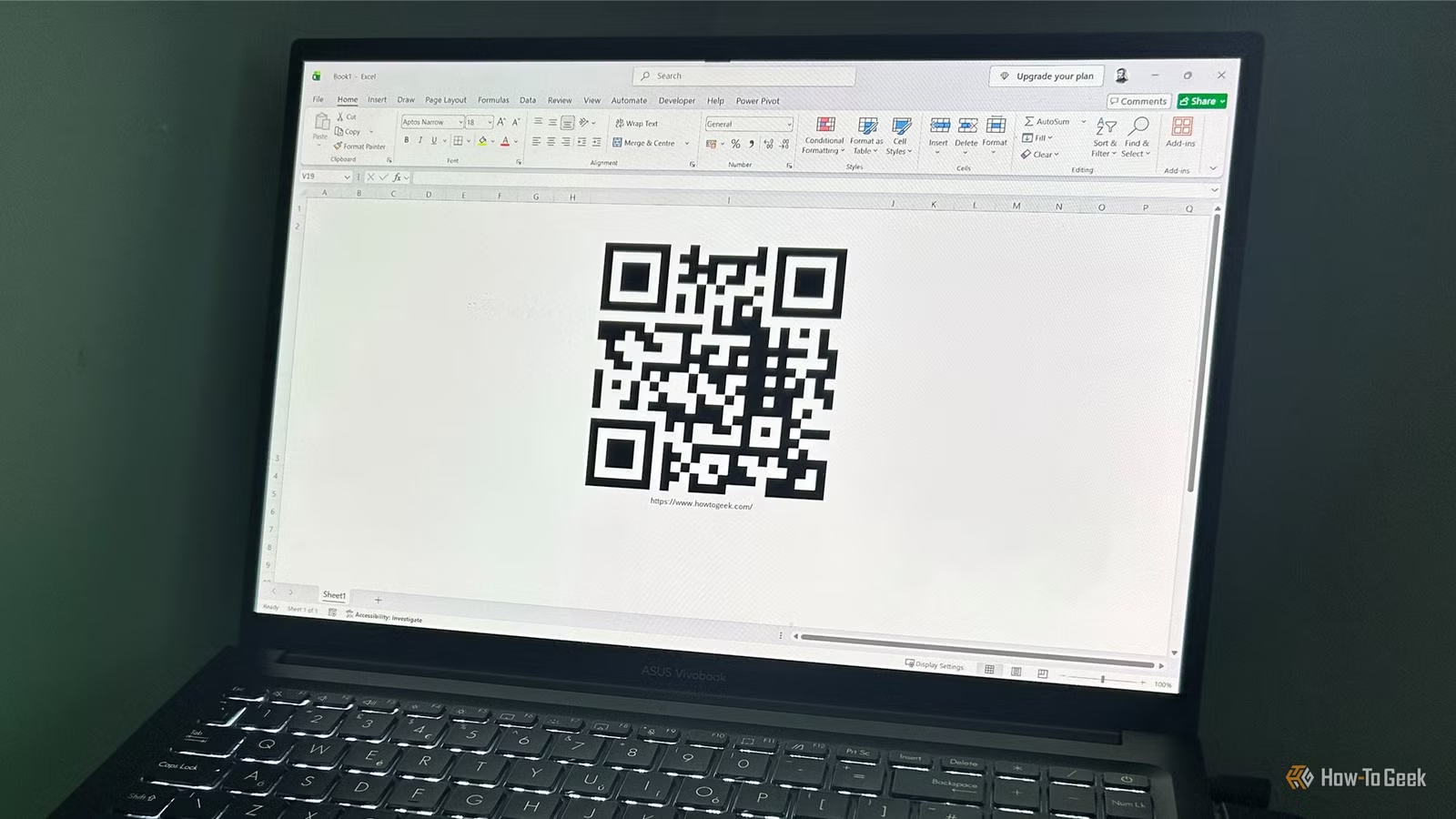
While many view Excel merely as a tool for calculations and chart creation, there’s a surprising versatility to its capabilities. I’ve learned that it can be employed to streamline tedious Windows tasks, generate dynamic QR codes, and gather country-specific information.
Convert a Spreadsheet into a Folder Generator
Flash Fill Automates Command Generation
Creating numerous folders manually can be a labor-intensive task. However, if you already have the folder names in a spreadsheet, you can easily arrange them in Excel and let Windows create the folders in mere seconds.
This technique transforms Excel into a rapid command generator for Windows. By utilizing Flash Fill alongside a simple batch file, you can swiftly produce the necessary commands. The batch file harnesses the MD command, which stands for “make directory,” to create new directories in Windows.
Note: This workflow requires Excel for Windows as it employs a batch file to create the folders.
To start, organize your folder names in Excel:
- Open a new workbook, and input or paste the folder names into column A beneath an appropriate header.
-
In column B, label the header as Folder Name, then write the first folder command using the format
MD [Name], replacing spaces in folder names with underscores (_). For example, for Matt Turner, you would writeMD Matt_Turner. - Select your created folder command and press Ctrl+E to activate Flash Fill, which will automatically complete the remaining folder commands based on your pattern.
Next, create the folders in Windows:
- Copy the generated commands from column B, making sure to exclude the header row.
- Open a new Notepad document, and paste the copied commands into it.
- Hit Ctrl+Shift+S to bring up the Save As dialog.
- Select the location where you want the folders created, name the file with a .bat extension (e.g., US Soccer.bat), and click Save.
- In Windows File Explorer, locate the saved batch file and double-click it to execute.
Within seconds, the folders you prepared in Excel will appear as a structured hierarchy on your computer.
Once the folders are created, you can close Excel and securely delete the temporary batch file from your system.
Generate Dynamic QR Codes
The IMAGE Function Keeps QR Codes Synced
Creating a single QR code is straightforward, but maintaining it with updates can be cumbersome—you typically need to regenerate the code each time the linked text or URL changes. Excel can help simplify this process by allowing dynamic QR codes to be displayed directly within the worksheet.
This approach utilizes a free online service called QR-Server (from GOQR) to generate the QR codes, while Excel constructs the request and showcases the resulting code. The QR service can create a code from any data provided after data= in this link:
https://api.qrserver.com/v1/create-qr-code/?size=150x150&data=
This method effectively turns the URL into a request: any information after data= becomes embedded within the QR code. The IMAGE function in Excel enables the display of the retrieved image, while ENCODEURL ensures that spaces and special characters are converted into a web-friendly format.
Note: The ENCODEURL function is available in several versions of Excel, but not in Excel for the web or Mac.
The complete formula, assuming your data is in cell A2, looks like this:
=IMAGE("https://api.qrserver.com/v1/create-qr-code/?size=150x150&data="&ENCODEURL(A2))
Follow these steps to execute:
- Input the text or URL you wish to encode into cell A2.
- In an adjacent cell, paste the formula, adjusting the reference if necessary.
- Review the security notice that pops up, stating that Excel will send the cell contents to QR-Server for code generation. Proceed with Paste everything only if you’re comfortable with sharing that information, considering the service’s privacy policy.
- Hit Enter to generate the QR code within the cell.
-
Adjust the row height and column width of the QR code cell for better visibility, or modify the
150x150size in the URL for a larger image.
Now, if you edit the original text or URL, such as changing a website or adding keywords, you’ll see the QR code update instantly.
This method utilizes QR-Server; however, any QR code service that links to an image URL can be adapted for this process. For sensitive data, be sure to check your organization’s policies regarding information sharing with external services.
Retrieve Country Facts Without Leaving Excel
The Geography Data Type Simplifies Research
Switching between a web browser and a spreadsheet while building a reference table can be inefficient. If you’re compiling data for a trip or international project, Excel can automatically retrieve relevant information using linked data types, significantly reducing your reliance on search engines by transforming country names into detailed data entries.
Rather than treating country names as static text, Excel can pull related data from Microsoft’s resources. Once Excel identifies the names as linked data types, it can fill in fields like capital cities, populations, currencies, and land areas without the need for manual lookups.
Note: The Geography data type feature is accessible in Excel for Microsoft 365, the web, and the mobile app with a supported Microsoft account.
To implement this, follow these steps:
- Enter a list of country names in a column.
- Highlight the cells with these names and navigate to the Data tab on the ribbon.
- Expand the Data Types dropdown.
- Select Geography.
- After Excel identifies the countries, click the Insert Data button next to the selected cells, and choose a field—like Population, Capital, or Currency—to insert it into your worksheet.
You can repeat the last step to add as many fields as necessary. Each new data selection generates an additional column, enabling you to create a comprehensive reference table rapidly.
Discovering the Hidden Features of Excel
Excel is replete with functionalities that can address challenges you might not expect a spreadsheet to overcome. These instances are just the tip of the iceberg—beneath the familiar layout lies a treasure trove of overlooked features awaiting exploration.