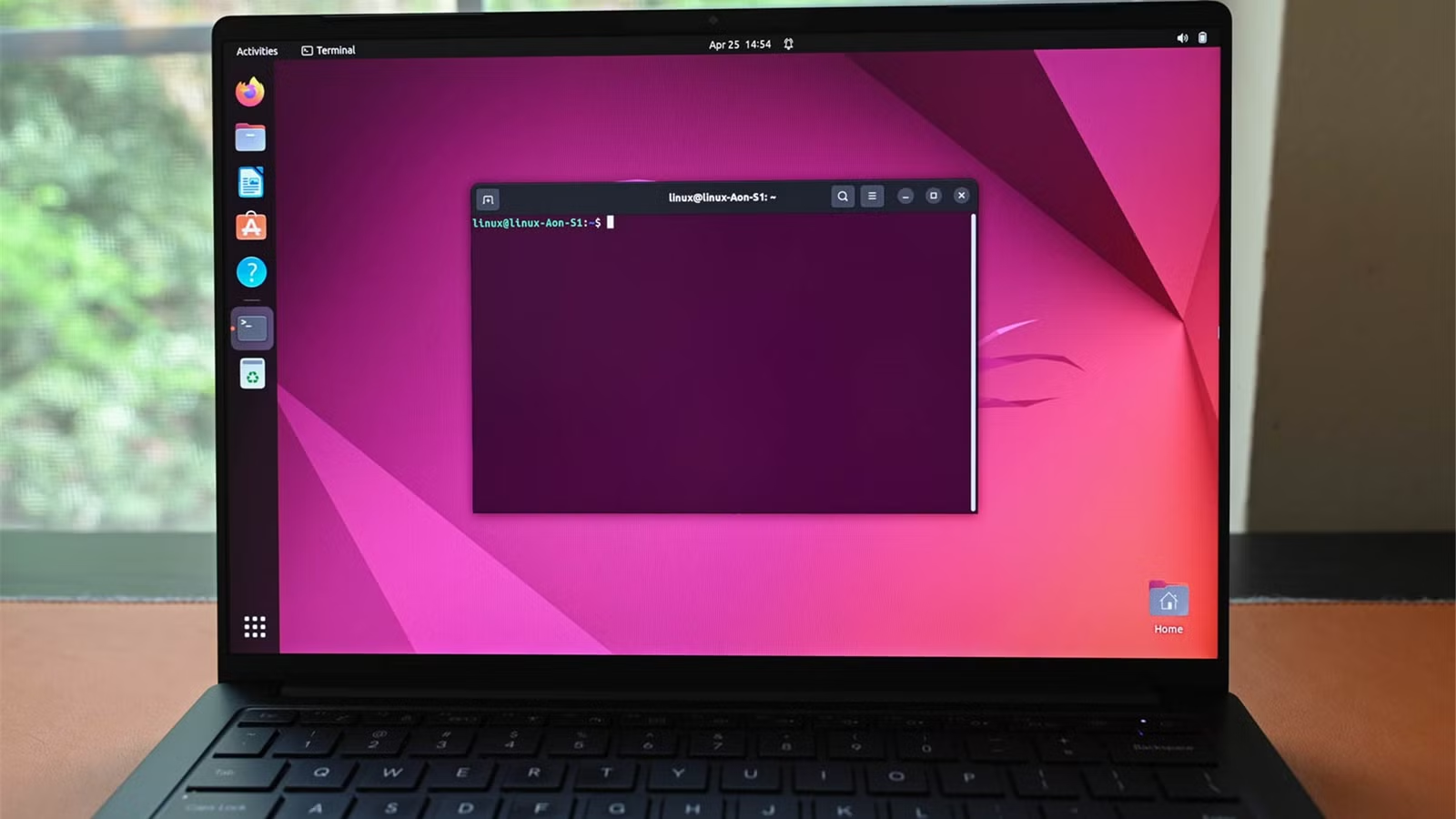
Navigating the Linux command line can be daunting due to its intricate commands and emphasis on text-based interaction. However, a variety of tools and guides are available to ease the learning process.
Personalize Your Terminal to Suit Your Preferences
Create a Comfortable Terminal Environment
To enhance your learning experience, start by adjusting your terminal settings for comfort. While you don’t want to spend excessive time on customization, ensuring a few essential settings are tailored to your needs will facilitate smoother navigation.
Your choices may differ based on your Linux distribution, but consider the following:
- Color schemes: Choose between light or dark mode based on your reading preference.
- Font choice: Opt for a monospaced font that distinctly differentiates characters, such as “0” (zero) and “O” (capital “o”).
- Terminal behavior: Decide whether new instances should open as tabs or in separate windows.
Familiarize yourself with keyboard shortcuts, as much of your command line work involves typing. Don’t hesitate to open multiple terminal windows or tabs to manage commands concurrently and organize your tasks effectively.
Tailor Your Shell to Your Preferences
Focus on Readability
After personalizing your terminal application, apply some modifications to your shell, which is commonly bash but can be switched to alternatives like fish or zsh.
A simple yet effective enhancement is to customize your command prompt—the text that appears at the start of each line. Although the default prompt is functional, you can tweak it for better usability during your Linux journey. For example, you might set it as follows:
export PS1="\n[\$PWD] \$ "This change simplifies the prompt by eliminating unnecessary details like username and hostname, while displaying the complete path of your current directory for easier location tracking.
Make this change permanent by incorporating it into your .bashrc or equivalent file, which is also ideal for creating aliases—shortcuts for commands. If remembering command names or their commonly used options is challenging, define an alias like this:
alias list='ls -l'Explore Command Documentation with Man and More
Man Pages Are Valuable Resources
Most commands are accompanied by built-in documentation accessible via the man command. These “man pages” detail command functionalities, usage modes, and required files.
Though comprehensive, man pages can be overwhelming for newcomers. Thankfully, alternatives exist to simplify access to information.
Most commands support the -h or –help option for a more concise usage guide:
The tldr tool provides brief summaries of lengthy man pages. It presents essential information alongside practical examples of command usage. To compare the full man page with its tldr counterpart:
tldr offers minimal details, focusing on clear examples demonstrating common command applications. You can install it using your system’s package manager, or try it out through its excellent web interface.
Discover Commands with Apropos
Learn How to Find Commands
Many Linux commands feature abbreviated names, which can make differentiation difficult. Begin by exploring the directories in your PATH variable to locate executable commands. Use the following command:
echo $PATHThis displays a series of directories separated by colons. Next, inspect the contents of one directory by running:
ls dirnameExecutable files will appear, indicating available commands.
If you’re having trouble identifying a command, use apropos—a search utility for man pages. It helps locate commands when you’re uncertain of their names. Simply execute:
apropos keywordThis will yield relevant man pages based on your keyword search.
Explore Valuable Resources for Learning
Don’t Navigate the Journey Alone
For additional information, several online resources are freely accessible. Seek out a reliable source that aligns with your experience level and go through its offerings.
The “Linux Command Line for Beginners” guides newcomers through the essentials, making it especially useful for Ubuntu users, while anyone with terminal access can follow along.
Linux Journey: Command Line briefly outlines crucial commands and includes related exercises and quizzes for practice.
Another option, “Linux Command Line for You and Me,” caters to both beginners and advanced users, making it a great comprehensive resource. It also serves as a handy reference tool.
This Linux Tutorial from Ryan’s Tutorials explicates core concepts with engaging insights, tips, and diverse examples clarifying command line functionality.
Delve Deeper with the Linux Documentation Project
Access Official Guidance
The Linux Documentation Project (LDP) strives to provide extensive, quality documentation about Linux essentials. While some resources may appear outdated, they still offer valuable insights.
The “GNU/Linux Command-Line Tools Summary” elaborates on built-in commands alongside usage examples.
Meanwhile, the “Bash Guide for Beginners” delves into the bash shell’s specifics, explaining command processing and script writing.
Continue Your Learning Journey with How-To Geek
How-To Geek features a variety of articles on Linux, tailored for both novice and experienced users, many which were referenced in this article.