Defying the Odds: My Experience with Sideloading Android Auto Apps Despite Google’s Resistance

Unlocking New Possibilities with Android Auto: The Power of Sideloading Apps
Many users perceive Android Auto merely as a navigation system or a way to control media playback. While it does allow for features like reading messages or making calls, its capabilities often seem limited to what Google offers. However, recent discoveries reveal that Android Auto can be enhanced significantly through the sideloading of third-party applications.
Exploring Sideloading on Android Auto
It turns out, with some simple steps, you can push the limits of Android Auto and install apps that are not available in the Google Play Store. Here’s how you can do it.
Step 1: Activate Developer Mode on Your Android Device
To begin, you’ll need to enable Developer Mode on your Android phone. Go to the Settings, find the About Phone section, and tap the build number seven times. This will activate Developer Settings, confirmed by a notification.
Step 2: Enable Developer Settings for Android Auto
Next, for Android Auto, you must enable the installation of apps from unknown sources. Access Settings, navigate to Apps, select Android Auto, and go to Additional settings. Scroll to Version and permissions info and tap it ten times to unlock Developer Mode for Android Auto.
After that, access the three-dot menu in the upper right corner, and select Developer Settings. Enable Unknown Sources from the list.
Step 3: Downloading Android Auto Apps Downloader (AAAD)
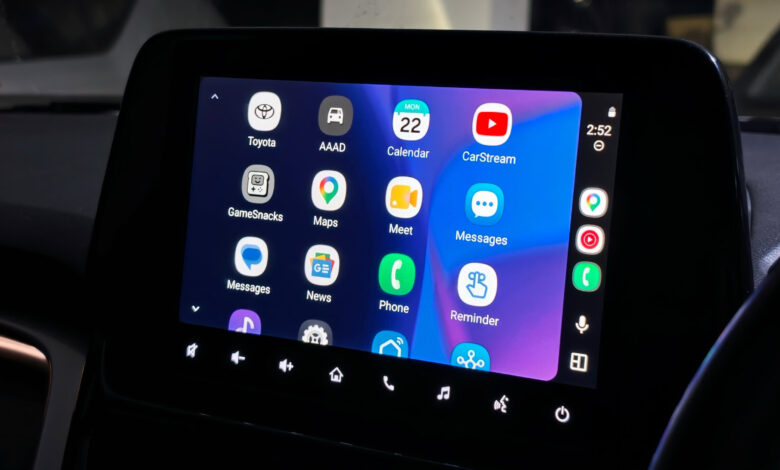
The final step involves installing an app known as Android Auto Apps Downloader (AAAD), which acts as an unofficial marketplace for third-party apps tailored for Android Auto. AAAD is not found on the Google Play Store, so you will need to install it manually from the developer’s releases. Ensure to permit installations from unknown sources on your Android device.
Upon installation, launch AAAD and complete the setup, which includes granting permissions for unknown app installations and notifications. Note that while the free version limits you to one app every 30 days, the Pro version allows unlimited installations for a one-time fee.
Expanding Android Auto’s Functionality
With AAAD ready, users can access a variety of third-party applications that extend Android Auto’s functionalities far beyond its standard offerings. Notable apps include:
- CarStream: This app allows you to watch YouTube videos right on the car display, even while the car is moving—though doing so is not advisable due to safety concerns.
- AAMirror: A useful app to mirror your phone’s screen to your car’s dashboard, perfect for playing locally stored videos or browsing contents directly.
- Fermata Auto: An all-encompassing multimedia application that enables streaming, file playback, screen mirroring, and web browsing.
Is Sideloading Apps a Good Idea?
The crux of the matter remains: should you sideload apps on Android Auto? Generally, the consensus is that it might not be in one’s best interest. Google does not endorse many third-party applications for a reason—they can be distracting and lead to unsafe driving behaviors.
While unearthing these capabilities transforms how one interacts with their vehicle’s display, most users are adequately served by the default functions of Android Auto for navigation, music, calls, and messaging alone.
In conclusion, while sideloading apps is indeed possible and opens up exciting options, it comes with risks. Regular updates from Google can disable these features, and recent system updates may complicate the process altogether. This functionality is intriguing to explore yet is likely best reserved as a novelty.