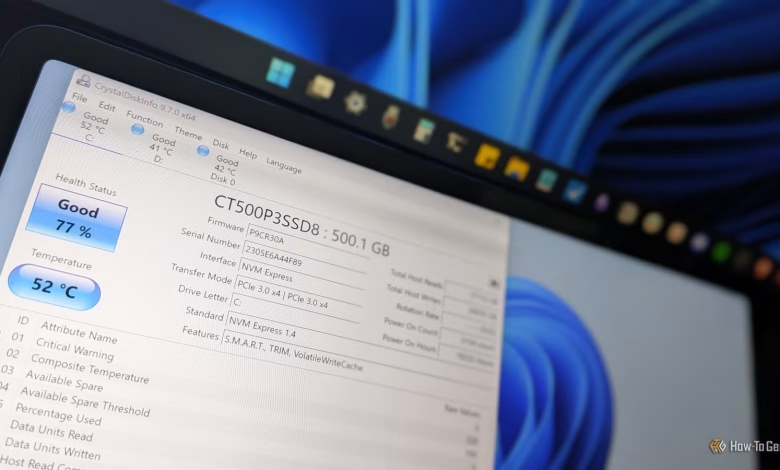
As SSD prices remain elevated, I decided to assess the condition of my SSD to determine if a replacement was necessary. Windows provided a surprisingly low health percentage but lacked clarity—there was no context regarding the trend, cause, or timelines. On the brink of investing in a costly new SSD, I sought a second opinion and turned to CrystalDiskInfo. This tool offered the insights I needed, confirming that my SSD still had ample life left and allowing me to postpone my purchase.
Understanding Windows’ SSD Health Information
Improved, Yet Still Incomplete
To its credit, Windows 11 does provide more useful information on SSD health than previous versions. By navigating to Settings > System > Storage > Advanced storage settings > Disks & volumes, users can view a list of storage devices along with their health statuses, indicating whether they’re functioning normally or are in decline. Clicking on Properties reveals additional metrics like estimated remaining lifespan, available spare space, and temperature readings.
While this is a step up from Windows 10, it still lacks actionable data. My SSD showed a health status of 77%, and the general guideline suggests backing up data and considering a replacement once it dips below 70%. While my SSD is nearing that threshold, the key questions remain unanswered: How many months can I expect it to last? How many write cycles are left? What caused the 23% wear? Is a new SSD necessary? Windows fails to provide clarity on these matters.
Utilizing CrystalDiskInfo for Comprehensive SSD Health Insights
Key Metrics for Informed Decisions
CrystalDiskInfo, a free and open-source application, offers a more in-depth look at the health of your drives, whether SSD or HDD. While it’s impossible to cover all metrics in detail, there are a few key figures that can help guide your decisions.
A critical metric is Total Host Writes, which indicated approximately 26TB written on my SSD. Considering it’s rated for 110TBW (terabytes written), this number explains my current 77% health status. It also indicates that roughly 7TB of writes remain before I reach that 70% mark.
Next, the Power-On Hours metric showed 19,229 hours of use—around 801 active days. This duration aligns with my usage patterns since I rarely shut down my PC unless I switch to Linux. Given that 801 days resulted in a 23% drop in health, I can estimate around 250 more days of continuous use before hitting critical levels. This information provides enough reassurance to delay purchasing a new SSD for now.
Another vital metric is Media and Data Integrity Errors, which displayed zero in my case, boosting my confidence in the drive’s reliability. If this number is above zero, it indicates read or write integrity failures, signaling an urgent need for a replacement. Similarly, the Critical Warnings metric, also at zero, further assured me of the drive’s stability.
Exploring Linux Tools for Deeper Insights
Beyond CrystalDiskInfo
While CrystalDiskInfo is robust, other tools can delve even deeper. For instance, my Error Information Log Entries indicated 6,617 instances. Despite the zero readings for Media and Data Integrity Errors and Critical Warnings, this figure raised concerns. Unfortunately, CrystalDiskInfo does not clarify its implications.
I couldn’t locate a suitable Windows tool, so I turned to Linux and employed the command-line utility nvme-cli. I documented how to utilize it in a comprehensive guide for a deeper analysis of your NVMe SSD’s health.
This tool revealed that the error entries resulted from the operating system querying firmware information that wasn’t supported, which generated benign logs. Knowing there was no critical issue was certainly a relief.
For anyone seeking a thorough view of SSD health, Linux tools like nvme-cli and smartmontools should be part of your toolkit, even if you primarily use Windows.
Prepare for SSD Failures
Ultimately, SSDs will inevitably fail—it’s not a matter of if, but when. Therefore, regularly checking your SSD’s health becomes essential. If any issues arise, consider it a prompt to back up your data and plan for a potential replacement.