Revamping My Excel Ribbon: A 10-Minute Transformation for Enhanced Productivity Daily

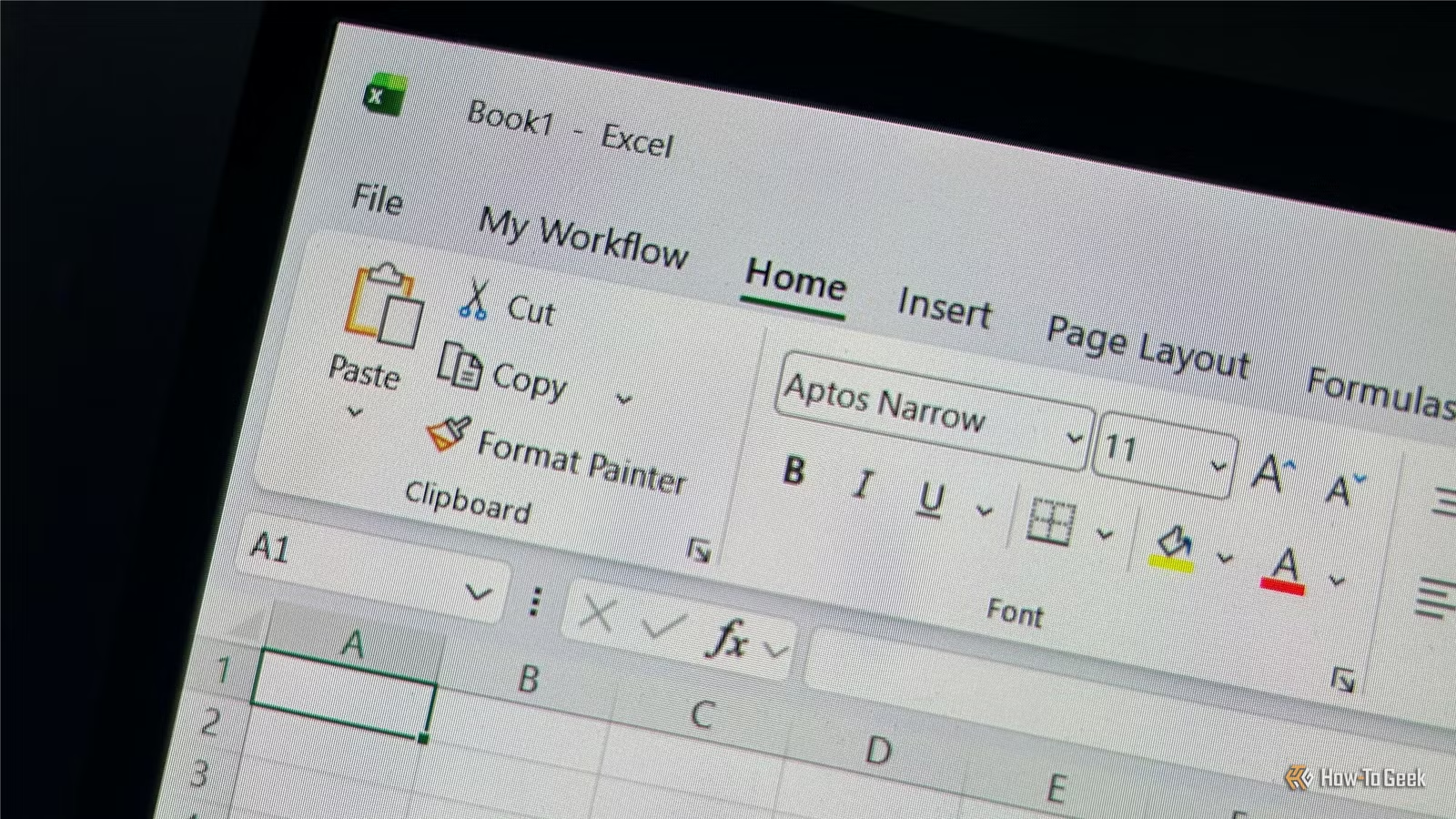
For a long time, I accepted the Excel interface as it came from Microsoft, even though I only utilized a small portion of its features. After taking about ten minutes to declutter and reorganize my essential tools, I ended up with a personalized workspace that significantly improved my efficiency and retained my changes every time I launched Excel.
Excel’s Interface Design: A Complex Balancing Act
Overwhelming Commands Hindered Productivity
Microsoft encountered a challenging situation while creating Excel’s user interface. The application must satisfy various users, from corporate financial analysts and engineers to students and casual users. This universal approach has resulted in a default ribbon that is packed with numerous features, most of which don’t align with my frequent tasks.
This inclusive design inadvertently leads to excessive visual noise. Each time I toggled between tabs, I had to sift through commands that I seldom, if ever, utilized before identifying the ones I actually needed. Although locating a command only took moments, those small delays accumulatively became a source of frustration over time. It dawned on me that Excel’s ribbon is customizable, freeing me from the constraints of the default arrangement.
Streamlined Layout Enhanced Command Accessibility
The first step in my customization was to eliminate the elements of the ribbon that obstructed my workflow. While individual tools within Excel’s predefined groups cannot be removed, entire groups can be eliminated if they aren’t helpful. I took ten minutes to tackle the obvious clutter before making further adjustments as I recognized which commands warranted a lasting spot on my ribbon.
Surprisingly, reorganizing the ribbon was straightforward:
- Right-click any area on the ribbon.
- Select Customize the Ribbon.
- In the right-side panel, expand the tab you wish to simplify and select the group to remove.
- Click Remove to eliminate the group, repeating as necessary.
- Press OK to finalize your changes.
Excel saves this new layout, meaning you don’t have to redo it for each new file.
Clearing out these groups felt akin to tidying up a messy desk. I removed sections with features I seldom used, like the Cells group in the Home tab, Text in the Insert tab, Forecast in the Data tab, Language in the Review tab, and Workbook Views in the View tab. I even eliminated single-tool groups such as Links from the Insert tab, as I usually employed the keyboard shortcut (Ctrl+K) instead. The end result was a more streamlined layout where every remaining option had its justified place.
If you prefer to modify a built-in group rather than removing it altogether, you can create your own version from scratch. I will explain how to do this later in the article.
I Hid Unused Tabs
An Instant Cleaner Ribbon
Having dismissed unnecessary groups, I looked for larger clutter sources. Excel allows users to hide entire tabs from the ribbon, which is practical for features that aren’t frequently needed but shouldn’t occupy space. This adjustment provided me with a cleaner starting point each time I opened a new worksheet.
Hiding tabs is as simple as removing groups:
- Click Customize the Ribbon again.
- Ensure Main Tabs is selected in the right-side menu.
- Uncheck the tabs you rarely use.
- Press OK.
Since I seldom use the Draw and Help tabs, concealing them made the ribbon appear significantly more organized—I no longer had to glance past items I knew I wouldn’t select.
To gain even more space in your workspace, click the down arrow on the right side of the Excel ribbon and choose Show tabs only. This option keeps the ribbon hidden until you select a tab, thereby conserving vertical space without removing any commands.
I Created a Ribbon Tailored to My Excel Use
Quick Access to Frequently Used Tools
Once I cleared away the less-used groups and tabs, I enhanced my customization by adding my own ribbon tab. This didn’t replace Excel’s existing tabs; I could access them when needed. Instead, it provided a dedicated space for my most-used commands, eliminating the need to navigate through different sections of Excel.
This also resolved an earlier frustration. Although Excel allows the removal of built-in groups, it doesn’t permit rearranging the individual commands within them, which can be frustrating if you regularly use just one tool out of several in a group.
Creating my own tab was straightforward:
- Open Customize the Ribbon.
- Click New Tab to set up a fresh custom section.
- Select Rename to designate your tab with a unique title, and do the same for any groups you create. You can even rename individual commands for better alignment with your workflow.
- Choose Main Tabs from the left-side menu, locate the commands you’re familiar with from Excel’s ribbon, and click Add.
- Utilize the arrows on the right to arrange your groups and commands. I prefer positioning my custom tab up top, ensuring it is furthest left on the ribbon.
- Press OK to save your personalized ribbon.
You can also modify the icons for specific commands in your custom groups. In the Customize the Ribbon window, select the command, hit Rename, pick an icon, and then press OK. This helps distinguish commands at a glance, especially if multiple Excel tools have similar icons.
There are two effective methods for organizing a custom ribbon. The functional approach categorizes commands by their purpose, such as creating a Formatting group for layout adjustments or an Analysis group for data manipulation. Conversely, a workflow approach could arrange groups around the phases of a project, like Data Cleanup, Analysis, and Final Review, guiding users smoothly through each step.
I structured my custom ribbon based on my actual usage of spreadsheets. My Most Used group contains frequently accessed commands, while my Formatting group holds common layout tools together, and my Analysis group consolidates tools for data exploration. Additionally, I included Sparklines since they’re important enough to have ready access but often go unnoticed in Excel’s default setup.
Once satisfied with this configuration, I utilized the Import/Export facility at the bottom of the Excel Options window to back up my ribbon customizations. This allows me to quickly restore my adapted interface on another computer or after reinstalling Office.
My Excel Workspace Feels Personal
For years, I thought the default Excel ribbon was something I had to accept. A few minutes of customization changed that perception. By removing clutter and organizing my essential tools, navigating Excel has become noticeably faster, and I have no intention of reverting to the default setup. After finalizing this, I also made other adjustments to the interface, such as enabling Dark Mode, customizing the Quick Access Toolbar, and activating Focus Cell features, resulting in a cleaner workspace specifically adapted to my Excel usage.




