With each new Android update, Google introduces a plethora of features, many of which go unnoticed while everyone focuses on the big highlights. As we approach the 17th major version of Android this year, it’s increasingly easy to overlook the wealth of functionality that’s been added over the years.
Apart from the well-known features you might already recognize, there exists a treasure trove of less publicized tools and improvements in Android, often customized by manufacturers. These enhancements can genuinely streamline daily tasks, yet most users remain oblivious to their existence. Here are a few hidden features that I find immensely useful—and you may want to explore them too.
I no longer fear accidentally dismissing notifications, thanks to Notification History
Android maintains a secret record of your cleared notifications
Let’s face it: many of us swipe away notifications without a second thought, often out of habit. It’s a common routine—especially when you’re groggy after waking up—to brush aside notifications before truly processing them.
However, a few minutes or hours later, you might find yourself questioning what you just dismissed.
Sometimes it’s inconsequential, but other times it’s crucial. An email from your boss inquiring about a missed quarterly meeting can surface unexpectedly, or a friend may express disappointment over a neglected invitation. In the worst cases, missing a dentist appointment might require you to plead for a reschedule.
The good news is that Android offers a Notification History feature where you can review all notifications you’ve dismissed. Unfortunately, it’s not prominently displayed in the notification shade, and you’ll have to dig through your phone’s settings to find it.
To enable Notification History, navigate to Settings > Notifications & Quick Settings > More settings > Notification history. Alternatively, you can simply search for “Notification history.” Once activated, you can reference a log of all your recently cleared notifications.
The “Alt-Tab” gesture significantly enhances my multitasking
A quick swipe accesses your recently used app
Opening and closing apps is an action I perform countless times each day. I’ve found that swiping across the bottom edge of the screen, from left to right, is the quickest method to switch apps, rather than pulling up the recent apps screen.
You can also swipe from right to left to return to the last app you used, and there’s no limit to the number of swipes you can perform. This is essentially the mobile equivalent of the “Alt-Tab” function on Windows.
This feature requires gesture navigation to be enabled; however, if you prefer the three-button navigation, there’s an alternative.
You can switch to your two most recently opened apps by double-tapping the Recents button. Rapid tapping allows you to scroll through recent apps, though this is less intuitive than the gesture navigation.
While accessing the app drawer is still necessary for less frequently used apps, this gesture is by far the quickest way to toggle between open apps.
Drag and Drop lets me move content between apps effortlessly
Share text and images without relying on screenshots or copy-pasting
It’s common for me to take screenshots or copy-paste text or images from one app and send them via chat. However, Android 14 introduced an underutilized feature that streamlines this process: you can drag and drop content between applications.
To use it, just select text, an image, or a link, then press and hold for a moment to drag it to your desired app at the bottom of your screen. If you hold it with one hand, you can swipe to switch apps with the other hand before releasing it.
This functionality also works in multi-window mode and feels quite intuitive once you realize the drag-and-drop mechanics are similar to those of a computer mouse.
Some applications even enhance this feature; for example, my OnePlus 15’s gallery app allows me to isolate elements from images effortlessly, making sending cutouts a breeze.
It’s important to note that app support for this feature may vary; I’ve encountered apps like Messenger that do not support it due to the text reaction menu popping up instead.
App pinning prevents others from snooping on my phone
Lock your device to a single app before passing it along
App pinning enables you to lock the screen to a specific application, preventing access to your phone’s other content. This is especially useful when handing your device to someone else or letting kids use it for games or videos.
To enable app pinning, navigate to Settings > Security & Privacy > More Security > App pinning.
The naming conventions on your device may slightly differ, so utilizing the search function may simplify the process. Additionally, some devices may restrict app pinning when using gesture navigation, requiring a switch to the three-button system.
After turning on app pinning, open the application you wish to pin, access the recent apps screen, tap the three-dot menu next to the app, and select Pin. To unpin the app, you will generally need to unlock your phone.
Pinned shortcuts bring me right where I need to be without app launches
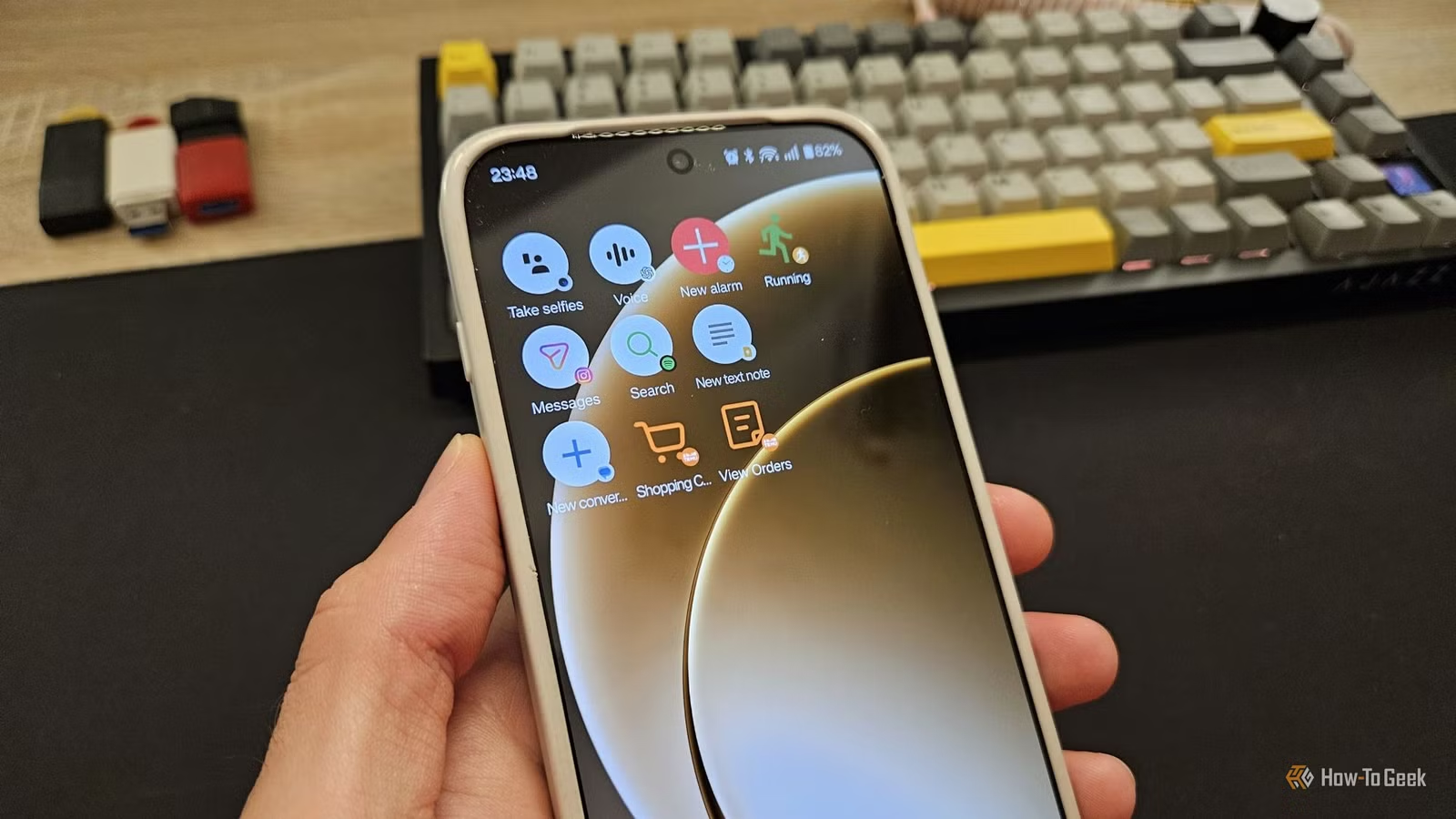
Continuing the theme of pinning, did you know you can pin specific actions from certain apps to your home screen? This feature is highly convenient, particularly if you frequently access a particular section of an app. For example, rather than just launching the main Amazon app, you could pin a shortcut to your orders or cart.
Pinnin shortcuts is easy: long-press the app of choice, and when the shortcuts menu appears, drag your desired shortcut to an empty space on your home screen. It’s that simple!
Your favorite Android feature may be one you’ve yet to discover
I’ve only scratched the surface of hidden Android features. There’s a strong chance you’ve encountered at least one that you didn’t know about, and I hope it becomes a regular part of your routine now that you’ve discovered it. Numerous other useful features on your Android device are waiting for you to find them. So get out there and explore!